
To add llms.txt to WordPress, switch it on in the SEO plugin you already use, or upload a small text file to your site’s root folder (usually public_html). Which route fits depends on two questions: do you run Yoast, Rank Math, or All in One SEO (AIOSEO), and can you reach your site’s files?
Set your expectations before you start. Google says its Search features don’t use llms.txt. In Ahrefs’ study of 137,210 domains, 97% of the llms.txt files it found got no requests at all in May 2026.
It costs a few minutes and does no harm, so it’s worth doing cleanly, not worth paying a lot for. SE Ranking’s study of about 300,000 domains found no lift in AI citations either (what the 2026 data says).
What llms.txt is (and what it can’t do)
llms.txt is a Markdown file at your site’s root that lists the pages you want AI tools to read first, with a one-line summary of the site. Jeremy Howard proposed it on September 3, 2024, and it’s still a proposal, not a web standard.
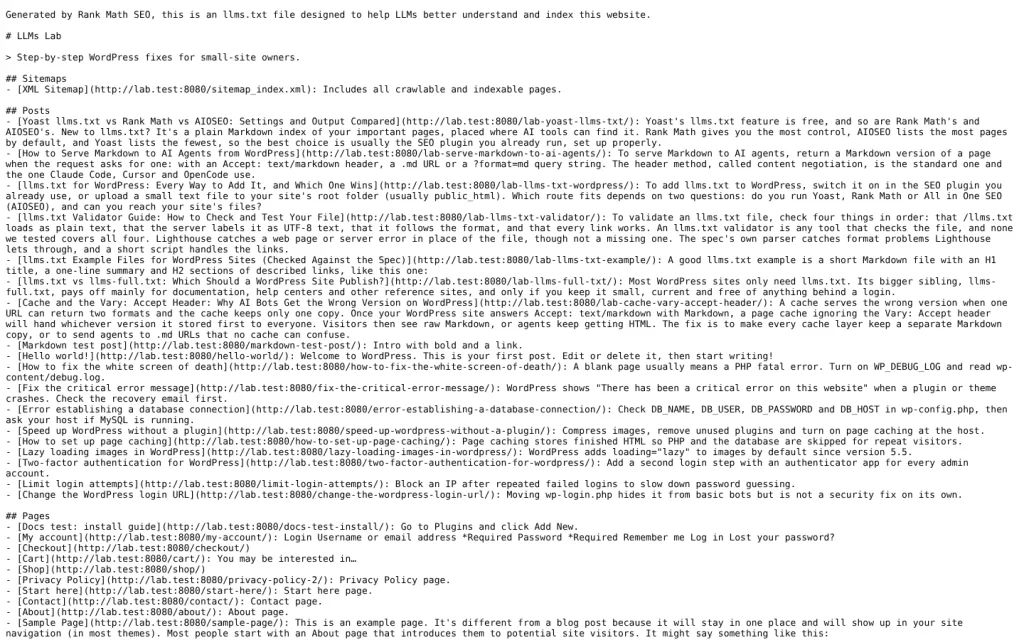
The format is loose. Only the first line, an H1 with your site name, is required. After that, you can add a short summary in a blockquote, a few notes, and H2 sections full of links, plus an optional section called “Optional” for links an AI tool can skip.
People often lump it in with two older files. They do different jobs:
| File | What it does | Does it control access? |
|---|---|---|
robots.txt | Tells crawlers which paths they may crawl | It asks; well-behaved bots obey |
| XML sitemap | Lists every URL you want search engines to find | No |
llms.txt | Points AI tools to a short, curated set of pages | No |
llms.txt doesn’t block anything or grant permission for anything. If you want to keep AI crawlers out, that’s a job for robots.txt and your server.
llms.txt is also different from the AI features built into WordPress itself. WordPress 6.9 added the Abilities API, which lets AI tools act on a site, not just read it, and 7.0 built on it.
Which way to add llms.txt to WordPress fits your site
The right method for adding llms.txt depends on your setup: an SEO plugin you already run, a file you upload to the web root, or a short snippet when you can’t reach the files.
| Your setup | Best method | Section |
|---|---|---|
| Yoast, Rank Math, or AIOSEO already installed | Turn on the plugin’s llms.txt feature | Turn on llms.txt in Yoast, Rank Math or AIOSEO |
| No SEO plugin, but File Manager or SFTP access | Upload a handwritten file | Write the file yourself |
| WordPress.com Personal or Premium, or a host that locks the root folder | Serve it with a snippet | No file access |
You also want llms-full.txtMarkdown copies of your pages, or a file that rebuilds itself | A dedicated plugin | Dedicated llms.txt plugins |
| Multisite network | Check the multisite notes first | Multisite, subfolder installs |
On WordPress.com, plugins are allowed on the Personal, Premium, Business, and Commerce plans, but file access over SFTP comes with Business. That’s why the snippet route exists.
Turn on llms.txt in Yoast, Rank Math, or AIOSEO
Each of the big three SEO plugins has an llms.txt switch: Yoast under Site features, Rank Math as the LLMS Txt module, AIOSEO under Sitemaps. Turn on only one; the section on two tools explains why. If you haven’t picked an SEO plugin yet, llms.txt alone isn’t a reason to prefer one; our WordPress SEO guide covers what to compare.
Yoast SEO
- Go to Yoast SEO → Settings → Site features.
- Under AI tools, switch on LLMS.txt.
- Save your changes.
- Optional: pick pages under Customize llms.txt file.
Then visit your-site.com/llms.txt to see the file.
Yoast writes a real file to your site’s root and rebuilds it once a week, according to its llms.txt specification. By default it lists the five most recently updated posts or pages (posts only if published in the last 12 months, cornerstone content first) and the five categories or tags with the most posts. If an llms.txt file already exists, Yoast won’t overwrite it. It shows a warning instead, and you have to delete the old file first.
The feature is in the free plugin. One public example made by Yoast 25.3.1 opened with a “Generated by Yoast SEO” line and a sitemap line above the H1, the same ordering problem Rank Math has (more on that below).
Rank Math
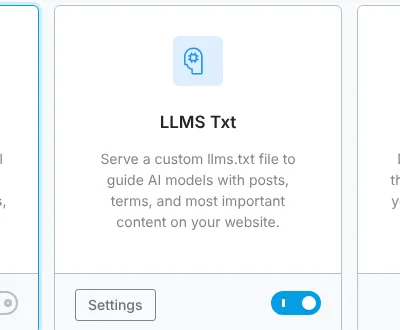
- In Rank Math SEO → Dashboard, switch on LLMS Txt.
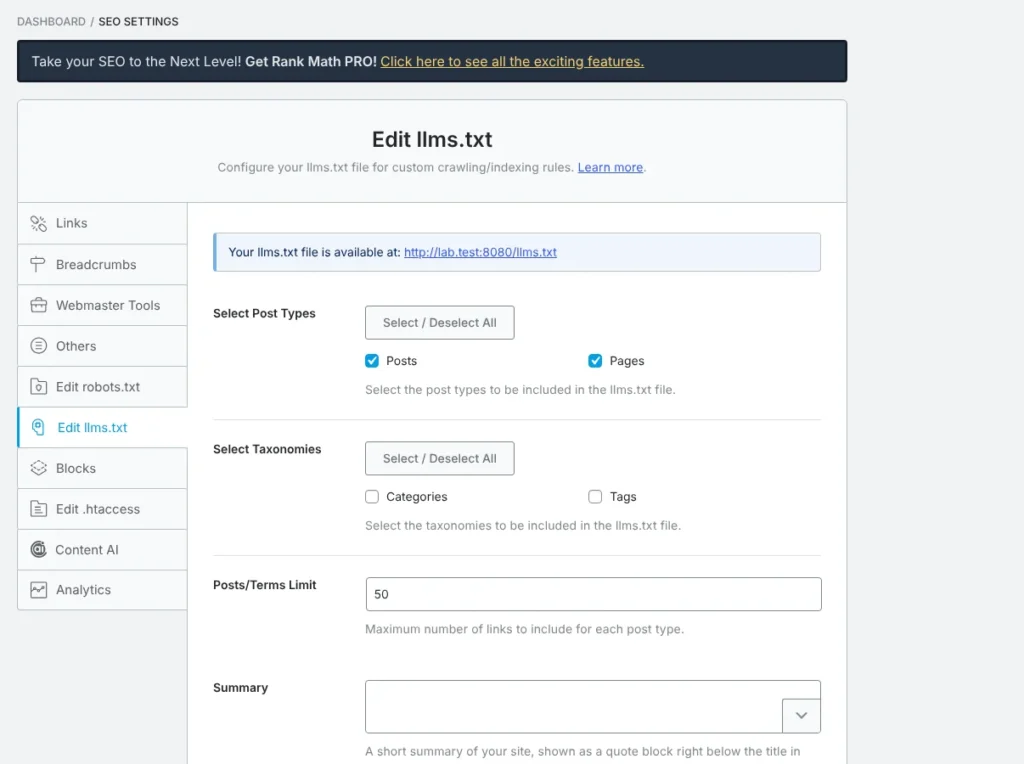
- Open General Settings → Edit llms.txt.
- Pick post types, taxonomies, the limit and a summary.
- Save your changes.
Then visit your-site.com/llms.txt to see the output.
On a test install (WordPress 7.1.3, Rank Math 1.0.280 free), three things weren’t in Rank Math’s documentation:
- The module did nothing until Rank Math’s setup wizard was finished by connecting a free account or skipping that step. Until then Rank Math doesn’t load any modules, so
/llms.txtstays a 404. - Posts and Pages were already ticked, with a limit of 50 links per post type. The knowledge base still says the file is empty until you configure it.
- Rank Math serves the file from WordPress on the fly, and it prints a “Generated by Rank Math SEO” line above your site name. The proposal puts the H1 first, so a strict parser may not see your site name as the title.
All in One SEO (AIOSEO)
- Go to All in One SEO → Sitemaps → LLMs.txt.
- Switch on llms.txt.
- Fill in the title, description, post types and taxonomies.
- Save, then click Open llms.txt to check it.
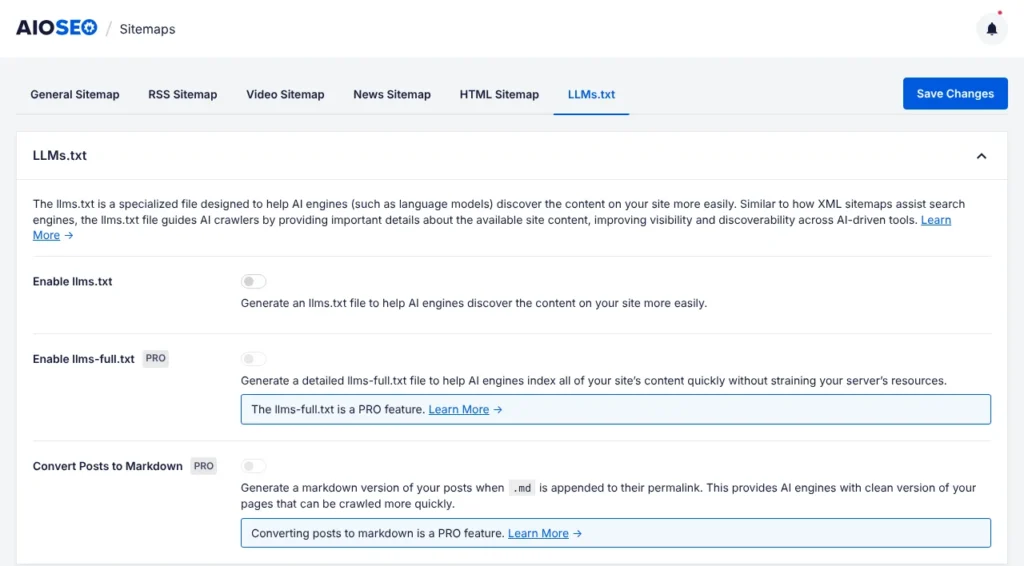
AIOSEO’s docs say the feature is on by default. On a fresh test install of AIOSEO 5.0.3, without running its setup wizard, it was off, so check the switch.
Once on, AIOSEO writes a real file to your root, rebuilds it daily and after you edit posts or terms, and deletes it when you switch the feature off. The free version makes llms.txt. The full-content llms-full.txt is a Pro feature.
The three files aren’t equal, as the defaults table further down shows, and our side-by-side comparison of the three plugins’ output shows what each one writes.
Write the file yourself and upload it to the web root
Save a plain-text file named llms.txt with an H1, a one-line summary and a handful of links, then upload it to your web root. The web root is the folder your domain serves files from, usually public_html or www, and it’s the folder that holds wp-config.php on most hosts.
Start from this and replace every line with your own pages:
# Your Site Name

> One sentence on what the site covers and who it's for.

## Start here
- [About](https://example.com/about/): who runs the site and why
- [Start here](https://example.com/start-here/): the five guides most readers need first

## Guides
- [Speed up WordPress](https://example.com/speed-up-wordpress/): caching, images and hosting checks
- [Fix the white screen](https://example.com/white-screen/): find the plugin or theme that crashed

## Optional
- [Changelog](https://example.com/changelog/): what changed on the site and when
To upload it:
- Save it as UTF-8 plain text named exactly
llms.txt. - Open your host’s File Manager or an SFTP app.
- Upload it to the folder that holds
wp-config.php. - Visit
https://your-site.com/llms.txtto check it.
Watch the name: some editors save llms.txt.txt. On a Mac, choose Format → Make Plain Text in TextEdit before saving. When it works, the browser shows your plain text, not a WordPress page.
The proposal also allows a file in a subfolder, such as /docs/llms.txt, that covers only the pages under that path. Most WordPress sites only need the root file.
A hand-written file never updates itself. Put a reminder in your calendar to review it when you publish or retire a cornerstone page.
No file access? Serve llms.txt with a snippet
Without file access, a small snippet can answer /llms.txt from inside WordPress. On WordPress.com Personal or Premium, install a snippets plugin such as WPCode or Code Snippets and paste the code there (we haven’t tested it on WordPress.com itself); those plans can’t create must-use plugins without SFTP. The Free plan allows neither route.
If you do have file access but prefer code to a plugin, save it as a must-use plugin (wp-content/mu-plugins/serve-llms-txt.php). In a snippets plugin, paste only the part from add_action down and set it to run on the front end:
<?php
/**
 * Plugin Name: Serve llms.txt
 * Description: Answers /llms.txt from the text below.
 */

add_action( 'parse_request', function () {
	$path = wp_parse_url( $_SERVER['REQUEST_URI'] ?? '', PHP_URL_PATH );
	if ( '/llms.txt' !== $path ) {
		return;
	}

	$body = <<<'LLMS'
# Example Site
> Example Site publishes step-by-step WordPress guides for small-business owners.

## Guides
- [Start here](https://example.com/start-here/): what to read first
- [Speed up WordPress](https://example.com/speed-up-wordpress/): caching, images and hosting checks

## About
- [About us](https://example.com/about/): who writes the guides
LLMS;

	status_header( 200 );
	header( 'Content-Type: text/plain; charset=utf-8' );
	echo $body . "\n"; // phpcs:ignore WordPress.Security.EscapeOutput -- static Markdown.
	exit;
} );
Replace the text between <<<'LLMS' and LLMS; with your own file. Keep the closing LLMS; at the start of its line.
On a test site running WordPress 7.1.3 behind Nginx, this returned the file with a 200 status and text/plain, and every other missing URL still returned a normal 404. It hooks into parse_request, so WordPress never builds a 404 page for /llms.txt.
A typo in PHP can take a site down, so test on staging first, or keep File Manager open to delete the file. Snippets plugins usually switch off a snippet that throws an error.
Two limits: the snippet only runs when no real llms.txt file exists in the root (see the section on two tools), and you edit the text by hand, just like an uploaded file.
Dedicated llms.txt plugins, and when one is worth it
A dedicated llms.txt plugin is worth it when your SEO plugin’s output is too thin, or when you also want llms-full.txt or Markdown versions of your pages. Here’s what the main options generate (install counts from WordPress.org, October 2026):
| Plugin | Makes llms.txt | Makes llms-full.txt | Markdown copies of pages | Price |
|---|---|---|---|---|
| Website LLMs.txt (50,000+ installs) | Yes, file in root, updates immediately, daily or weekly | Not listed | No | Free |
| LLMs.txt and LLMs-Full.txt Generator (5,000+ installs) | Yes | Yes | No | Free, Pro extras |
| Skyboot AI Markdown (ours) | Yes | Yes (off by default) | Yes, per our docs: .md URLs, ?format=md, Accept: text/markdown | From $49/year |
Website LLMs.txt has one habit worth knowing: if it keeps finding an llms.txt it didn’t write, it stops rebuilding and names that file on its settings screen. That’s the right behavior, and it points at a common problem on WordPress sites: two tools making the same file.
The last row is our plugin, so weigh that. It’s the hands-off route: it builds /llms.txt with a section for each content type, your SEO plugin’s meta descriptions as the link notes, and a rebuild every time you publish, update or delete something. If the summary line is empty, it uses your site tagline, and a Write with AI button can draft one from your pages. We built it because llms.txt only lists links, and the pages behind them are still full HTML, which costs AI tools more tokens than Markdown (see our HTML vs Markdown token test). According to our documentation on llms.txt and Markdown pages, Markdown responses carry a canonical header pointing to the HTML page and a noindex header, so they don’t compete with it in Google.
If all you need is llms.txt, your SEO plugin or a free plugin is enough. Ours earns its price when you also want Markdown pages, or want the file built and kept current without touching settings or files. Most blogs don’t need llms-full.txt; it earns its keep on documentation sites. If you do want Markdown pages, content negotiation and .md URLs are how agents ask for them.
Which pages to list, and the defaults to clean up
An llms.txt file should list the pages that explain what you do and your best reference content, not everything. Plugin defaults pull in WordPress’s sample content and empty categories.
On the test install, both Rank Math and AIOSEO listed WordPress’s default “Hello world!” post and “Sample Page”, and AIOSEO also listed the empty “Uncategorized” category. Delete or unpublish those on a live site, or exclude them in the plugin.
Live sites pick up their own clutter. When we checked skybootstrap.com’s own llms.txt on October 19, 2026, it listed four newsletter system pages (opt-in confirmation, preferences, unsubscribe confirmation and an unsubscribe survey). No AI tool needs those, so they’re the first thing to exclude.
Some tools do part of this cleanup for you. Our plugin leaves out noindexed and password-protected posts, privacy and terms pages and store cart, checkout and account pages, and you can untick whole content types. To drop a single page such as a newsletter screen, set it to noindex in your SEO plugin, per its llms.txt documentation.
The defaults also decide how much of your site ends up in the file:
| Tool | What it lists by default | Limit |
|---|---|---|
| Yoast SEO | 5 most recently updated items, 5 biggest categories or tags | Fixed at 5 each, unless you pick pages manually |
| Rank Math | Posts and Pages (taxonomies off) | 50 per post type in the settings field |
| AIOSEO | Every public post type and taxonomy (posts, pages and categories on the test install) | Up to 1,000 per post type or taxonomy |
Neither extreme fits most sites. Five links won’t show what a 200-post blog covers, and 1,000 links turn a short index into a sitemap. Keep it to the pages you’d hand a new reader, usually a few dozen at most:
- Your about page and one “start here” page
- Cornerstone guides and hub pages, one line each
- Product, service or documentation pages people ask about
- No tag archives, author pages, thin posts, thank-you pages or anything behind a login
Stores and documentation sites need more than a list of links. A store needs price and stock that AI shopping agents can read, so check what your WooCommerce product pages tell them. A help center needs pages an AI tool can quote one section at a time, which is what AI-friendly documentation covers.
Write each link’s note as what the reader gets from that page, not a repeat of the title. For copy-ready notes, see four annotated llms.txt files for a blog, a store, a local business and plugin docs.
When two tools both make llms.txt, which one wins
On standard Apache and Nginx setups, a real llms.txt file in the web root wins. Both serve an existing file before WordPress runs, so a plugin’s generated llms.txt only shows when no file is there.
WordPress’s standard rules say this outright. The Apache rules send a request to WordPress only if no matching file exists (RewriteCond %{REQUEST_FILENAME} !-f), and the recommended Nginx rule tries the file first (try_files $uri $uri/ /index.php?$args;).
On the test install, both servers behaved the same way:
- A hand-written
llms.txtin the root was served even with Rank Math’s module on. - With AIOSEO’s file in the root and Rank Math’s module also on, visitors got AIOSEO’s file. Rank Math’s settings still said “Your llms.txt file is available at …/llms.txt”, which was true of the URL but not of the content.
- Switching AIOSEO’s llms.txt off deleted its file, and Rank Math’s version appeared straight away.
So when you edit llms.txt in one plugin and nothing changes, another tool’s file is probably sitting in the root. Check which kind of response you’re getting:
curl -sI https://your-site.com/llms.txtA real file usually comes back with Last-Modified, ETag and Accept-Ranges: bytes headers. On the test install, Rank Math’s generated version had none of those and added X-Robots-Tag: noindex, nofollow.
No terminal? Open your browser’s developer tools, go to the Network tab, load /llms.txt and read the response headers. A caching plugin or CDN can add its own headers, so treat this as a strong hint, not proof. To be sure, open your web root and look for the file.
The fix: pick one tool, switch llms.txt off everywhere else, and delete any leftover file. If you still get a 404 or an old version, re-save Settings → Permalinks and clear your page cache. Two likely causes are a stale rewrite rule and a cached 404 page. With our plugin, its troubleshooting page lists a Flush Rewrites & Clear Transients button under AI Markdown → System Status. It also warns that a CDN can keep an old /llms.txt for up to a day, so purge it there too. Then run the spec’s parser and Lighthouse’s check on the file to confirm it’s the version you meant to publish.
Multisite, subfolder installs, and switching llms.txt off
llms.txt must sit at the root of the domain your visitors see. On multisite, each site needs its own file, and switching a plugin off doesn’t always delete the file it wrote.
If WordPress lives in a subfolder such as /wp/ but your site shows at example.com, the file still belongs at example.com/llms.txt. Upload it to the domain’s root, not the WordPress folder.
Multisite is harder. Yoast’s llms.txt isn’t available there at all, and on a subdirectory network every site shares one web root, so a single uploaded file would answer for all of them. Use a tool that generates the file on the fly for each site instead of writing one file to disk, or skip llms.txt on sub-sites.
To switch llms.txt off, turn the feature off and then visit /llms.txt. AIOSEO deleted its own file on the test install; other tools may leave theirs behind. If the file still loads, delete it from the root with File Manager or SFTP.
Once your file is live, visit /llms.txt and run the header check from the section on two tools. Before adding Markdown versions, check how your page cache or CDN will handle them, or visitors can be served the Markdown copy.
Frequently Asked Questions
Is llms.txt required for a WordPress site?
No. llms.txt is an optional proposal, and WordPress works the same without it. Google says Search doesn’t use these files and that they neither help nor hurt rankings. Add it if it takes you a few minutes, and skip any tool or service that sells it as a traffic boost.
Can llms.txt expose private or draft content?
llms.txt only contains the links you or your plugin put in it. Hand-written files list what you type. Plugins pull published content, and some skip private or password-protected posts and noindexed pages. Our plugin, for example, lists only published content and leaves out password-protected posts; its security notes add that drafts and private posts return “not found” as Markdown. Open the file after setup and remove anything you wouldn’t put in a public menu.
Should llms.txt be noindexed?
You can, but it doesn’t matter much. Rank Math already sends an X-Robots-Tag: noindex, nofollow header with its file, so search engines won’t list it. The file is meant for AI tools, not search results, and noindex doesn’t stop those tools from reading it.
Set up llms.txt on your site: the short path
- Choose the route. If you run Yoast, Rank Math, or AIOSEO, turn on its llms.txt switch. With no SEO plugin, write the file by hand or use the snippet. If you want Markdown pages too, or a file that keeps itself current, use a dedicated plugin such as ours.
- Clean the list. Delete the sample post and page, exclude system and thank-you pages, and write one useful note per link.
- Make sure one tool answers. Switch llms.txt off everywhere else, delete leftover files, then run
curl -sIon/llms.txtand confirm the response matches the tool you kept. - Decide on the extras. Add
llms-full.txtonly for documentation, and Markdown pages only if coding agents read your site. Check your caches before you turn either on.