
AI-friendly documentation is help content an AI assistant or coding agent can fetch, read one section at a time and quote correctly. On WordPress, a few defaults work against that, so it pays to check. When we checked seven of our own articles with a small script, it flagged nine phrases that point elsewhere on the page, such as “the table above”. Five of the nine sent the reader to a different section.
This guide applies the rules that docs teams such as n8n follow to help docs and knowledge bases built on WordPress. It covers what we found when testing how WordPress output reads to an AI tool, and how to check your own pages.
What is AI-friendly documentation?
AI-friendly documentation is documentation an AI tool can find, read in pieces and quote correctly: one topic per page, sections that stand alone, instructions in text and a plain-text version to fetch. Most of it is ordinary good documentation practice, applied more strictly.
A knowledge base is a collection of help articles, whether you build it from WordPress pages, a custom post type or a docs plugin.
AI tools rarely read your docs the way a person does. A coding agent fetches one page, often as Markdown. A support bot may pull a single section into its answer. n8n’s documentation guide says pages should be “short enough to retrieve without truncation”, and that each section should make sense without “as mentioned above”. Most of the rules that follow come from that idea, and most of them make the docs better for people too.
Structure each page so a section stands alone
Give each page one task or topic, answer it in the first sentence, and write every section so it still makes sense if an AI tool reads only that section. A self-contained section names the thing it’s about, instead of relying on “it”, “this setting” or “the table above”.
In practice, following platformOS’s list of docs rules and n8n’s guide:
- One page per task (“Reset your password”) or concept (“How billing cycles work”), not one long page per product area.
- A plain answer in the first sentence under the title.
- Headings that say what’s in the section. “Change the cache time” beats “Advanced”.
- Steps as a numbered list, comparisons as a table and code in code blocks, so the structure survives conversion.
Cross-references are the easiest thing to miss, so we wrote a script that flags them. It fetches the Markdown version of each page, or reads a local .md file. It then flags phrases that point elsewhere, vague or repeated headings, sections over 800 words and images with no alt text. Save it as docs_lint.py and run python3 docs_lint.py followed by the page URLs.
If you don’t use a terminal, skip the script: open a page, use your browser’s Find for “above”, “below”, “earlier” and “previous”, and rewrite any match that points to another section. The script needs a Markdown version of each page; if you don’t have one yet, see the Markdown section below.
The script:
#!/usr/bin/env python3
"""Check docs pages for things that trip up AI agents.
Usage: python3 docs_lint.py https://example.com/docs/page-one/ [more URLs or .md files]
Fetches each URL as Markdown (Accept: text/markdown, then .md), or reads a local .md file.
"""
import re
import sys
import urllib.request

# Phrases that point to another part of the page; a chunk read on its own loses that context.
BACKREF = re.compile(r"\b(as (mentioned|shown|described|noted|explained) (above|below|earlier)|see (above|below)|(the|this|these) (\w+ ){0,3}(above|below)|the (previous|next|last) section)\b", re.I)
VAGUE = {"overview", "introduction", "intro", "notes", "more", "other", "misc", "details", "conclusion", "summary", "faq", "advanced", "general"}

def get(src):
    if not src.startswith("http"):
        return open(src, encoding="utf-8").read()
    for url in (src, src.rstrip("/") + ".md"):
        req = urllib.request.Request(url, headers={"Accept": "text/markdown", "User-Agent": "docs-lint/1.0"})
        try:
            with urllib.request.urlopen(req, timeout=20) as r:
                ctype = r.headers.get("Content-Type", "")
                if "markdown" in ctype or (url.endswith(".md") and "text/plain" in ctype):
                    return r.read().decode("utf-8", "replace")
        except Exception:
            pass
    return None

for src in sys.argv[1:]:
    text = get(src)
    if text is None:
        print(f"\n{src}: no Markdown version found (serve Markdown first, or pass a .md file)")
        continue
    md = re.sub(r"(?ms)^(`{3,}|~{3,}).*?^\1[ \t]*$", "", text)  # ignore fenced code blocks
    sections = re.split(r"(?m)^(##+ .*)$", md)
    sections[0:1] = ["(intro)", sections[0]]  # also check the text before the first H2
    problems = []
    seen = set()
    for i in range(0, len(sections), 2):
        head, body = sections[i].lstrip("# ").strip(), sections[i + 1]
        words = len(re.findall(r"\w+", body))
        if head.lower() in VAGUE:
            problems.append(f'vague heading "{head}"')
        if head.lower() in seen:
            problems.append(f'duplicate heading "{head}"')
        seen.add(head.lower())
        if words > 800:
            problems.append(f'"{head}" is {words} words; consider splitting')
        for m in BACKREF.finditer(body):
            problems.append(f'"{head}": check "{m.group(0)}" (does the section make sense without it?)')
    for m in re.finditer(r"!\[\s*\]\(([^)]+)\)", md):
        problems.append(f"image with no alt text: {m.group(1)}")
    print(f"\n{src}: {len(problems)} issue(s)")
    for p in problems:
        print("  -", p)
We ran it on lab copies of seven of our own articles and one test page. It found nine phrases such as “the plugin below” and “the table above”, plus one image with no alt text, and no vague headings or overlong sections.
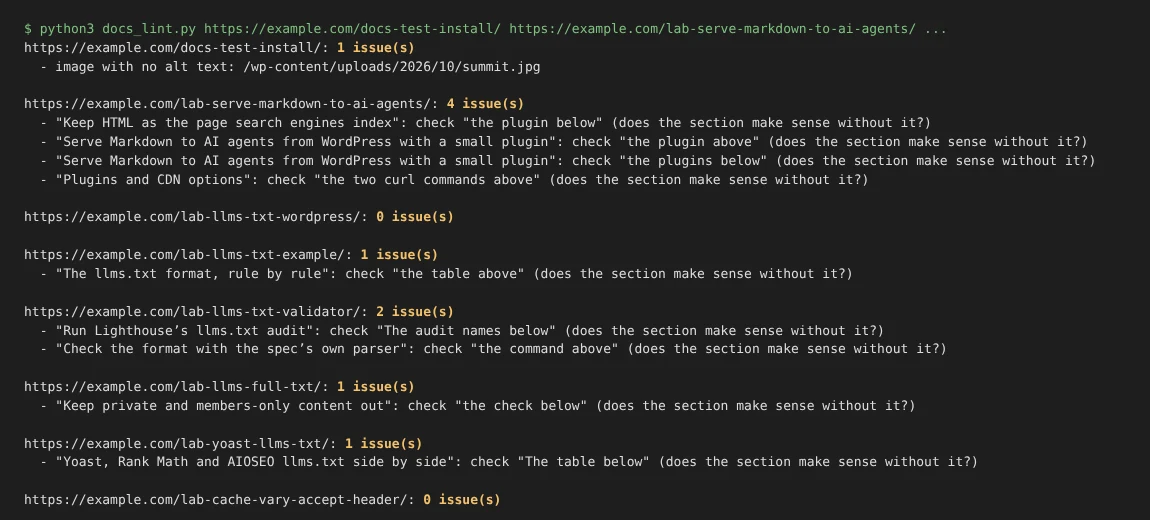
When we checked each one by hand, five of the nine pointed to a different section, so an AI tool quoting that section alone would get a dangling reference. The other four pointed to a table or code block in the same section, which is fine. The script can’t tell the two apart, so treat its output as a list to review, not a list of errors.
Fixing a flagged phrase usually takes a few words. “Use the setting from the table above” becomes “Set Cache time to 3600 seconds”. “Install the plugin below” becomes “Install the Example Cache plugin”. The section now carries its own answer.
Give every section a stable link
Set an HTML anchor on every heading you might link to, because WordPress doesn’t add one by default. Keep page URLs stable, with a redirect whenever one changes. A heading anchor is the id on a heading that lets a link jump straight to that section, such as /docs/install/#configure.
On our WordPress 7.1.3 test page, a plain heading block came out as <h2 class="wp-block-heading">Install the plugin</h2> with no id. Only the heading where we had filled in the anchor got one. Some docs and table-of-contents plugins add ids for you, so view the page source of one of your articles before adding anchors by hand. To add one:
- Select the heading in the block editor.
- Open Advanced in the block settings sidebar.
- Type a short, permanent name in HTML anchor, such as
configure.
Once an anchor is published, treat it like a URL and don’t rename it, or links to it will land at the top of the page instead.
Links to sections are how an AI tool can cite the exact answer rather than the top of a long page. In our test, the Markdown version kept the heading text but not the id, so the anchor helps on the HTML page and in links, not inside the Markdown an agent reads. If you rename or move a page, add a 301 redirect from the old URL, so links in old answers and old llms.txt files still land.
Put instructions in text, not images or accordions
Write every step in text, give images real alt text, and remember that AI tools read accordion and tab content that people only see after a click. n8n’s guide puts it plainly. Agents “receive only alt text and file paths” for images, and they “read every tab while people see only one”.
What we saw on a WordPress test page:
- An image inserted with no alt text became
in the Markdown version, a picture with no description. The caption under it survived, so a caption that says “Click the blue Save button” still reaches the agent. A screenshot with the instruction written only inside the picture would not. - Text inside a Details block, WordPress’s built-in show/hide block, was in the page HTML and in the Markdown, even though visitors only see it after clicking. WordPress also has Accordion and Tabs blocks, which we didn’t test, so check their Markdown output the same way. Anything you tuck away as “advanced” is read as part of the answer, so keep it accurate and say when it applies.
- When we ran a general-purpose extraction tool, trafilatura, over the same page, it returned the site’s navigation menu as part of the content and flattened the headings. That’s one reason to serve a purpose-built version, covered next.
Publish Markdown and llms files for your docs
Serve each docs page as Markdown and list your docs in an llms.txt file. Add an llms-full.txt too if your docs are small enough to read in one go. Coding agents already ask for Markdown.
Markdown strips the theme and keeps the structure. On our test site, the HTML page of a full article cost 6 to 12 times the tokens of its Markdown version.
That figure comes from our 20-page token study. To give every docs page its own .md address, serve Markdown versions with a small plugin. To check a page, open it with .md added to the address, if your setup supports that, and read what comes back. Our own Skyboot AI Markdown plugin serves Markdown for every post type by default, custom post types included, according to its documentation. A documentation post type gets its own section in the plugin’s llms.txt (from version 2.7.2), with each article’s meta description as its note when you’ve set one. Whatever you use, open one article’s .md address after setting it up and read it.
Software documentation is where llms.txt files see the most use, according to the llms.txt proposal itself. List your docs sections there with one line each. The llms-full.txt file puts the full text in one file, which suits a small set of docs better than a large one. On a docs site both files usually make sense, because the full file suits the exact how-do-I questions people ask about docs. Adding llms.txt to WordPress takes a few minutes with your SEO plugin or a dedicated one.
Keep terms, versions and dates consistent
Use one name per feature everywhere, say which version or plan each instruction applies to, and date pages that describe behaviour that changes. An AI tool that sees “workspace” on one page and “project” on another may treat them as two things, which is why n8n’s guide asks you to use the same term for the same concept.
- Keep a short glossary page and use its terms in every article.
- Put version or plan limits where they apply, in the sentence or table cell, not only in a note at the top.
- Keep older versions at their own URLs if you document more than one, so an agent can tell which page matches the user’s version.
- Show a “last updated” date on pages about settings or screens that change.
Frequently Asked Questions
What makes documentation AI-friendly?
AI-friendly documentation is help content an AI tool can find, read in pieces and quote correctly. That means one topic per page, sections that stand alone, instructions in text rather than images, and a Markdown or plain-text version to fetch. Most of it is ordinary good documentation practice, applied more strictly.
Can AI tools read content inside accordions and tabs?
Usually, when the hidden text is in the page HTML. On our test site, text inside WordPress’s Details block appeared in both the HTML and the Markdown version. We didn’t test the Accordion and Tabs blocks or tab plugins that load content on click, so check their Markdown output. Images are different: agents receive only alt text and file paths, so describe every step in text.
Does WordPress add anchor links to headings automatically?
No. WordPress doesn’t add an HTML anchor to headings by default, so set one on every heading you might link to, in the heading block’s Advanced panel. Keep page URLs stable as well, adding a redirect whenever one changes, so links to a specific section keep working for people and AI tools.
A checklist before you publish a docs page
Before publishing, check that the first sentence answers the page’s question, each section stands alone, key headings have anchors, images have alt text and the Markdown version reads correctly. In order:
- Does the first sentence under the title answer the page’s question?
- Does every heading say what the section covers?
- Does each section make sense on its own? Run
docs_lint.py, or search the page for “above” and “below”, and review what you find. - Do the headings people link to have an HTML anchor?
- Does every image have alt text, and are all steps also written out as text?
- Is anything important hidden in an accordion or tab, and is it still accurate?
- Does the page use the same terms as the rest of your docs?
- Open the page’s Markdown version and read it once as an agent would. With our plugin, AI Markdown → Checker shows it the way an agent receives it.
- Can AI tools reach the page at all? Check that robots.txt, a security plugin or a login wall isn’t blocking AI crawlers such as OAI-SearchBot. Our plugin’s crawler access test requests your homepage as eight AI and search crawlers and reads your robots.txt, so it catches site-wide blocks; check pages behind a login separately (AI Visibility).
Some of this list can be checked for you. Our plugin’s Citation Readiness score rates each post and page on an answer-first opening, question-style headings, an FAQ, lists or tables, specific facts, outside sources and freshness, and lists what’s missing. It’s a guide built from what AI answers tend to quote, not a guarantee.
If you also run a store, the same ideas apply to product pages; see our guide to WooCommerce product pages for AI shopping agents.