
To validate an llms.txt file, check four things in order: that /llms.txt loads as plain text, that the server labels it as UTF-8 text, that it follows the format, and that every link works. An llms.txt validator is any tool that checks the file, and none we tested covers all four. Lighthouse catches a web page or server error in place of the file, though not a missing one. The spec’s own parser catches format problems Lighthouse lets through, and a short script handles the links.
This page tests a live file. If you don’t have a file yet, add one to WordPress first. If yours fails, compare it with a working example file.
Open /llms.txt and read what comes back
Open yoursite.com/llms.txt in a browser: you should see plain Markdown text starting with a # Site name line, not a web page, a 404 or your robots.txt. In Common Crawl’s July 2026 crawl, 40.4% of llms.txt addresses that came back “200 OK” were served as HTML, and 10.6% were robots.txt content. An HTML page at that address is called an HTML fallback: the site sends a normal web page because no file exists. (An HTTP status code is the three-digit number sent with each response: 200 is found, 404 missing, 5xx a server failure.)
- Type
https://yoursite.com/llms.txtwith nothing after it. - Check whether the address changed to
/llms.txt/(a WordPress redirect). - Scroll through: you should see sections of
- [Name](URL)links.
What the wrong answers mean on WordPress:
- Your homepage appears: a deactivated plugin left its rewrite rule (a saved WordPress instruction that maps an address to content) behind. It happened when we turned Rank Math off on our WordPress 7.1 test site. Go to Settings → Permalinks and click Save Changes to clear it.
- “Page not found”: nothing is serving the file. If you just turned a plugin on, save the permalinks too: Rank Math’s file returned 404 in our lab until we did.
- Your robots.txt rules appear: a plugin or server rule is likely serving the wrong file. Keep llms.txt switched on in one plugin only (see our Yoast, Rank Math and AIOSEO llms.txt settings guide).
If you run our Skyboot AI Markdown plugin, it has this first check built in. AI Markdown → Checker fetches /llms.txt, /llms-full.txt or any page on your site the way an AI agent does. It shows the status code, content type, Link headers and the raw text, so you can see a wrong answer without a terminal (how the Checker works).
Check that it’s served as plain text with UTF-8
The Content-Type header should say text/plain (or text/markdown) with charset=utf-8, and a static file on nginx or Apache doesn’t get the charset by default. Content-Type is the server’s label for the file type and character encoding; without the charset, programs can garble curly quotes, dashes and non-English names.
In Chrome, open DevTools (F12, or Cmd+Option+I on a Mac), choose Network, reload /llms.txt, click the request and read Content-Type under Response Headers. From a terminal:
curl -sI https://yoursite.com/llms.txtHere’s what our WordPress 7.1.3 test site sent back:
| How the file is served | Content-Type | Other headers |
|---|---|---|
| Hand-written file, nginx 1.24 | text/plain (no charset) | Last-Modified, ETag |
| Hand-written file, Apache 2.4 | text/plain (no charset) | Last-Modified, ETag |
| Rank Math 1.0.280 (generated on request) | text/plain; charset=utf-8 | X-Robots-Tag: noindex, nofollow, no Last-Modified |
If your file is a real file on disk, add the charset. On nginx, add this inside the server block, then test and reload nginx (sudo nginx -t && sudo systemctl reload nginx):
location = /llms.txt {
    charset utf-8;
}
On Apache, download a copy of .htaccess as a backup, then add this at the top:
<Files "llms.txt">
    AddCharset UTF-8 .txt
</Files>
Both produced text/plain; charset=utf-8 in our tests. On managed hosting, ask support to add the charset, or let your SEO plugin serve the file.
Run Lighthouse’s llms.txt audit
Lighthouse’s llms.txt audit checks for a line starting with #, at least one Markdown link and at least 50 characters, and it treats a 404 as “not applicable” rather than a failure. It arrived in Lighthouse 13.2 (April 2026). We read the audit’s source code and then ran Lighthouse 13.5.0 against our test site to confirm it.
To run it:
- Open your homepage in Chrome 150 or later. (The audit names below are from Lighthouse 13.5, in Chrome 156; earlier versions may word them differently.)
- Open DevTools (F12), go to the Lighthouse panel, and tick Agentic Browsing.
- Run the report and find “llms.txt follows recommendations” (pass) or “llms.txt does not follow recommendations” (fail).
If you have Node.js installed, npx lighthouse https://yoursite.com/ --only-audits=llms-txt run just this check.
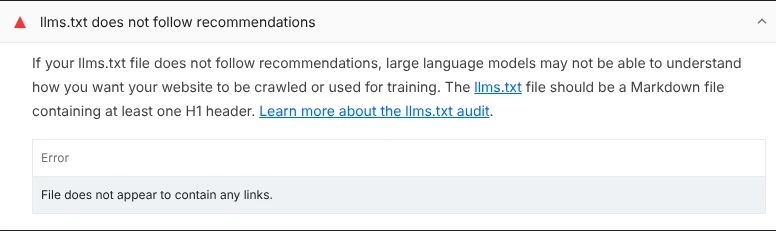
Its limits:
- It only fetches /llms.txt at the domain root, never
/docs/llms.txt. - A 404, or any other 4xx such as a 403 from a firewall blocking Lighthouse, doesn’t fail it: it’s marked not applicable. Neither does a file with your plugin’s text above the title, because any line starting with
#counts as the title. Server errors (500-range) and 429 (rate limited) responses do fail it.
Check the format with the spec’s own parser
The reference parser is the llms-txt Python library from Answer.AI, the team that proposed llms.txt, and it reads a file the way the format describes. If it can’t read your file, fix the format first.
No terminal? Open your file in the browser and check the first, second, and fourth causes below by eye (the byte-order mark is invisible, and the command strips it anyway). With a terminal, install the library in its own folder, because newer macOS and Linux systems refuse a plain pip install, then run it against your live file:
python3 -m venv llmscheck && llmscheck/bin/pip install llms-txt
llmscheck/bin/python -c "from llms_txt import parse_llms_file; import urllib.request as u; d = parse_llms_file(u.urlopen('https://yoursite.com/llms.txt').read().decode('utf-8-sig')); print(d['title'], '|', d['summary'], '|', {k: len(v) for k, v in d['sections'].items()})"
On Windows, use these lines instead:
py -m venv llmscheck
llmscheck\Scripts\python -m pip install llms-txt
llmscheck\Scripts\python -c "from llms_txt import parse_llms_file; import urllib.request as u; d = parse_llms_file(u.urlopen('https://yoursite.com/llms.txt').read().decode('utf-8-sig')); print(d['title'], '|', d['summary'], '|', {k: len(v) for k, v in d['sections'].items()})"
A healthy file prints the site name, the summary, and links per section. An error mentioning HTTP, SSL, or URL means the download failed, not the format; any other error means the parser gave up. The causes we found:
- Text above the
#title, such as the generator line Rank Math adds to its default file. - No blank line between the title and the
>summary. - A byte-order mark (an invisible character at the very start of the file), which AIOSEO 5.0.3 writes. The spec allows it, so the command above strips it (
utf-8-sig); with it removed, AIOSEO’s file parses but its summary comes back asNone. - Links written as bare URLs instead of
[Name](URL).
If your file has a > summary but the parser prints None for it, add a line of notes between the summary and the first section. Why that happens, and how to fix each case, is in the parser-mistakes table of the llms.txt example files linked at the top of this page.
What each llms.txt validator checks, and where they disagree
Validators disagree because each applies its own rules: Lighthouse passes files the spec’s parser rejects, and some online tools accept formats the spec doesn’t. We ran the same files through Lighthouse 13.5.0 and the reference parser:
| File | Lighthouse | Reference parser |
|---|---|---|
| Well-formed example | Pass | Reads it |
| Rank Math 1.0.280 default output | Pass | Fails |
| AIOSEO 5.0.3 output, byte-order mark included | Pass | Fails as served; reads it with the mark removed, but finds no summary |
| No blank line between title and summary | Pass | Fails |
| Links inside sentences, no list | Pass | Reads it, but finds no listed links |
| No links at all | Fails | Reads it, zero links |
| robots.txt content at /llms.txt | Fails (no links) | Fails |
| HTML page at /llms.txt | Fails | Fails |
| Missing file (true 404) | Not applicable | Nothing to read |
No AI tool is known to reject a file that fails the parser, so treat it as the closest check against the spec, not a rule crawlers enforce. Rank Math users can add the missing summary in its llms.txt settings. In our test, that was enough for the parser to read the file. It still reported the summary as None until a notes line followed it.
Online validators add more rules of their own. AccuWeb’s validator lists JSON, bare URLs and HTML link tags as supported formats, none of which the spec’s parser accepts. Others, like the squirrelscan rule, specifically fail an HTML page served at the llms.txt address.
Check every link with a script
Every link in llms.txt should return a 200 status, and a short Python script can fetch the file and test each link and description in one run. Without a terminal, open the file in your browser and click through the links instead. Otherwise, save this as check_llms.py in any folder with a plain text editor, and run it from that folder:
#!/usr/bin/env python3
"""Check a live llms.txt: status, type, format and every link.
Usage: python3 check_llms.py https://example.com/llms.txt
"""
import re
import sys
import urllib.error
import urllib.request
from urllib.parse import urljoin

UA = {"User-Agent": "llms-txt-check/1.0"}

def fetch(url, method="GET"):
    req = urllib.request.Request(url, headers=UA, method=method)
    try:
        with urllib.request.urlopen(req, timeout=15) as r:
            body = r.read() if method == "GET" else b""
            return r.status, r.headers.get("Content-Type", ""), r.geturl(), body
    except urllib.error.HTTPError as e:
        return e.code, e.headers.get("Content-Type", ""), url, b""
    except Exception as e:
        return None, "", url, str(e).encode()

url = sys.argv[1]
status, ctype, final, body = fetch(url)
print(f"Status: {status}  Type: {ctype}  Final URL: {final}")
if status != 200:
    sys.exit("Not served: fix the file or the plugin before anything else.")
text = body.decode("utf-8", "replace")
problems = []
if "charset=utf-8" not in ctype.lower().replace(" ", ""):
    problems.append("Content-Type has no charset=utf-8.")
if text.startswith("\ufeff"):
    text = text[1:]
if text.lstrip()[:15].lower().startswith(("<!doctype", "<html")):
    problems.append("This is an HTML page, not a Markdown file.")
lines = [ln for ln in text.splitlines() if ln.strip()]
if not lines or not lines[0].startswith("# "):
    problems.append("The first line is not an H1 (# Site name).")
if not re.search(r"^>\s?\S", text, re.M):
    problems.append("No blockquote summary (> ...).")
links = re.findall(r"^\s*-\s*\[([^\]]+)\]\(([^)]+)\)(:\s*\S)?", text, re.M)
if not links:
    problems.append("No links in the [name](url) form.")
for name, link, note in links:
    if not note:
        problems.append(f"No description: {name}")
    link = urljoin(final, link)
    code = fetch(link, "HEAD")[0]
    if code in (403, 405):
        code = fetch(link)[0]
    if code != 200:
        problems.append(f"Link returns {code}: {link}")
print(f"{len(links)} links checked")
print("\n".join(problems) or "No problems found.")
Run it with python3 check_llms.py https://yoursite.com/llms.txt (on Windows: py check_llms.py …). On our test site’s Rank Math file, it reported this (test domain swapped for example.com):
Status: 200  Type: text/plain; charset=utf-8  Final URL: https://example.com/llms.txt
22 links checked
The first line is not an H1 (# Site name).
No description: Errors
No description: Security
No description: Speed
No description: Uncategorized
The script follows redirects, so redirected links count as working. It checks links to Markdown copies of pages too, if you’ve set those up.
Watch for one case it won’t flag. With Rank Math and AIOSEO both active, Rank Math’s sitemap link redirected to AIOSEO’s sitemap. Turn off the sitemap and llms.txt features in one of them.
Frequently Asked Questions
What does an llms.txt validator check?
Validators check some of four things: that /llms.txt loads as plain text, that the server labels it as UTF-8 text, that the file follows the format, and that every link works. None of the tools we tested covers all four, so combine a browser check, a header check, the spec’s reference parser and a link-checking script.
Why does Lighthouse pass a file the reference parser rejects?
Lighthouse’s audit only looks for a line starting with a hash sign, at least one Markdown link and at least 50 characters. The reference parser from Answer.AI reads the file the way the format describes, so it catches structure problems Lighthouse lets through. Lighthouse also treats a missing file as not applicable rather than a failure.
Why does my llms.txt show robots.txt or a web page?
If your homepage appears, a deactivated plugin left its rewrite rule behind: save Settings, Permalinks to clear it. If robots.txt content appears, a plugin or server rule is serving the wrong file, so keep llms.txt switched on in one plugin only. In Common Crawl’s July 2026 crawl, 10.6% of llms.txt addresses that answered returned robots.txt content.
Recheck after plugin updates and site changes
Recheck llms.txt after you publish key pages, change URLs or permalinks, or update your SEO plugin, since each plugin rebuilds the file on its own schedule. AIOSEO rewrites its file once a day plus whenever content changes, Yoast rebuilds weekly, and Rank Math builds it fresh on every request. Our plugin rebuilds it when you publish, update or delete content, and its Sync & Regenerate button forces a rebuild.
If the file looks right in the editor but old on the live site, a page cache or CDN is serving a stored copy; see how to stop caches serving AI tools the wrong version.
Whether AI tools actually fetch your llms.txt is a separate question, answered with server log data in what the logs say about llms.txt.