
To restore WordPress from a backup, first save the site as it is now, then put the files back, then import the database. None of it needs wp-admin. Then check the result yourself: in our tests, a broken database dump imported with a success message, and the site still loaded with two-thirds of its tables missing.
We ran every restore below on WordPress 7.1.3 copies we keep for testing, never on a site with real visitors.
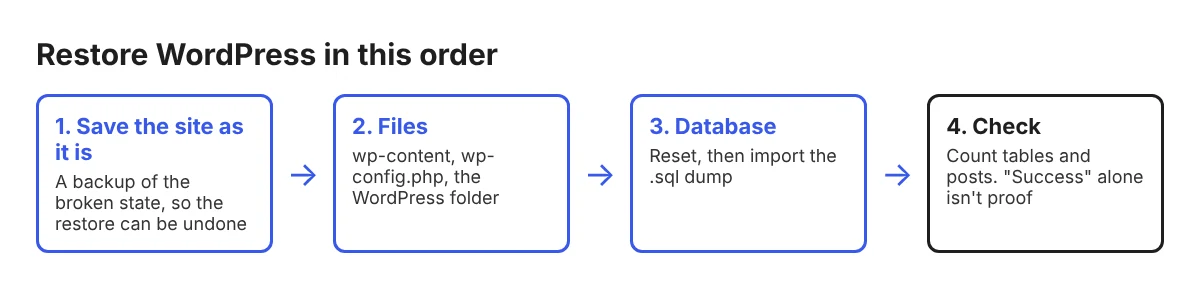
Before you restore WordPress, save what’s there now
Before you restore WordPress, back up the broken site. A restore overwrites what’s there, and you may need something from it: a post written since the backup, an order, or evidence of what went wrong. In our test, a post written after the backup was simply gone once the backup went back in.
With SSH, run this from a terminal, changing the folder in the first line to your WordPress folder:
cd /home/youruser/public_html && [ -f wp-config.php ] &&
  wp db export ~/backups/manual/before-restore-$(date +%F-%H%M).sql &&
  tar -czf ~/backups/manual/before-restore-$(date +%F-%H%M).tar.gz -C .. "$(basename "$PWD")" ||
  echo "STOP: nothing was saved"
ls -l ~/backups/manual/before-restore-*
Don’t go on until the list shows both files. If you see “STOP”, the folder is wrong or wp-config.php lives one folder up; some sites keep it there. In that case, run the export from the WordPress folder without the [ -f wp-config.php ] && check and copy wp-config.php across by hand.
Some hosts do this for you. Kinsta’s guide says that with its one-click restore, “a new backup is generated which will reflect the state of your website just before you restored it”. If your host’s restore button doesn’t say it does the same, make the copy yourself. Our backup guide covers the commands and the no-SSH routes.
Restore the files first
Restore the files before the database. The WordPress handbook gives the order: “Restore the WordPress files first, then restore/import the database.”
Swapping folders worked better in our test than unpacking on top of the old one. Change the archive name and public_html to your own; every step runs only if the one before it worked:
cd /home/youruser && mkdir restore-tmp &&
  tar -xzf ~/backups/manual/files-2026-11-10.tar.gz -C restore-tmp &&
  [ -d restore-tmp/public_html ] &&
  mv public_html public_html.broken &&
  mv restore-tmp/public_html public_html
We added a stray file to a copy of our site, the kind a hack leaves behind, and tried both ways. After the swap, the stray file was gone. Unpacking the same archive on top of the old folder left it in place, because unpacking only replaces files that are in the archive. With a typo in the archive name, the guarded block stopped and moved nothing.
To undo the swap, put the old folder back:
cd /home/youruser && mv public_html public_html.restored && mv public_html.broken public_htmlWe ran the swap as the server’s administrator, so the owner and permissions carried over. We didn’t test it on shared hosting, so check three things straight away:
ls -ld public_html public_html.brokenshows the same owner and permissions for both. If not, ask your host to fix them; a wrong owner can make the whole site return an error.- Other sites’ folders: on many hosts,
public_htmlalso holds folders for addon domains. Move them back frompublic_html.broken. - New uploads: media added since the backup is only in
public_html.broken/wp-content/uploads. Copy back what you need.
The restored folder brings back the backed-up wp-config.php, so the site uses the database settings from the day of the backup. Keep public_html.broken until you’re sure the restore is good.
If only one part is broken, you can restore just that part. We emptied our plugins folder, then pulled the plugins folder alone back out of a wp-content archive in about half a second. From the whole-site archive in our backup guide, the command looks like this:
tar -xzf ~/backups/manual/files-2026-11-10.tar.gz -C /home/youruser public_html/wp-content/pluginsThat unpacks on top of the existing folder, so after a hack, stray files in it stay. Rename the old plugins folder first if you need a clean copy.
Restore the WordPress database from a backup with WP-CLI
The database restore puts back your posts, pages, users and settings. Check the dump is complete before you touch the database: a cut-off dump looked normal until we counted its tables.
cd /home/youruser/public_html &&
  tail -n 1 ~/backups/manual/db-2026-11-10.sql &&
  grep -c '^CREATE TABLE' ~/backups/manual/db-2026-11-10.sql &&
  wp config get DB_NAME &&
  wp db tables --all-tables
The dump’s last line should read -- Dump completed on followed by a date; ours did, and our cut-off copy didn’t. Check that DB_NAME is the database you mean to replace. If the table list shows tables with another prefix, another site shares this database. Then run:
wp db reset --yes && wp db import ~/backups/manual/db-2026-11-10.sqlwp db reset empties the whole database, and wp db import loads the dump. On our test site the import took about a quarter of a second, and all 60 posts came back. If another site shares the database, use wp db clean --yes instead of the reset; it removes only this site’s tables. We didn’t test a shared database.
The reset matters more than it looks. A dump made by wp db export starts each table with DROP TABLE IF EXISTS, so it replaces the tables it contains. It doesn’t touch tables it doesn’t contain.
When we imported a backup over the test site’s current database without resetting it, a table a plugin might have added after the backup was still there. A reset clears those out, which matters after a hack or a bad plugin. Only run it once your before-restore files are listed.
Without SSH or wp-admin: phpMyAdmin and SFTP
Without SSH or a working wp-admin, use your hosting panel. We didn’t test these routes, and menus differ between panels and versions:
- Files: connect over SFTP (FileZilla is one free app for it), rename the broken WordPress folder to
public_html.broken, and upload the restored folder in its place. Or use the panel’s file manager to upload the archive and extract it into a new folder, then rename the folders. - Check the dump: open the
.sqlfile in a text editor. A dump made withwp db exportends with-- Dump completed on; for any dump, countCREATE TABLEwith the editor’s search. - Database: in phpMyAdmin, select your site’s database, tick “Check all” under the table list, and choose “Drop” from the “With selected” menu. Then open the Import tab and choose your
.sqlfile. The Import page shows the largest file it accepts; ask your host to import anything bigger. - Your host’s or a plugin’s restore button: check whether it restores files, the database or both, and whether it saves the current state first, as Kinsta says its button does.
Whatever the route, run the checks below afterwards.
Check the restore worked
A restore can report success and still be incomplete. We cut a database dump short on purpose and imported it. WP-CLI 2.12.0 printed a syntax error, then “Success: Imported from”, and exited as if all was well. Only 4 of the 12 tables were back.
The homepage still loaded with the site’s name in the title, with and without our server’s page cache. So a homepage that loads proves nothing. Count instead:
grep -c '^CREATE TABLE' ~/backups/manual/db-2026-11-10.sql
wp db tables --all-tables | wc -l
wp post list --post_type=post --format=count
wp db check
The first two numbers should match: tables in the dump, tables in the database. The post count should match what you remember, or what a drill gave you. wp db check gave us “Success: Database checked.” on the good restore.
Then log in, open a few posts and pages, and try anything visitors use, such as forms or checkout. If you can’t log in, our guide to being locked out of wp-admin covers the fixes.
What a restore removes and what it keeps
A restore takes the site back to the moment of the backup. Our tests showed what that means in practice; the reset half of the second row follows from what wp db reset does:
| After the backup… | After a restore |
|---|---|
| A new post was written | Gone |
| A new database table was added | Still there, unless you reset the database first |
| A new file was added | Gone after a folder swap; still there if you unpacked over the old folder |
So before a restore, copy out anything you want to keep from the “before-restore” backup: new posts, orders or form entries. After the restore, add them back by hand. If you’re restoring after a hack, the backup must be from before the hack, and our hacked-site guide gives the cleanup order.
Get back one post without a full restore
When a single post or page is lost, you don’t need to roll the whole site back. Load the backup into a practice copy as described in the next section, export the one post there, and import it into the live site:
cd "$HOME/restore-drill/public_html" &&
  wp export --post__in=1000 --dir="$HOME/restore-drill" --filename_format=one-post.xml
cd /home/youruser/public_html &&
  wp plugin install wordpress-importer --activate &&
  wp import "$HOME/restore-drill/one-post.xml" --authors=skip --user=youradmin
Replace 1000 with the post’s ID (run wp post list in the copy to find it) and youradmin with your admin username. Write the paths with $HOME rather than ~: inside --dir=, the shell doesn’t expand ~, so the file would go somewhere else.
In our test, a deleted post came back with its original ID, its categories and its tags. The import added only that post: the test site went from 59 posts back to 60. WP-CLI’s export leaves out images unless you add --with_attachments, so check the featured image; we didn’t test that option. You can deactivate the importer afterwards.
Practise the restore on a copy
A restore drill is a practice restore into a separate folder and database. It shows whether the backup works before you need it, and how long a real restore takes. Our staging guide uses the same idea for testing changes.
First, create an empty database in your hosting panel and give your site’s database user access to it. Use the full name the panel shows; many panels add your username in front, such as youruser_restoredrill. We skipped the access step once, and the import stopped with “ERROR 1044 (42000): Access denied”.
Then run this, with your database name in both places:
mkdir ~/restore-drill &&
  tar -xzf ~/backups/manual/files-2026-11-10.tar.gz -C ~/restore-drill &&
  cd ~/restore-drill/public_html &&
  wp config set DB_NAME youruser_restoredrill &&
  [ "$(wp config get DB_NAME)" = youruser_restoredrill ] &&
  wp db import ~/backups/manual/db-2026-11-10.sql &&
  wp db tables --all-tables | wc -l &&
  wp post list --post_type=post --format=count
The chain matters. The copy’s wp-config.php still points at your live database until wp config set changes it, and the check on the next line stops the import if the change didn’t happen. When we gave it a wrong folder name, the block stopped at the first failed step and the live site’s settings stayed as they were.
Once the access was in place, the import took 0.21 seconds and gave us 12 of 12 tables and 60 of 60 posts, matching the original site. Don’t open the copy in a browser. It still has the live site’s address in its settings, so links would lead back to the live site.
If the site uses an object cache such as Redis (a wp-content/object-cache.php file), the copy may read the live site’s cache; we didn’t test that. Delete the drill folder and database when you’re done. The WordPress maintenance checklist puts drills on the calendar.
How we tested
Everything here was restored on WordPress 7.1.3, logged in to the server as its administrator (Twenty Twenty-Five theme, MariaDB 10.11.14, an nginx page cache), with tar 1.35 for the files and WP-CLI 2.12.0 for the database. We restored the database after a reset and over the test site’s current tables, and imported a dump we’d cut short. We also restored a single folder, swapped whole folders, ran a full drill into a separate folder and database, and brought back one deleted post from the drill copy.
The site and its backups sat on one machine, so a real host will be slower, especially with big uploads. We didn’t test phpMyAdmin imports, hosting panel restores or backup plugins.
Frequently Asked Questions
Can I restore only the database or only the files?
Yes. Restore the part that’s broken: a broken plugin can need only its folder, while lost posts need the database. We restored the plugins folder alone from the files archive, and the database alone with wp db import. Keep the two parts from the same date if you restore both.
How long does a WordPress restore take?
On our test site, the database import took about a quarter of a second and unpacking the whole site 1.4 seconds. Uploading files to a real host and checking the result will add to that, so time a drill on your own site to know yours.
Why does my site still look broken after a restore?
A page cache can keep showing old pages, so clear your caching plugin, host cache or CDN; our guide to changes not showing in WordPress walks through each layer. If pages are blank or missing, count the tables as shown above: in our test, a cut-off import left most tables missing while the homepage still loaded.