
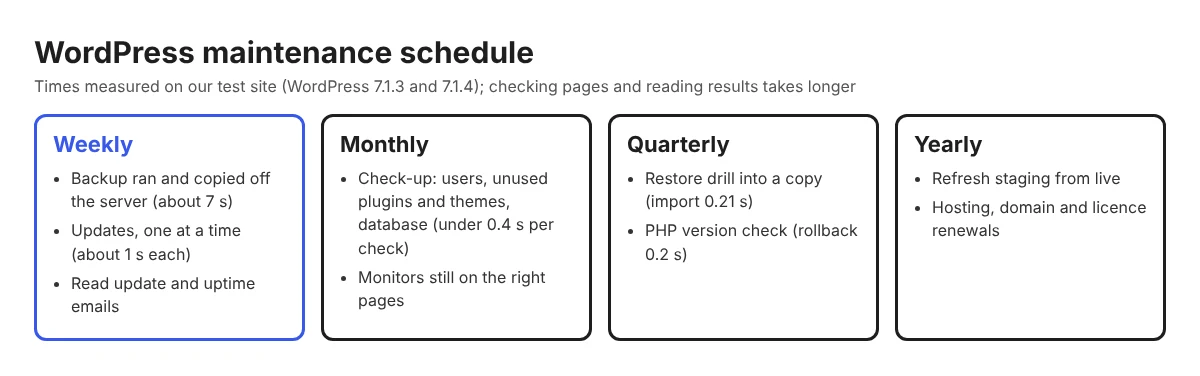
A WordPress maintenance checklist comes down to four rhythms. Week by week, check that backups ran and apply updates one at a time; once a month, run a short check-up of users, plugins, and the database. Each quarter, practise a restore and review your PHP version; once a year, refresh staging and check renewals. On our test site, each check-up command took 0.3 to 0.4 seconds on one timed run.
We built this schedule from our own tests of each job, from backups and restores to PHP upgrades and uptime checks. Every item links to the guide where we tested it.
The WordPress maintenance checklist at a glance
A WordPress maintenance checklist is the short list of jobs that keep a site safe, recoverable, and fast, done on a fixed rhythm rather than after something breaks. Here’s ours at a glance, with the time each job took on our test site and the guide where we tested it:
| When | Job | Time on our test site | Guide |
|---|---|---|---|
| Weekly | Check the backup ran and copy it off the server | Database 0.15 s, whole site about 7 s | Backups |
| Weekly | Apply updates one at a time and check the site | About 1 s per plugin, 3.6 s for core | Safe updates |
| Weekly | Read automatic-update and uptime emails | Not timed | Auto-updates, uptime |
| Monthly | Run the check-up below | Each check under 0.4 s | This page |
| Monthly | Check monitors still watch an uncached page and a keyword | Not timed | Uptime guide, above |
| Quarterly | Restore a backup into a copy | Unpack 1.4 s, import 0.21 s | Restore drill |
| Quarterly | Check the PHP version | Not timed; switching back took 0.2 s | PHP updates |
| Yearly | Refresh staging, review hosting and renewals | Varies | Staging |
The commands are quick, and the time goes into checking pages and reading results. Our site is small and sits on one machine, so a shared host or a large media library will take longer.
Weekly: backups, updates and a quick look
Make the weekly session about three things.
- Backups. Confirm the latest backup exists, is complete, and has a copy off the server; the WordPress handbook sets the pace at weekly for smaller sites and daily for busy ones. Our backup guide shows two checks that caught a dump we cut short on purpose.
- Updates. Update plugins singly and look at the site between them: each of our plugin updates finished in around a second, so the time goes into the looking, not the updating. Our safe update guide has the order and the rollback.
- Emails. Read the week’s automatic-update emails and the alerts from your uptime monitoring. WordPress undoes an automatic plugin update only when it causes a PHP fatal error on the homepage; in our test, an update that broke only the dashboard was kept and reported as a success. The auto-update guide has the details.
Then open the site logged out and use it like a visitor: send a form, add something to the cart. A monitor that checks only your homepage can miss a broken site: behind our page cache, the homepage stayed up while PHP, and in a separate test, the database was down. Our uptime guide shows which pages to watch.
Monthly: a short check-up
Once a month, run a short check-up for the things that pile up quietly. With WP-CLI, these commands answer most of the questions:
wp plugin list --status=inactive --format=count
wp theme list --status=inactive --format=count
wp user list --role=administrator --fields=user_login,user_email
wp post list --post_type=revision --format=count
wp comment list --status=spam --format=count
wp db size --human-readable
wp db check
Each command took between 0.3 and 0.4 seconds on our test site. They turned up 14 inactive themes, all older WordPress default themes, which we could delete to leave less code to keep updated. “Success: Database checked.” closed the run.
If the database has grown, our database guide covers the clean-up.
Without SSH, the same answers are in wp-admin: Plugins and Appearance > Themes for inactive items, Users filtered by Administrator, and Tools > Site Health for warnings. For each item, ask one question: do we still need this? Remove administrator accounts nobody uses and plugins nobody has switched on in months.
While you’re there, check that your uptime monitors still point at an uncached page, such as the login page, and still look for a keyword.
Quarterly and yearly jobs
Some jobs matter more than their frequency suggests. Do these every three months:
- A restore drill. A restore drill means loading a backup into a spare copy of the site, to prove it can come back. Ours took 0.21 seconds to import, but the first attempt failed with “ERROR 1044 (42000): Access denied” because the database user had no access to the new database. That’s the kind of surprise you want during a drill, not an outage. See the restore guide.
- The PHP version. Check it in Site Health and compare it with WordPress’s recommendation. Our PHP guide covers testing a new version and the switch back, which our server made in 0.2 seconds.
Once a year, refresh your staging site from live, so tests run against current content. Review hosting, domain, SSL certificate and plugin licence renewals too, so nothing lapses unnoticed.
Moves are rarer, and each has its own risks. Moving to a new host, going live from your own computer, changing the domain or leaving WordPress.com each has a guide: new host, localhost to live, domain change, and WordPress.com to self-hosted.
What each job prevents
Each job on the list stopped a real problem in our tests, which is the case for keeping them even when nothing seems wrong:
- Checking backups: a database dump we truncated on purpose still imported with a success message, leaving 8 of 12 tables absent, and the homepage carried on loading.
- Restore drills: the first practice restore failed on a database permission, a problem better found on a quiet afternoon than during an outage.
- Updating carefully: after one update ran as the server’s root user, the next dashboard update failed with “some files could not be copied”. Running updates as the site’s own user avoids it.
- Reading update emails: an automatic update that broke only the dashboard was kept, and WordPress reported it as a success.
- Watching the right pages: with PHP stopped, the cached homepage went on answering 200 for the ten minutes our cache kept pages, then returned 502, while the login page failed at once.
- Testing PHP changes: debug lines added below an existing
WP_DEBUGfalse line never created a log, which would have hidden any errors.
The links in the table above go to the full test behind each line.
Where to start on a neglected WordPress site
On a site nobody has maintained for months, the order matters more than speed. Codeable’s checklist starts the same way we would: “Before you touch anything, back up your website.” Here’s the order for the first session, built from what went wrong in our tests:
- Check it isn’t hacked. If anything looks wrong, such as strange admin users, redirects or files you don’t recognise, stop and follow our hacked site guide first. It starts by saving the hacked state, which a routine update would overwrite.
- Back up, then check the backup. A database dump we shortened deliberately still printed “Success” when imported. Count the tables before you trust it.
- Find out what you have. Run the monthly check-up and note the WordPress, plugin, and PHP versions in Site Health.
- Make a staging copy if any update is a big jump, such as a major WordPress version or a plugin several versions behind.
- Update plugins, then themes, then WordPress, one at a time, looking at the site between each one, unless an update needs a newer WordPress first. Change PHP only after that, on a copy.
- Set up monitoring and backups so the site doesn’t drift again.
How we tested
The times here come from our WordPress test site, which ran 7.1.3 and later 7.1.4. Its stack was nginx, PHP 8.3, MariaDB, and WP-CLI 2.12.0. We timed the monthly check-up commands on one run, and took the other times from the tests behind each linked guide. Backup and restore times come from WordPress 7.1.3, the core update test moved the site to 7.1.4, and the check-up and PHP switch ran on 7.1.4.
Human time, such as clicking through pages, wasn’t measured, and everything ran on a single server.
Frequently Asked Questions
How often does a WordPress site need maintenance?
A WordPress site needs attention weekly for backups and updates, monthly for a short check-up, quarterly for a restore drill and a PHP review, and yearly for staging and renewals. Busy sites need daily backups, as the WordPress handbook advises.
How long does WordPress maintenance take?
WordPress maintenance commands run in seconds: on our test site, each check-up command took 0.3 to 0.4 seconds and a full backup about seven seconds. Most of the real time goes into checking pages after updates and reading the results.
Do I need a maintenance plugin?
A maintenance plugin isn’t required. WordPress’s own Site Health screen, its update emails, and WP-CLI cover the checks on this page. A plugin or host tool can save time across many sites, but it doesn’t replace testing your restores.