
To back up a WordPress site, save two things: a copy of the database and an archive of the site’s files, including wp-config.php. Then check that both are complete and copy them somewhere other than your server. On our test site, a database dump that had been cut short still imported with a success message, so the check matters.
Every backup below was made on a WordPress 7.1.3 copy we keep for testing, never a live site, and we timed the exports and archives.
What a WordPress backup must include
A WordPress backup has two parts, the database and the files, and you need both to bring a site back after a crash, a hack, or a bad update. The WordPress handbook puts it plainly: “You need both to be able to fully restore a typical WordPress site.”
| Part | What it holds | Our test site |
|---|---|---|
| Database | Posts, pages, comments, users, settings and plugin data | 486 KB as a .sql file |
| Files | wp-content (themes, plugins, uploads), wp-config.php, .htaccess and WordPress itself | 229 MB of files, 133 MB as a .tar.gz archive |
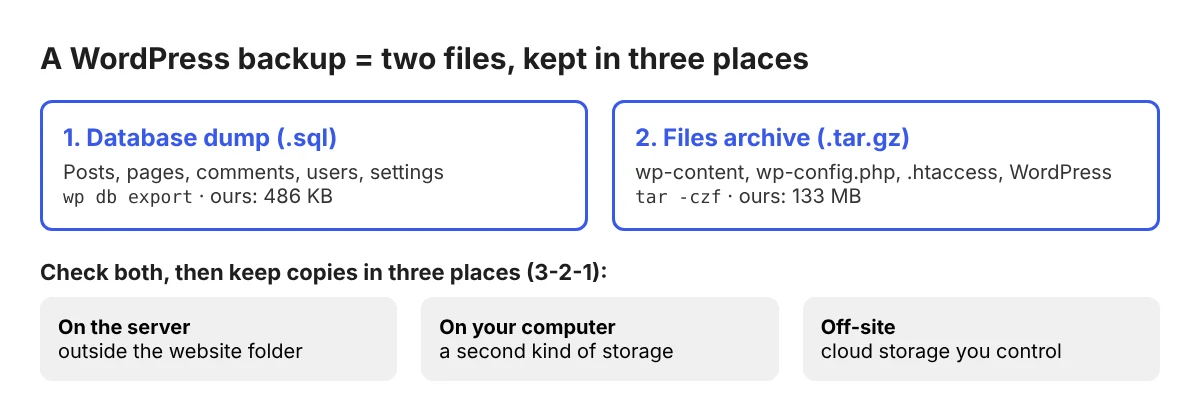
The database is where WordPress keeps everything you type; the files hold everything you upload or install. wp-content is the folder for your themes, plugins, and media. Packed on its own, ours came to 52 MB. wp-config.php is the file that tells WordPress how to reach the database, so it contains the database password: treat the backup like a password file.
How often to back up WordPress
How often depends on how often the site changes. The handbook’s rule of thumb: “For smaller websites with fewer posts, backups should be made once a week.” For busy sites, it says backups “should be made daily.”
Make an extra one right before any update or big change, so you can go back to the state just before it. Bigger changes are safer still on a staging site.
Our guide to updating WordPress safely builds that step in. The handbook also suggests keeping several recent backups rather than only the latest one. A backup taken after a problem started won’t help you undo it. If the problem is a hack, our guide to a hacked WordPress site gives the cleanup order.
How to back up a WordPress site with WP-CLI and tar
WP-CLI, WordPress’s own command-line tool, is the quickest route when you can log in to your server over SSH. Log in as your site’s user, not root, and change the WordPress folder path in the first line to yours:
cd /home/youruser/public_html && [ -f wp-config.php ] &&
  mkdir -p ~/backups/manual && chmod 700 ~/backups &&
  wp db export ~/backups/manual/db-$(date +%F).sql &&
  tar -czf ~/backups/manual/files-$(date +%F).tar.gz -C .. "$(basename "$PWD")"
The && between the steps means each one runs only if the one before it worked. The command moves into your WordPress folder and checks that wp-config.php is really there.
It makes a private backups folder in your home directory, outside the website. wp db export “Exports the database to a file”, using the database details from wp-config.php, so you don’t type a password. The last step uses tar, the standard Linux tool for packing a folder into one archive file, to save the whole WordPress folder as a compressed file named with today’s date.
Some sites keep wp-config.php one folder above WordPress. If yours does, copy that file into the backups folder too.
On our test site, the database export took 0.14 to 0.15 seconds over three runs. The whole-site archive took 7 seconds on three repeat runs; the very first run took 10. A site with gigabytes of uploads will take longer; we didn’t test one.
Keep backups out of the website folder. When we put a .sql and a .tar.gz file inside it, our server handed both out to anyone who asked for them by name.
Without SSH: hosting panel, phpMyAdmin or a plugin
Without SSH, you have three other routes. We didn’t test them, so check what your tool actually saves:
- Your host’s backups. If your hosting panel has a backup page, find out whether it covers files and the database, how long copies are kept, and whether you can download them.
- phpMyAdmin and SFTP. phpMyAdmin is a web-based database tool that some hosting panels include. The handbook’s steps come down to opening your site’s database, then “Click Export.”, “Select SQL from the Format drop-down menu.” and “Click Go.” Then download the whole WordPress folder with an SFTP app such as FileZilla.
- A backup plugin. The guides we read list UpdraftPlus, BackWPup, Duplicator, and Jetpack Backup, among others. Check whether the one you pick saves the database and the files, and where it keeps them.
Whichever you use, download one backup and check it as described below. The handbook makes the same point about automatic backups: “it is highly recommended that you back up those auto backups with a manual backup once in a while”.
Check that the backup is complete
A backup can look fine and still be cut short; a download that stops partway is one way it happens. With SSH, these commands check today’s backup from the WordPress folder:
tail -n 1 ~/backups/manual/db-$(date +%F).sql
grep -c '^CREATE TABLE' ~/backups/manual/db-$(date +%F).sql
wp db tables --all-tables | wc -l
tar -tzf ~/backups/manual/files-$(date +%F).tar.gz > /dev/null && echo "archive OK"
The first shows the dump’s last line, the next two count its tables and the database’s tables, and the last reads the whole archive. On our test site, a complete dump ended with this line:
-- Dump completed on 2026-11-10 23:36:46It had 12 CREATE TABLE lines, matching the 12 tables in the database, and the archive read without errors. Then we cut a copy of the dump short on purpose. It had no “Dump completed” line and only 4 CREATE TABLE lines.
That “Dump completed” line comes from mysqldump, the tool wp db export runs. A phpMyAdmin or plugin export may end differently, so for those, compare table counts instead.
Open the .sql file in a text editor and search for CREATE TABLE, then compare the count with the number of tables phpMyAdmin lists for your database. We didn’t test phpMyAdmin or plugin exports. If a dump comes compressed as .sql.gz, zcat and zgrep read it: on ours, zcat file.sql.gz | tail -n 1 showed the same last line and zgrep -c '^CREATE TABLE' file.sql.gz counted 12.
That cut copy is why these checks matter. We imported it into an emptied test database with WP-CLI 2.12.0.
It printed a syntax error and then “Success: Imported from”, and it exited as if nothing had gone wrong. Only 4 of the 12 tables came back, yet the homepage still loaded. A restore test is the final proof; our guide to restoring WordPress from a backup shows how to run one safely.
Schedule the backup and delete old copies
A backup you have to remember is a backup you’ll skip, so put the commands in a small script and let the server run it. This is the script we tested, apart from one flag our test server needed because it ran as root:
#!/bin/sh
# Nightly WordPress backup: database + files, keep 14 days.
PATH=/usr/local/bin:/usr/bin:/bin
umask 077
SITE=/home/youruser/public_html
DEST=/home/youruser/backups/nightly
DAY=$(date +%F)
cd "$SITE" || exit 1
[ -f wp-config.php ] || exit 1
mkdir -p "$DEST"
wp db export "$DEST/db-$DAY.sql" --quiet || exit 1
tar -czf "$DEST/files-$DAY.tar.gz" -C "$(dirname "$SITE")" "$(basename "$SITE")" || exit 1
find "$DEST" -maxdepth 1 -name 'db-*.sql' -mtime +14 -delete
find "$DEST" -maxdepth 1 -name 'files-*.tar.gz' -mtime +14 -delete
Change the two paths, save it as wp-backup.sh in your home folder and make it runnable with chmod +x wp-backup.sh. A few lines matter more than they look:
PATH. Scheduled jobs start with a short list of folders to search. Without this line, our script stopped with “wp: not found”, because WP-CLI lived in/usr/local/bin. Runcommand -v wpto see where yours is.umask 077. New backups are readable only by you. Ours came out as-rw-------.- The
exit 1checks. The script stops if it isn’t in a WordPress folder or a step fails, so the clean-up never runs after a failed backup. - The
nightlyfolder and-maxdepth 1. The clean-up only touches this folder. A 30-day-old pre-update copy we’d kept in~/backups/manualsurvived; a 30-day nightly copy was deleted.
To run it every night at 3 am, add this line to your site user’s crontab with crontab -e (not root’s), or use your hosting panel’s cron page if it has one:
0 3 * * * /home/youruser/wp-backup.sh >> /home/youruser/wp-backup.log 2>&1Our test server had no cron, so we ran the script by hand under the same short folder list a scheduled job gets. Check the log and the backups folder the next morning to confirm the job ran. The script only keeps copies on the server, so you still need the off-site copy below.
Keep copies off the server
A backup stored only on your server goes down with the server. The handbook suggests keeping several recent backups and storing “them in different places and on different mediums.”
One way to put that into practice is the 3-2-1 rule. In Veritas’s words, it means duplicating data “three times, storing it on two distinct media types, and having one copy offsite”. For a WordPress site, that could be a copy on the server outside the website folder, one on your computer, and one in cloud storage.
Download both files, the database dump and the archive, after each manual backup. If a plugin or your host makes the backups, make sure at least one copy lands somewhere you control. Store them privately: the archive holds your database password, and the dump holds every user’s email address and password hash. Encrypt them before they go anywhere shared.
The WordPress maintenance checklist puts backups into a routine with the other jobs that keep a site healthy.
How we tested
Our backups came from a WordPress 7.1.3 install whose database lived on MariaDB 10.11.14, PHP 8.3 behind nginx, WP-CLI 2.12.0 and GNU tar 1.35. The database held 60 posts and the folder held 229 MB of files. We timed the database export and the whole-site archive three times each, broke a copy of the dump to see which checks would catch it, and ran the backup script under the short folder list a scheduled job gets.
Site, database and backups all sat on a single machine, so expect a shared host or a large site to take longer. We didn’t test hosting panels, phpMyAdmin or backup plugins.
Frequently Asked Questions
Is my host’s backup enough?
A host’s backup is a good start, but keep your own copy too. If the host’s backup lives on the same account or server as your site, one problem can take both. The WordPress handbook recommends backing up automatic backups with a manual one now and then, and storing copies in different places.
Can I back up WordPress without a plugin?
Yes. With SSH, WP-CLI’s wp db export and tar make the two backup files in a few seconds; on our test site the database took under a second and the files about 7 seconds. Without SSH, use phpMyAdmin’s Export for the database and an SFTP app for the folder.
What’s inside a WordPress database backup?
A WordPress database backup holds your posts, pages, comments, settings and plugin data. It also holds the users table, with every user’s email address and password hash. Store it as privately as the site itself, and encrypt any copy that leaves your computer.