
If you’re locked out of WordPress admin, start with the password reset link on the login page, labelled Lost your password, and follow the email it sends. If the email never comes, reset the password with WP-CLI or in phpMyAdmin, or create a new administrator account. A security plugin that blocks you can be switched off by renaming its folder.
Each route below worked on our own test install of WordPress 7.1.3, not on a live site. Pick the first one you can use: it changes the least.
Find out why you’re locked out of WordPress admin
The login page itself shows why you’re locked out, and each reason needs its own fix, so look before you reset anything. A wrong password, a missing email, a plugin’s lockout message, a cookies error and a page that reloads are separate problems. Here’s what we saw on our test site:
| What the login page does | Likely cause (tested in our lab unless marked) | Go to |
|---|---|---|
| Says the password is wrong | A forgotten or changed password | Lost your password? link |
| You never get the reset email | Site mail not reaching you (not tested: our lab has no mail server) | Reset without email |
| “Too many failed login attempts” or a plugin’s own message | A security plugin blocking the login | Security plugin lockout |
| A “Cookies are blocked” error | A cookie setting that didn’t match the site | Login page errors |
| Reloads the login page or wp-admin again and again | An HTTPS proxy in front of the site that WordPress hadn’t been told about | Login page errors |
If you see an error page instead of the login form, that’s a different problem: our critical error guide and database connection guide cover two of those screens.
Reset your password with the Lost your password? link
A password reset by email is the safest route, and the handbook’s login page recommends it when your email and the site’s mail both work. On our test site:
- On the login page, click Lost your password?.
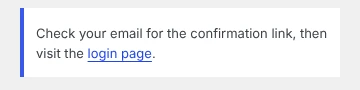
- Enter your username or the email address on your account and click Get New Password. WordPress showed this:
- Open the email, titled “[Your site name] Password Reset”, and click the reset link.
- Type a new password, or keep the strong one WordPress suggests, and click Save Password.
- Log in with the new password.
Our lab has no mail server, so we captured the email on the server instead of receiving it; the link in it worked as described. Check your spam folder before moving on. If nothing arrives, the next section doesn’t need email at all.
Reset the password without email
For command-line access there’s WP-CLI, which the handbook calls “the recommended approach” when the email route isn’t available. You need SSH access to your server, and you run the commands from the folder that holds wp-config.php (on our server, the site’s main folder). First, list the administrator accounts so you reset the right one:
wp user list --role=administrator --fields=user_login,user_email
wp user update yourusername --prompt=user_pass
The second line asks for the new password, which the handbook prefers because it keeps the password out of your shell history. We set ours with --user_pass= instead; the old password stopped working and the new one logged in. If WP-CLI crashes because a plugin is broken, rerun it with --skip-plugins.
No SSH? phpMyAdmin is a browser-based database editor, and the handbook’s phpMyAdmin page says cPanel and Plesk often include it. Changing a password there edits your database directly, and the handbook says such edits “should only be done by experienced database administrators”, so use WP-CLI or ask your host if you can. If you go ahead, back up first: the handbook’s database backup page says to click your database, open the Export tab, keep Quick selected, click Go and save the file. Then:
- Open phpMyAdmin from your hosting panel and click your site’s database in the left column; the
DB_NAMEline in wp-config.php names it. - Open the users table,
wp_users. wp_users is the table that holds the site’s accounts; yours may start with another prefix, which$table_prefixin wp-config.php shows. - Click Edit on your user’s row.
- In the
user_passrow, choose MD5 in the Function list, type the new password in the Value box, and click Go.
The handbook stresses that MD5 must be selected, because plain text won’t work as a password. MD5 is an old, weak way to scramble a password, which is why WordPress swaps it out: on our test site, the 32-character MD5 value was replaced by WordPress’s own 63-character hash the first time we logged in. We ran the equivalent SQL in the MariaDB client, since our lab has no phpMyAdmin:
UPDATE wp_users SET user_pass = MD5('your-new-password') WHERE user_login = 'yourusername';Create a new administrator account
If no administrator account can be recovered, add a new one, log in with it, fix the old account, then delete the new one. An administrator is the WordPress role that can change every setting, plugin and user.
With WP-CLI, this command created a working administrator on our site; it asks for the password instead of taking it on the command line:
wp user create rescueadmin [email protected] --role=administrator --prompt=user_passWithout SSH, this SQL created a working administrator on our site. Before you run it in phpMyAdmin’s SQL tab, back up the database and change the login, email and password. If your prefix isn’t wp_, change it in all four places: wp_users, wp_usermeta, wp_capabilities and wp_user_level.
INSERT INTO wp_users (user_login, user_pass, user_nicename, user_email, user_registered, user_status, display_name)
VALUES ('rescueadmin', MD5('CHANGE-THIS-PASSWORD'), 'rescueadmin', '[email protected]', NOW(), 0, 'rescueadmin');
SET @uid = LAST_INSERT_ID();
INSERT INTO wp_usermeta (user_id, meta_key, meta_value) VALUES
(@uid, 'wp_capabilities', 'a:1:{s:13:"administrator";b:1;}'),
(@uid, 'wp_user_level', '10');
The two wp_usermeta rows give the account its role, so a missed prefix there leaves an account with no role. Once you’re back in, update your own account under Users (we changed an outdated email with wp user update --user_email too), then delete rescueadmin.
Get past a security plugin lockout
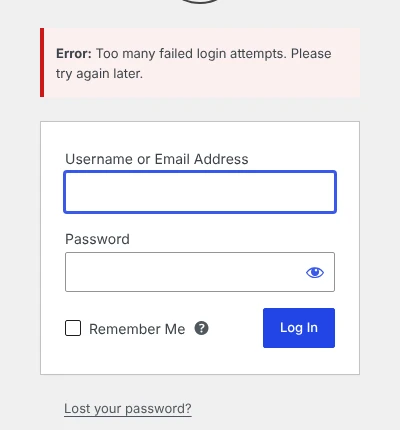
A security plugin that limits login attempts or adds a second login step can block a correct password. We tested this with a small plugin we wrote to act like one. It refused every login with “Too many failed login attempts”:
- Browse to
wp-content/pluginswith the hosting file manager, an FTP program or SFTP. - Rename the security plugin’s folder, for example by adding
.offto the end. - Log in. On our site the same password worked straight away.
- Open Plugins before you rename anything back. On our test site WordPress then said the plugin “has been deactivated due to an error”. When we renamed the folder back without opening Plugins first, the plugin was still active and locked us out again.
- Rename the folder back and click Activate under Plugins.
- Check the plugin’s settings so it doesn’t lock you out again.
Locked out by a two-factor plugin, or a plugin that hid your login page at a new address? The same rename stops WordPress loading it, so its extra step or hidden address should go away and wp-login.php works again. We tested the rename on three small plugins we wrote to act like these, not on named security or two-factor plugins. Before you switch them back on, check their settings with our guides to two-factor authentication, brute-force protection and changing the login URL.
When the login page loops or shows an error
A login page that loops or shows an error isn’t a password problem, so a reset won’t help.
- A “Cookies are blocked” error: on our site this came from a
define( 'COOKIE_DOMAIN', ... )line in wp-config.php that didn’t match the address. Back up wp-config.php, open it in your file manager, and delete or correct that line; after we deleted ours, the login worked. The handbook’s list also includes browser settings, plugins and caching of the login page. - The login page or wp-admin keeps reloading: behind an HTTPS proxy, our wp-login.php and wp-admin redirected to themselves until we added the X-Forwarded-Proto lines to wp-config.php. Our redirect loop guide has the trace and the fix.
The handbook’s own checklist for a login loop is to clear cookies, check the site addresses in wp-config.php and the database, and rename the plugins folder (rename it back afterwards, then open Plugins to reactivate what you need). Before any of these changes, our WordPress errors guide explains what to back up.
Frequently Asked Questions
How do I find my WordPress admin username?
With SSH, wp user list --role=administrator lists every administrator account with its email address, so you know which username to reset. Without it, this query lists them in phpMyAdmin’s SQL tab; we ran it in the MariaDB client. Change wp_ in both table names and in wp_capabilities if your prefix differs:
SELECT u.user_login FROM wp_users u JOIN wp_usermeta m ON m.user_id = u.ID
WHERE m.meta_key = 'wp_capabilities' AND m.meta_value LIKE '%administrator%';
Is it safe to reset the password in the database?
Resetting in the database worked on our test site, but the handbook calls direct database edits high risk and meant for experienced database administrators, so try WP-CLI or your host first. Back up the database first, check the table prefix, and change only your own user’s row. WordPress replaced the temporary MD5 value with its stronger hash after the first login.
What if I don’t have SSH or phpMyAdmin?
Ask your host. They can reset the password, run one of the commands above, or give you database access through your hosting panel. Send them your username and say you’re locked out of wp-admin.
How we tested
We locked ourselves out of a WordPress 7.1.3 test site on 2 November 2026 and got back in each way this guide describes. The site ran on Ubuntu 24.04 with nginx 1.24.0, PHP-FPM 8.3.6, MariaDB 10.11.14 and WP-CLI 2.12.0.
The Lost your password flow was followed end to end, with a mail-logging plugin catching the reset email, since the server can’t send mail. We reset passwords with WP-CLI and with an SQL MD5 update in the MariaDB client; phpMyAdmin wasn’t installed. New administrators made with WP-CLI and SQL were deleted afterwards.
For the security plugin case, a small plugin of ours refused every login. Cookie and proxy login problems come from our redirect tests. Passwords and emails were set back when we finished.