
Changing your WordPress login URL from /wp-login.php to something only you know cuts the automated login traffic hitting your site, but it is security through obscurity: it hides the door without locking it. On our test site, moving the login to a secret address made /wp-login.php and /wp-admin/ return 404 to logged-out visitors, yet XML-RPC still accepted the real password on the first try. This guide shows how to change it safely, what it does and doesn’t protect, and how to get back in if you forget the new address.
Does changing the login URL actually help?
Changing the login URL helps a little, in one specific way: it cuts the noise. Bots hammer /wp-login.php by the thousand, and moving the login elsewhere means most of that traffic hits a 404 instead of loading WordPress. That saves server resources and cleans up your logs.
What it does not do is stop a determined attacker. WordPress’s own brute-force guidance is blunt about it: “Obscuring the login URL can reduce noise but should not be your only defense” (WordPress docs). The address can still leak through a plugin that links to it, a password-reset email, or a sitemap, and other doors into the account stay open regardless.
We measured that last point on the test site. After hiding the login behind a secret slug, XML-RPC still accepted the administrator’s correct password on the first attempt and returned the account’s data (test T3). The front-door login was hidden; the side door was untouched. So treat this as noise reduction layered on top of real protection, not as a replacement for it.
How to change the login URL
Use a maintained plugin that intercepts the login address; don’t rename core files, which breaks on every update. A plugin changes the path WordPress listens on and 404s the old one, without touching anything WordPress overwrites.
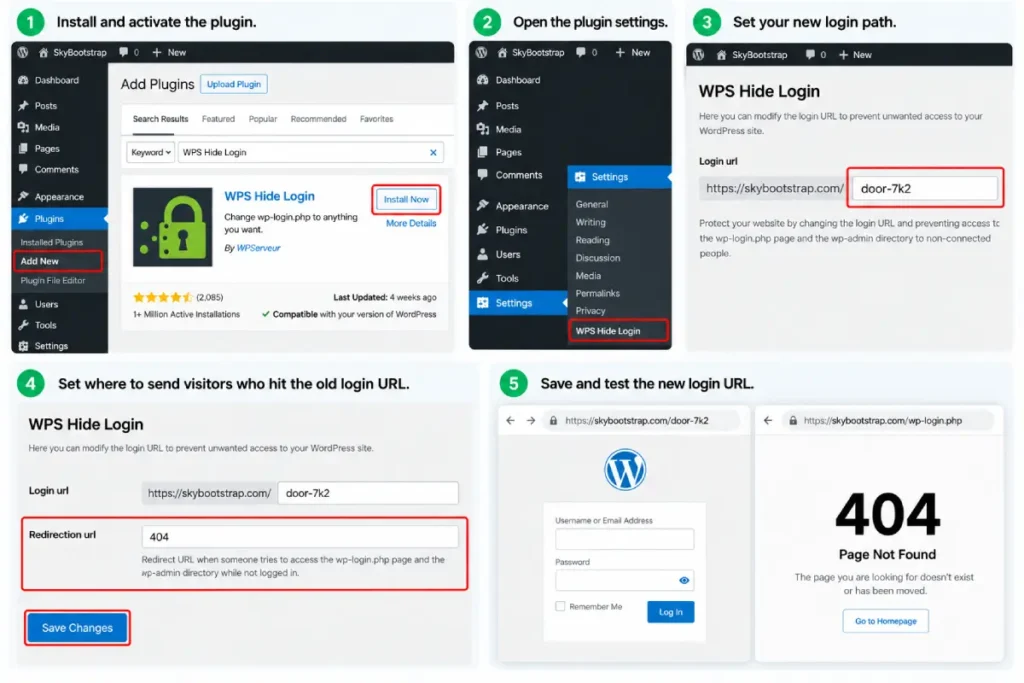
We used WPS Hide Login (a widely used, maintained plugin) on the test site:
- Install and activate the plugin.
- Open its settings (under Settings → WPS Hide Login, or General settings depending on the plugin).
- Set your new login path to something not easily guessed. Avoid obvious choices like
/loginor/admin; use something like/door-7k2. - Set where visitors who hit the old
/wp-login.phpshould be sent (a 404 is fine). - Save, and immediately test the new address in a private browser window before logging out.
On our test site, with the slug set to door-7k2 and pretty permalinks on, the new address showed the login form (HTTP 200) while the old paths were sealed (test T2b):
| Address | Result for a logged-out visitor |
|---|---|
/door-7k2/ | 200, login form |
/wp-login.php | 404 |
/wp-admin/ | 302 to a 404 page |
/login/ | 404 |
/admin/ | 404 |
/wp-login.php?action=lostpassword | 404 |
One thing to get right first: this works cleanly only with pretty permalinks. Our first run was on plain permalinks, and the plugin produced a messy redirect instead of a clean 404 (a discarded run in our log). Set Settings → Permalinks to post-name before you hide the login.
Close the other doors too
Because the hidden login does nothing for XML-RPC or the REST API, close those separately, or the change buys you very little. Hiding the front door while the side door accepts the same password is not much of a gain.
- XML-RPC accepted the real password on our hidden-login test site (test T3). If you don’t need it, disable it; if you do, rate-limit it. See disabling XML-RPC.
- Brute-force protection should be in place regardless, because the login path can leak. Rate limiting and lockouts are in limiting login attempts.
- Two-factor authentication is the real lock: even if an attacker finds the hidden login and guesses the password, the second factor stops them. Set it up from setting up two-factor authentication.
Put plainly: change the login URL after you’ve done the three above, as a finishing touch, not instead of them.
Getting back in if you forget the new address
If you lose the secret login path, you are not locked out: you can read it back or disable the plugin. People avoid this technique for fear of locking themselves out, but recovery is quick if you have any file or database access.
Two ways back in, both tested (test T4):
- Read the slug from the database. With WP-CLI:
wp option get whl_pagereturned the hidden path on our test site. Your host’s database tool (phpMyAdmin) shows the same option. - Disable the plugin. Rename the plugin’s folder in
wp-content/pluginsover SFTP or your host’s file manager. On our test, renaming the folder restored/wp-login.phpto a normal login form (200). Rename it back after you’ve logged in and reset the slug.
Because recovery is this simple, the lock-yourself-out worry shouldn’t stop you, as long as you have some way into your files or database.
Frequently Asked Questions
Does changing the WordPress login URL actually improve security?
Only a little. It’s security through obscurity: it hides the login so most automated bots hit a 404, which cuts noise and saves resources, but it doesn’t lock anything. The address can leak, and other doors stay open. On our test site a hidden login still let XML-RPC accept the real password. Do it after two-factor authentication and rate limiting, never instead of them.
What happens if I forget my new WordPress login URL?
You’re not locked out. Read the slug back from the database (with WP-CLI, wp option get whl_page, or your host’s database tool), or disable the plugin by renaming its folder in wp-content/plugins over SFTP, which restores the normal /wp-login.php. On our test site both worked. Because recovery is this easy, the fear of locking yourself out shouldn’t stop you.
What should I change my WordPress login URL to?
Something not easily guessed, and not an obvious word. Avoid /login, /admin, /dashboard or your site name, since bots try those first. A short random-ish string like /door-7k2 works well. Set pretty permalinks before you change it, because the plugin produces a clean 404 for the old path only on pretty permalinks; on plain permalinks our test produced a messy redirect instead.
Should you do it?
Change the login URL if the automated login traffic in your logs bothers you or is straining a small server, and only after two-factor authentication, login rate limiting, and XML-RPC are handled. As a standalone security measure it’s weak, because it hides the door without locking it. As the last layer on a site that’s already properly protected, it’s a reasonable way to quiet the noise.
If you’re choosing between effort here and effort elsewhere, two-factor authentication protects you far more for similar work. One related but separate task is customizing the login page’s appearance (branding, not security), which is a different job covered in our guide to customizing the WordPress login page. For the full hardening order, see the full WordPress security checklist.