
In our tests, a WordPress 404 error on posts had two kinds of cause: the server wasn’t passing post addresses to WordPress, or WordPress’s saved rewrite rules had no entry for them. Open Settings > Permalinks and click Save Changes first. If the posts still 404, create a missing .htaccess file, make Apache read it, or fix nginx’s try_files line.
We broke post addresses each of these ways on two WordPress 7.1.3 test installs (one Apache 2.4.58, one nginx 1.24.0), never on a live site. Three times, WordPress said the permalinks were updated while posts kept returning 404.
Why the WordPress 404 error hits posts while the home page works
A 404 Not Found is the server’s answer when nothing exists at an address. Permalinks are WordPress’s readable post addresses, like /sample-post/. No file exists there, so the server must hand those addresses to WordPress’s index.php, which uses its rewrite rules to find the post. Rewrite rules are WordPress’s saved list of address patterns.
The home page is index.php itself, so it keeps working when that hand-off breaks. On our Apache copy, the home page returned 200 while /hello-world/ returned 404. The plain link /?p=1 just redirected to that same pretty address, so it isn’t a useful test. Here’s what each cause looked like in our lab:
| What we broke | Server | Posts | Did saving permalinks fix it? |
|---|---|---|---|
.htaccess missing, folder not writable | Apache | 404 | No, it asked us to update .htaccess |
| mod_rewrite switched off | Apache | 404 | No, though it said “Permalink structure updated.” |
AllowOverride None in the Apache site settings | Apache | 404 | No, though it said “Permalink structure updated.” |
try_files without the index.php fallback | nginx | 404 | No, though it said “Permalink structure updated.” |
| Custom post type added by code | nginx | 404 for that type | Yes |
Save your permalinks to rebuild the rewrite rules
Saving your permalinks rebuilds WordPress’s rewrite rules and, on Apache, rewrites .htaccess when it can. In wp-admin:
- On Apache, download a copy of
.htaccessfirst (see the steps below for finding it); uploading it back undoes the save. - Open Settings > Permalinks.
- Leave every option as it is and click Save Changes.
- Reload a post that returned 404.
A custom post type is a content type a plugin or theme adds alongside posts and pages, such as books or products. Our test type registered in code returned 404 until we saved; the stored rules had no entry for it before that. The handbook also says to make sure no custom post type and single page share a name.
Don’t stop at the success notice: read the message WordPress shows, then load a post.
When WordPress can’t write .htaccess
On Apache, if saving shows “You should update your .htaccess file now.”, WordPress couldn’t create or change the file. That’s what happened on our copy after we deleted .htaccess and made the site folder unwritable for the web server:
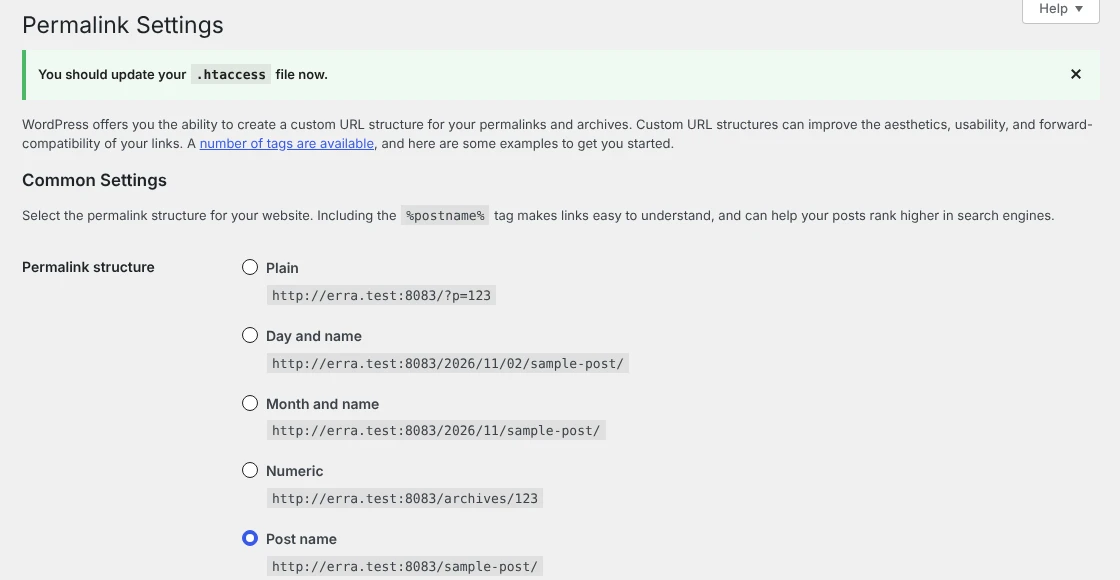
WordPress keeps its address rules in .htaccess, a per-folder settings file for Apache. Further down the same page, WordPress printed the rules it wanted in the file:
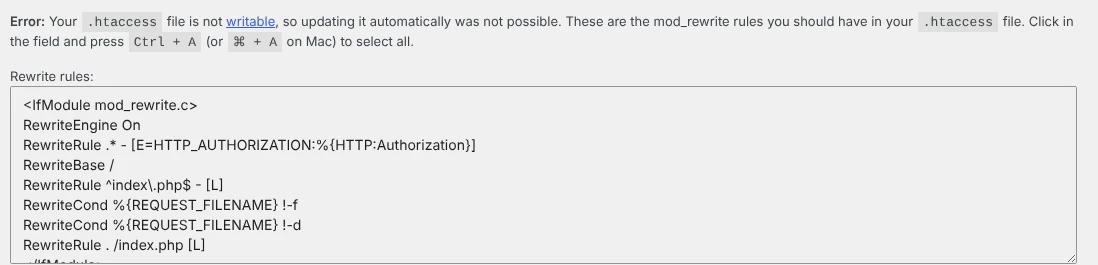
You can create the file yourself:
- Open your site’s files in your hosting panel’s file manager, or with FTP or SFTP, as the handbook’s FTP page describes. Turn on “show hidden files”, because names starting with a dot are hidden.
- Go to WordPress’s main folder, where
wp-adminandwp-contentsit, and look for.htaccess. If it exists, download a copy first. - Create
.htaccess, or open the existing one, and paste the block below. If the file already has a# BEGIN WordPressblock, replace that block and keep any other lines. This is the block our Apache test site got from WordPress 7.1.3 when the folder was writable:
# BEGIN WordPress
# The directives (lines) between "BEGIN WordPress" and "END WordPress" are
# dynamically generated, and should only be modified via WordPress filters.
# Any changes to the directives between these markers will be overwritten.
<IfModule mod_rewrite.c>
RewriteEngine On
RewriteRule .* - [E=HTTP_AUTHORIZATION:%{HTTP:Authorization}]
RewriteBase /
RewriteRule ^index\.php$ - [L]
RewriteCond %{REQUEST_FILENAME} !-f
RewriteCond %{REQUEST_FILENAME} !-d
RewriteRule . /index.php [L]
</IfModule>

# END WordPress- Save and reload a post. To undo, upload your copy or delete the new file.
We kept the # BEGIN WordPress and # END WordPress lines, which the box on the settings page leaves out. They mark the part WordPress manages; the block’s own comment says changes between them “will be overwritten”, so keep custom rules outside it. If WordPress installed in a subfolder, check the paths in the box against this block.
The pasted file is enough to fix the posts. On our test server, where we had shell access, giving the web server’s user ownership of the folder also let the next save write the file. The handbook’s permissions page warns that on shared hosts “files should never be owned by the webserver process itself”, so ask your host instead of changing ownership yourself. Our file permissions guide covers safe settings.
A misspelled directive in .htaccess gave our Apache copy a 500 error rather than a 404; our 500 error guide covers that repair.
When saving says updated but posts still 404
If WordPress says “Permalink structure updated.” and posts still 404, the server isn’t sending addresses to WordPress. Saving can’t change that, and in our tests it reported success both times.
On Apache, check mod_rewrite. mod_rewrite, an Apache module, is what carries out the rewrite rules in .htaccess. With it switched off on our Apache copy, posts returned 404 even with a correct .htaccess, because the WordPress block only runs when the module is loaded.
The handbook also names it as a cause. Shared-hosting customers need their host to turn it on. If you run your own Ubuntu server, sudo a2enmod rewrite followed by sudo systemctl restart apache2 turns it on; that’s the module command we used on our copy, though our lab container restarted Apache with apache2ctl.
On Apache, check that .htaccess is read. AllowOverride is the Apache setting that decides whether .htaccess files are read at all. With AllowOverride None in our site’s <Directory> block, posts returned 404 and saving said “updated” again.
Changing it back to AllowOverride All and reloading Apache fixed it. On shared hosting, ask your host.
On nginx, check try_files. nginx never reads .htaccess. try_files is the nginx line that decides what to serve when no file matches. Ours ended in =404, so posts got nginx’s own 404 page. The handbook’s nginx page uses this line in the site’s location / block, and restoring it fixed our posts:
location / {
    try_files $uri $uri/ /index.php?$args;
}
The location / block is in your site’s nginx configuration file (on our Ubuntu server, a file in /etc/nginx/sites-enabled/). Keep a copy of it, run sudo nginx -t to check the syntax, then reload nginx. If WordPress lives in a subfolder, the fallback path changes too; we tested a root install only. If your host doesn’t let you edit the nginx configuration, send them that line and the address that fails.
When only one post or page is 404
When the rest of the site works, look at the post itself. Check its status and slug, the part of the address that names it, in Posts or Pages:
- Draft, private or in the Trash: each returned 404 to a visitor who wasn’t logged in. Restoring our post from the Trash and publishing it brought it back.
- Slug changed: the old address answered with a 301 redirect to the new one in our test, not a 404. Check that links point to the current address.
- Permalink structure changed: after we switched to year and month addresses,
/hello-world/redirected to/2026/11/hello-world/. - A page and a custom post type with the same name: the handbook says to rename the page and its slug. We didn’t test this case.
We didn’t test plugins or themes that add their own address rules.
If none of the above fits, rename plugin folders in wp-content/plugins one at a time through your file manager, saving permalinks after each. To undo, rename the folder back and activate the plugin again in Plugins. If the post loads in a private window but not in your browser, a cache may be holding the old page; our guide to changes not showing covers clearing it. More tools are in our WordPress errors guide.
Frequently Asked Questions
Will changing my permalink structure break old links?
Not in our test. After we changed the structure, the old address of a post answered with a 301 redirect to its new one, and so did an old slug after we renamed a post. Check a few of your own posts after any change. If an old address loops instead, see our redirect loop guide.
Why do only custom post type posts show 404?
In our test, the saved rewrite rules had no entry for the new type, so WordPress answered 404. Saving Settings > Permalinks once added the missing rule. If that doesn’t help, the handbook’s other suggestion is to rename any page that shares the post type’s name, slug included.
Do I need an .htaccess file on nginx?
Not on nginx alone. nginx ignores .htaccess, so saving permalinks on our nginx copy changed nothing about how it served posts; the try_files line does that job. If your host runs nginx in front of Apache, Apache still reads .htaccess, so the Apache steps apply; we didn’t test that setup.
How we tested
Our two test sites ran WordPress 7.1.3 on Ubuntu 24.04 with Post name permalinks, one on Apache 2.4.58 and one on nginx 1.24.0 with PHP-FPM 8.3.6.
On 2 November 2026 we broke them in the ways this guide covers. On Apache we deleted .htaccess with the site folder unwritable, then separately turned off mod_rewrite and set AllowOverride None. On nginx we removed the index.php fallback from try_files. We also registered a custom post type in code before saving its rewrite rules.
One test post went through draft, private and Trash, got a new slug, and moved under a year-and-month permalink structure before we deleted it. Every change was reversed afterwards.