
To move WordPress from localhost to a live site, upload the site’s files, import its database into a new database on your host, and point wp-config.php at it. Then swap the local address for your domain with WP-CLI’s search-replace, which keeps serialized data intact, and switch search engines back on.
We moved a copy of our test site from a local address to a live one. Two steps reported success while something was broken: a text replace in the database file left a saved setting unreadable, and a database with MySQL 8’s collation imported with no tables at all.
Before you move WordPress from localhost to live
Before you move WordPress from localhost to live, set up the live side first. Localhost is your own computer acting as a web server, which is what tools such as Local, XAMPP and MAMP set up; the live side is your hosting account. It needs four things ready:
- A new database on your hosting, plus a database user allowed to use it. Your host’s panel creates both.
- Your domain pointed at the hosting, so the site can answer at its real address. If the site will replace one that’s already live, back that one up first; our backup guide has the steps.
- SFTP or SSH access. SFTP uploads the files; SSH with WP-CLI (WordPress’s own command-line program) makes the database steps safer. We used WP-CLI throughout.
- The live database version. Your host’s panel or phpMyAdmin shows whether it runs MySQL or MariaDB, and which version. You’ll need it for the collation check below.
If the site is already live somewhere else and you’re changing hosts, our host migration guide fits better.
Export the local database and upload the files
Export the local database as it is, with the local address still in it; you’ll change the address after importing. In your local tool’s shell, from the site’s folder:
wp db export ~/local-site.sqlWithout a shell, use the database tool your local app includes, often phpMyAdmin or Adminer, and export as SQL. We didn’t test those.
Then upload the WordPress folder to your host’s web folder, usually public_html, using an SFTP client like FileZilla. Upload wp-content in full; it holds your themes, plugins and media. Upload the SQL file to your home folder, outside public_html, so nobody can download it.
Then compare file counts, since a transfer that stops halfway can leave files out. Run find wp-content -type f | wc -l in the site folder on both sides; ours matched at 3,434 files. Without a shell, compare the size of wp-content/uploads in your SFTP app.
Import the database and fix collation errors
Point the uploaded wp-config.php at the live database. Your local tool used its own database name, user and password, so change all three, and the host if your provider gave you one. A wrong value shows up as “Error establishing a database connection”, which our database connection guide traces:
cd /home/youruser/public_html
wp config set DB_NAME youruser_wp
wp config set DB_USER youruser_wp
wp config set DB_PASSWORD 'the-live-password'
A collation is the rule a database uses to sort and compare text, and each table names one. MySQL 8 defaults to one called utf8mb4_0900_ai_ci, as MySQL’s manual puts it: “By default, these are utf8mb4 and utf8mb4_0900_ai_ci“. WordPress picks its own collation for its tables, but a plugin’s table or a database made in phpMyAdmin can carry MySQL’s.
Our MariaDB 10.11 server didn’t know that collation. When we imported a dump that used it, each of its 12 tables failed with “Unknown collation: ‘utf8mb4_0900_ai_ci’”, followed by 45 more errors for the missing tables. WP-CLI still printed “Success: Imported from” and left the database empty.
So count before you import, unless your live server runs MySQL 8 too; we tested MariaDB 10.11 only:
grep -c 'utf8mb4_0900_ai_ci' ~/local-site.sqlIf it prints more than 0, swap that collation for one MariaDB knows, then import the fixed copy and count the tables:
sed 's/utf8mb4_0900_ai_ci/utf8mb4_unicode_520_ci/g' ~/local-site.sql > ~/local-site-fixed.sql
wp db import ~/local-site-fixed.sql
wp db tables --all-tables | wc -l
After the swap, all 12 of our tables came in.
Don’t open the live site yet. Until the next step, the database still holds the local address, and right after our import, going to wp-admin sent us to the local login page instead. The sed here only renames a collation, so it’s safe in a way that editing addresses in the file isn’t, as the next section shows. If the table count is 0, read the import’s output from the top, not just its last line.
Once the site works, delete both .sql files from your home folder: each contains every account’s email and hashed password.
Replace localhost URLs with a search-replace that keeps serialized data
WordPress saved your local address, such as http://localhost:8091, in its settings and inside your content. The site needs your real domain there instead.
Serialized data is PHP’s way of saving a list as text, with each piece’s length written in front of it, and some of those settings use it. Change the address with a text editor or a plain find-and-replace on the SQL file, and the length goes wrong. Wpexplorer’s guide does exactly that, a “find and replace” on the exported file.
We tried it: our test setting held a 30-character local URL, saved as s:30. After a text replace, the URL was 35 characters but still marked s:30. The import said “Success” and the homepage loaded, but WordPress read that setting as false, as if it didn’t exist.
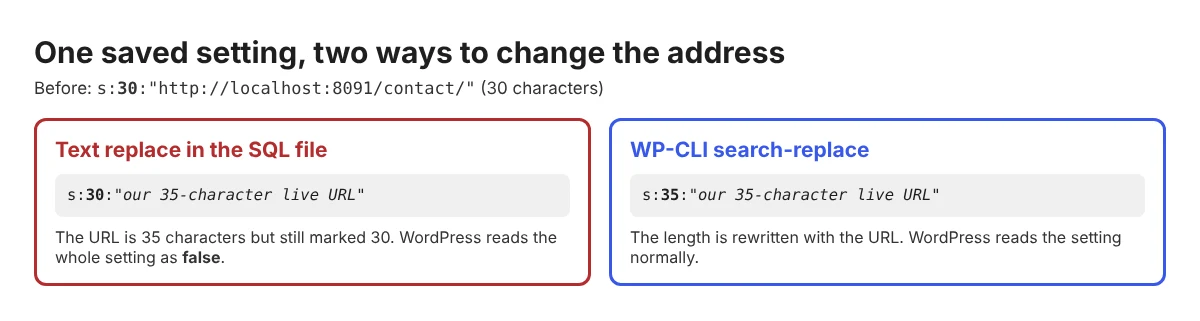
Nothing warned us, and that’s the danger: a broken setting doesn’t stop the site. It just reads as missing, so whatever used it, such as a widget or a plugin’s options, falls back to its defaults.
A search-replace is a find-and-replace run inside the database itself, and you want one that understands serialized data; WP-CLI’s command does, in its own words: “Search/replace intelligently handles PHP serialized data”. Run it on the live site after importing the unchanged dump. Use https:// only once your host shows an active SSL certificate for the domain (in cPanel, under SSL/TLS Status); until then, use http:// and switch later. We tested an http:// address only:
wp search-replace 'http://localhost:8091' 'https://example.com' --skip-columns=guid --dry-run
wp search-replace 'http://localhost:8091' 'https://example.com' --skip-columns=guid
--dry-run only counts, so you can see the scale first. Here’s how the two methods compared on our copy:
| Text replace in the SQL file | WP-CLI search-replace | |
|---|---|---|
| Import message | “Success” | “Success” |
| Saved setting | s:30 for 35 characters | s:35 for 35 characters |
| WordPress reads it as | false | The saved list |
| Homepage | Loaded | Loaded |
On our site, the real run changed 9 values: three settings, five post rows and one user’s website field. The setting the text replace had broken came back as s:35 and read correctly. --skip-columns=guid leaves each post’s permanent identifier alone.
Use your local address exactly as your local tool showed it, with its port number if it had one; Local, for example, often uses a .local name instead. WP-CLI searches only WordPress’s own tables by default, so add --all-tables-with-prefix if plugins made their own (ours had none). If your site also has page-builder data, our domain change guide covers URLs saved with escaped slashes.
Without SSH: phpMyAdmin and a plugin
Without SSH, use phpMyAdmin, your hosting panel and a plugin for each step; only the database edit in step 4 matches something we tested:
- wp-config.php: open it in the panel’s file manager and change
DB_NAME,DB_USERandDB_PASSWORDby hand. - Collation: if your SQL file contains
utf8mb4_0900_ai_ci, replace that name withutf8mb4_unicode_520_ciin a text editor before uploading. Renaming a collation is safe; changing addresses this way isn’t. - Import: in phpMyAdmin, select the new database, open the Import tab, choose the file and run it.
- Log in: in the
wp_optionstable, edit thehomeandsiteurlrows to your live address. When we changed those two rows straight after the import, wp-admin sent us to the live login page instead of the local one. - Everything else: install Better Search Replace or another plugin that respects serialized data, then replace the local address across all tables. Five of our posts still held it after the two-row edit.
Switch off local-only settings
Some settings made sense on your computer and travel with the database. The one that matters most is the search-engine checkbox under Settings > Reading, which you may have ticked to keep the work-in-progress site private. Our local copy had it ticked, and after the move the live homepage carried a noindex, nofollow tag.
wp option update blog_public 1
wp rewrite flush --hard
The first command unticks that box. The second rebuilds WordPress’s link rules, and --hard also rewrites .htaccess on Apache hosts, as saving Settings > Permalinks does. Without SSH, untick the box and save the Permalinks page once in the dashboard.
Check wp-config.php for anything else that was meant for your computer only. WP_DEBUG set to true shows errors to visitors, and WP_ENVIRONMENT_TYPE set to local tells plugins the site isn’t live. Set them for production, or remove them.
Check the live site
Three quick checks catch what the steps above can miss:
curl -s https://example.com/ | grep -c 'localhost'
curl -s https://example.com/ | grep -c 'noindex'
wp db tables --all-tables | wc -l
The first two should print 0, and the third should match the number of tables on your local site. Then open the site logged out, click through a few pages and the menu, and log in to check the settings pages of your main plugins.
Once the site is live, the WordPress maintenance checklist covers keeping it that way. To test future changes before visitors see them, set up a staging site.
How we tested
For this guide, we served one copy of our lab site (WordPress 7.1.4) at a local address, http://localhost:8091, and moved it to a second copy at a live-style domain, each with its own database. MariaDB 10.11.14 held both databases, and WP-CLI 2.12.0 ran the imports and replacements. We compared a text replace in the SQL file with WP-CLI’s search-replace on a saved setting holding the local URL.
Having no MySQL 8 server, we made the MySQL 8 case by changing our dump’s collation. Local tools such as Local or XAMPP, migration plugins, phpMyAdmin and uploads to a real host weren’t part of this test.
Frequently Asked Questions
Do I need a plugin to move WordPress from localhost to live?
A plugin isn’t required. The manual route above needs SFTP for the files and either WP-CLI or a serialization-aware search-replace tool for the address. Migration plugins bundle those steps into one package. We haven’t tested any, so look for serialized data in your plugin’s documentation.
Why does my live site still link to localhost?
Links to localhost come from addresses saved in your database: in settings, menus and post content. Changing the two address fields in Settings > General doesn’t touch the rest. A search-replace on the whole database does; on our site it changed 9 values.
What does “Unknown collation: utf8mb4_0900_ai_ci” mean?
The “Unknown collation” error means your dump names MySQL 8’s default collation, and the live server, often MariaDB, doesn’t recognise it. On our MariaDB 10.11 server, the tables weren’t created at all. Replace the collation name in the SQL file with utf8mb4_unicode_520_ci and import again.