
Moving WordPress to HTTPS takes four steps: install a certificate, update your site’s URLs, redirect HTTP to HTTPS, and fix the old http:// links left inside your content. The tricky part is the last one, mixed content, where a secure page still loads an insecure image or script. We tested the whole move on WordPress 7.1.3 and found the browser quietly upgrades some of those insecure requests and blocks others outright.
This guide walks the four steps, shows the one-click core route and the WP-CLI route for updating URLs, and explains exactly what the browser does with the insecure references you miss.
Step 1: Get and install an SSL certificate
Before anything in WordPress changes, your host must serve a valid certificate for your domain so https://yoursite.com loads without a warning. Most hosts issue a free Let’s Encrypt certificate from their control panel in a few clicks, and many install one automatically.
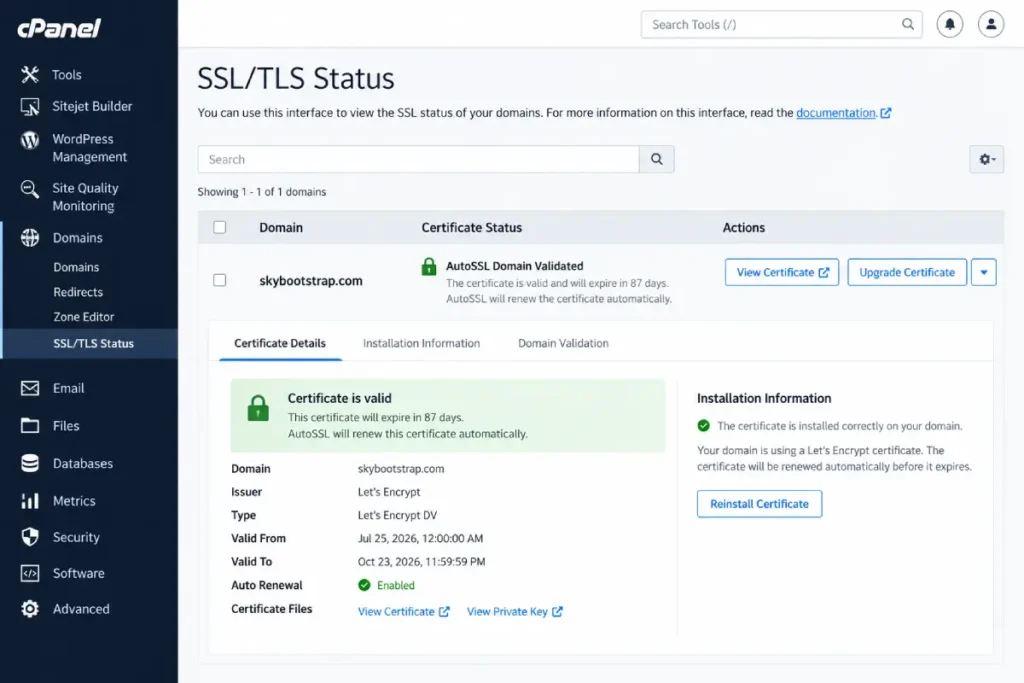
One thing to set up now rather than later: automatic renewal. Let’s Encrypt certificates last 90 days today, and the maximum lifetime is scheduled to drop to 45 days by February 2028 (Let’s Encrypt, July 2026). A certificate you renew by hand will eventually lapse and take your site offline, so confirm your host renews it for you.
With the certificate in place, https:// works, but WordPress still builds http:// links everywhere. On our test site at this stage, the certificate served fine over HTTPS while home and siteurl were still http:// and WordPress’s own check reported the site as not using HTTPS (test T10). The next three steps change that.
Step 2: Update your site’s URLs
Update your site’s URLs by changing WordPress’s address from http:// to https://, then replacing the http:// versions saved inside your posts, options, and widgets. There are two ways: WordPress’s built-in one-click migration, and a database search-replace. Back up your database before either.
The core one-click route. Since WordPress 5.7, Site Health shows an “Update your site to use HTTPS” button when it detects a working certificate. It flips home and siteurl to https:// and rewrites http:// links in your content. On our test site, this button’s underlying function updated both URLs and cut the insecure references in the page from six to two in one step (test T11). It’s the right choice for most sites: no plugin, no command line.
The WP-CLI route, for larger sites or when you want to see exactly what changes. Run a dry run first, then the real replacement, skipping the guid column (changing it can confuse feed readers):
wp search-replace 'http://yoursite.com' 'https://yoursite.com' --all-tables --skip-columns=guid --dry-run
wp search-replace 'http://yoursite.com' 'https://yoursite.com' --all-tables --skip-columns=guid
On our test site the dry run reported seven replacements across options, post content, and user URLs; the real run made them and the insecure own-site references in the page dropped to zero (test T12). The guid values stay http:// on purpose, which is correct and harmless.
After this step, every link WordPress generates and every link saved in your own content points at https://. What’s left is content that references other hosts, and the redirect.
Step 3: Redirect all HTTP traffic to HTTPS
Send every http:// request to https:// with a permanent redirect, so old links and bookmarks land on the secure version. Updating the URLs isn’t enough on its own: until you redirect, a visitor who types the plain address still reaches the site over HTTP.
Before the redirect, on our test site, http:// requests to the home page, feeds, and uploads all still returned 200 over plain HTTP (test T14). WordPress redirects wp-admin and wp-login.php to HTTPS by itself, but not the rest.
For nginx, give port 80 its own server block that redirects everything:
server {
    listen 80;
    server_name yoursite.com www.yoursite.com;
    return 301 https://$host$request_uri;
}
With that in place, every http:// path, the home page, posts, login, and uploads, returned a 301 to the matching https:// URL (test T15).
On Apache, add this to .htaccess ahead of the # BEGIN WordPress block:
<IfModule mod_rewrite.c>
RewriteEngine On
RewriteCond %{HTTPS} off
RewriteRule ^ https://%{HTTP_HOST}%{REQUEST_URI} [L,R=301]
</IfModule>
On our test this redirected the home page, posts, and uploads to HTTPS (test T16).
One trap if your site sits behind a CDN or load balancer that handles the certificate: the server itself receives plain HTTP from the proxy, so a %{HTTPS} off rule fires on every request and loops endlessly. Add a check for the forwarded-protocol header:
RewriteCond %{HTTPS} off
RewriteCond %{HTTP:X-Forwarded-Proto} !=https
RewriteRule ^ https://%{HTTP_HOST}%{REQUEST_URI} [L,R=301]
We reproduced the loop behind a TLS-terminating proxy and confirmed the extra line fixed it: a visitor already on HTTPS was served the page instead of being redirected again (test T17b).
Step 4: Find and fix mixed content
Mixed content is an http:// resource loaded by an https:// page, and your browser treats images differently from scripts: it silently upgrades insecure images, audio, and video to HTTPS, but blocks insecure scripts and stylesheets entirely. The search-replace in Step 2 fixes your own content; mixed content is usually what’s left pointing at other hosts.
We built a test post that loaded an image and a script from a third-party http:// host, then opened the finished HTTPS page in a headless browser to watch what happened (test T13b). The browser’s console showed the difference exactly:
- The insecure image was “automatically upgraded to HTTPS.” The browser tried
https://for it without being asked. (MDN confirms browsers “auto-upgrade image, video, and audio mixed content requests from HTTP to HTTPS, and block insecure requests for all other resource types” (MDN, mixed content).) - The insecure script was blocked: “This request has been blocked; the content must be served over HTTPS.” The third-party widget did not run.
So a missed image usually still works, but a missed script silently fails, which can break a contact form, an analytics tag, or an embedded widget. That’s why you can’t judge mixed content by whether the page looks right.
To find it, open your pages in a browser and read the console: it lists every mixed-content warning with the exact URL. Then fix each at its source:
- Your own old links that the search-replace missed: edit them to
https://, or re-run the search-replace for the specific host. - Third-party resources: check whether the other host offers HTTPS (most now do) and update the URL. If it doesn’t, drop or replace it.
- Hard-coded
http://in a theme or plugin: find it in the template files, or use protocol-relative orhttps://URLs.
As a safety net, you can add the upgrade-insecure-requests directive to a Content-Security-Policy header, which tells the browser to try HTTPS for every insecure request on the page; we included it in the header set in security headers. It’s a backstop, not a substitute for fixing the links, because it does nothing for visitors on browsers that ignore it.
Frequently Asked Questions
How do I move my WordPress site from HTTP to HTTPS?
In four steps: install an SSL certificate (most hosts offer a free auto-renewing one), update your site URLs from http to https, redirect all HTTP traffic to HTTPS, then fix any mixed content left in your pages. WordPress’s built-in “Update your site to use HTTPS” button handles the URL change on most sites; a WP-CLI search-replace is the alternative for larger ones.
Why is my WordPress site showing “not secure” after installing an SSL certificate?
Because the certificate alone isn’t enough: WordPress is still building http:// links. Until you update the site URLs and redirect HTTP to HTTPS, pages load insecurely even though the certificate works. On our test site, right after the certificate was installed, WordPress still reported the site as not using HTTPS. Complete the URL update and redirect steps and the warning clears.
What is mixed content and why does it break my site?
Mixed content is an insecure http:// resource loaded by a secure https:// page. Browsers treat the types differently: they silently upgrade insecure images but block insecure scripts and stylesheets outright. On our test site, a secure page’s insecure image loaded while its insecure script was blocked and never ran, which can break a form or widget with no visible error. Fix each reference at its source.
Do I need to redirect HTTP to HTTPS, or is updating the URLs enough?
You need the redirect too. Updating the site URLs changes the links WordPress generates, but someone who types the plain http:// address, or follows an old link, still reaches the site over HTTP until you redirect. On our test site, HTTP pages returned 200 until we added a redirect. A single 301 redirect at the server sends all HTTP traffic to the secure version.
After the move
After the move, once HTTPS loads, URLs are updated, HTTP redirects, and the console is clean, finish up:
- Update external references you control: Google Search Console (add the
https://property), your analytics, and any hard-coded links in email templates or social profiles. - Check the redirect chain is a single hop. A redirect loop or a double redirect (HTTP to HTTPS to www, say) is slow and sometimes breaks; the “too many redirects” error is a common result of a misconfigured redirect.
- Consider HSTS once you’re confident HTTPS is solid, so browsers refuse to load your site over HTTP at all. Set it carefully, because it’s hard to undo; the details are in our security headers guide.
HTTPS is the floor for everything else: logins, cookies, and application passwords all depend on it, and WordPress won’t even offer application passwords without it. Where this sits in the full hardening pass is the full WordPress security checklist.