
WordPress has no built-in two-factor authentication, so you add it with a plugin that asks for a second proof, usually a code from an authenticator app, after the password. We set up the official Two Factor plugin on a test site: once it was on, the correct password alone no longer logged the account in, and XML-RPC refused the password outright. This guide covers authenticator apps, passkeys, backup codes, enforcing 2FA by role, and the one gap every method shares, application passwords.
WordPress core still doesn’t ship 2FA as of 2026; its own docs confirm it “must be added via a plugin” (WordPress brute-force docs). A core feature request for passkeys was opened and closed as a duplicate in 2026, so for now this stays a plugin job (Trac #64735).
What 2FA protects you from
Two-factor authentication protects you from an attacker who already has your password. A guessed, phished, reused, or leaked password is useless without the second factor, which lives on your phone or a hardware key.
That matters because passwords fail constantly: they get reused across sites, caught by phishing pages, and guessed in brute-force runs. Rate limiting slows the guessing (covered in limiting login attempts), but 2FA is what makes the one correct guess still fail. On our test site, with 2FA on for the admin account, posting the correct password to the login form returned the normal 200 page with a code prompt and set no login cookie (test T3b). The password was right and the account still wasn’t in.
Which second factor should you use?
Which second factor you should use depends on how much protection you need and how much hassle you’ll accept. From strongest to simplest:
- Passkeys (WebAuthn). A passwordless, phishing-resistant login using Face ID, Windows Hello, or a hardware key. The strongest option, because there’s no code to phish and nothing to type. Needs a plugin that supports WebAuthn.
- Authenticator app (TOTP). A six-digit code that changes every 30 seconds, from an app like Google Authenticator, Authy, or 1Password. Strong, free, and works offline. The sensible default for most sites.
- Backup codes. One-time codes you print or save for when you lose your phone. A fallback, not a primary method.
- Email codes. A code sent to your inbox. Better than nothing, but weak: if your email is compromised, so is this. Use it only as a fallback.
SMS text codes aren’t in that list on purpose. They can be intercepted, and the better plugins have moved away from them. Use an authenticator app or a passkey as your main factor, and keep backup codes for recovery.
Setting up two-factor with an authenticator app
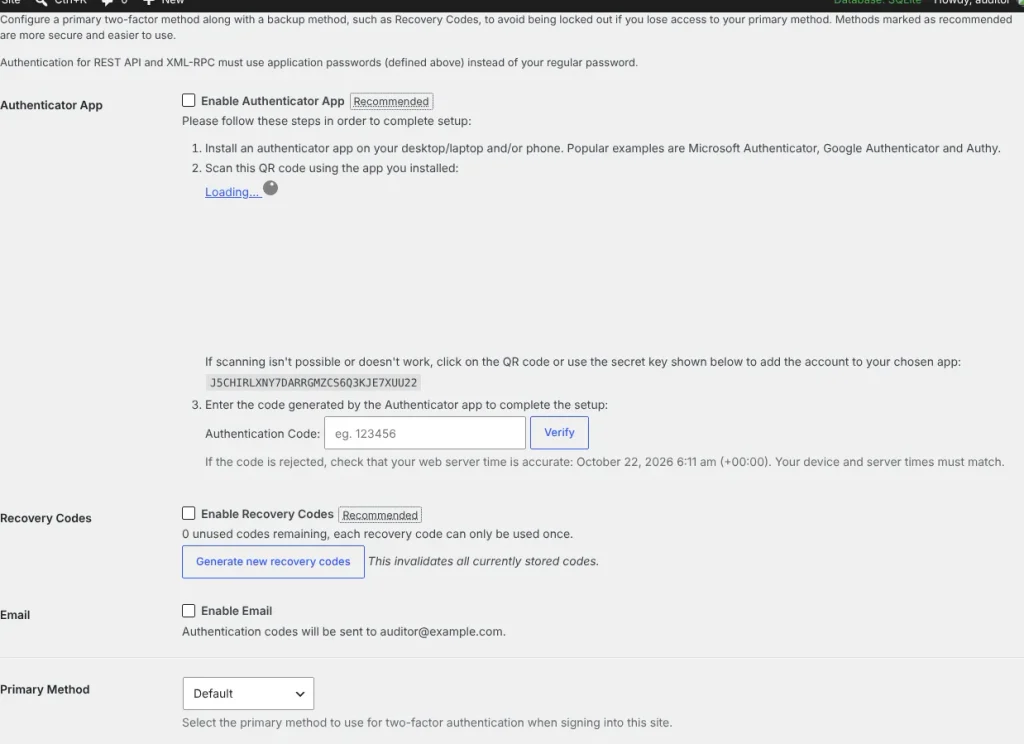
Install a maintained 2FA plugin, turn on the authenticator (TOTP) option in your profile, scan the QR code with your app, and confirm one code to lock it in. We used the official Two Factor plugin (maintained on WordPress.org) on the test site; the steps below match what it does.
- Install and activate a 2FA plugin. On our test install, Two Factor 0.17.0 added three providers out of the box: authenticator app (TOTP), email, and backup codes (test T1b).
- Open Users → Profile and find the Two-Factor Options box.
- Tick the authenticator app and open its settings. Scan the QR code with your authenticator, or type the shown secret into it by hand.
- Enter the current six-digit code to confirm the clocks match, and save.
- Generate backup codes in the same screen and store them somewhere safe, offline.
- Set the authenticator as your primary method so it’s the one asked for first.
After this, your next login asks for the password and then the six-digit code. On our test site, with TOTP and backup codes enabled and TOTP primary, the account was correctly marked as using two-factor and ten backup codes were generated (test T2).
Does the plugin rate-limit wrong codes?
A good 2FA plugin slows down code guessing, and Two Factor does. A six-digit code has a million combinations, so without a limit an attacker who already has the password could just try codes; the limit is what prevents that.
We tested it by submitting wrong codes in a row after the correct password (test T6). The first wrong code returned “Invalid verification code.” From the second on, it returned “Too many invalid verification codes, you can try again in 2 seconds” (the message counts down the remaining wait, so the number shown shrinks as the clock runs out).
The underlying lockout, though, grows. Reading the plugin source explained it: the delay is pow(2, failed_logins) seconds, doubling after each failure, capped at 15 minutes. We confirmed the growth by waiting out each delay and timing when the next guess was actually checked: the gaps between checked guesses were roughly 5, 9, 17, 33, and 65 seconds (test T7). After a handful of wrong codes, an attacker is waiting minutes between tries, which makes guessing a million codes hopeless.
Enforcing 2FA across all admins
On a multi-user site, 2FA only helps on accounts that turn it on, so enforce it for every administrator rather than hoping they do. A single admin without 2FA is the weak link an attacker will find.
The Two Factor plugin leaves enrollment to each user by default, but it exposes hooks to require it for chosen roles, and companion plugins add a settings screen for the same thing. The approach that scales: require 2FA for administrators and editors, give new admins a short grace period to enroll, and block logins that haven’t after that. WordPress’s own contributor site took this route, making 2FA mandatory for anyone who can publish there (make.wordpress.org).
Whatever you enforce, enroll at least two factors per account (an authenticator plus backup codes, or a second passkey), so one lost phone doesn’t lock an admin out for good.
The gap every 2FA setup shares: application passwords
Every 2FA setup shares one gap: it protects the interactive login form but does not cover application passwords, the separate credentials WordPress issues for apps and scripts. An attacker or a leaked integration key can still get in through that door.
We confirmed this on the test site. With 2FA fully on for the admin account:
- The browser login correctly demanded a code (test T3b).
- XML-RPC with the account’s real password was rejected outright (test T4b): “Incorrect username or password,” because the plugin blocks password logins over the API for 2FA users.
- But an application password for that same account logged straight into the REST API and XML-RPC with no second factor asked (test T5b).
That is by design: application passwords exist so automated tools can connect, and a tool can’t type a 2FA code. The lesson is to treat application passwords as powerful credentials in their own right. Review them under Users → Profile, delete any you don’t recognize, give each integration its own, and revoke one the moment a service is retired. Auditing them is part of auditing user accounts.
One setup note: WordPress only offers application passwords on HTTPS sites (or local environments). On our plain-HTTP lab we had to set WP_ENVIRONMENT_TYPE to local before they worked (test T5), which matches the core rule in wp-includes/user.php: they’re available “to all sites using SSL or to local environments.” If yours aren’t showing, the site isn’t on HTTPS yet; see moving WordPress to HTTPS.
Frequently Asked Questions
Does WordPress have built-in two-factor authentication?
No. As of 2026 WordPress core still ships no 2FA; its own documentation says it must be added with a plugin. A core feature request for passkeys was opened and closed as a duplicate in 2026. So for now you add two-factor login through a maintained plugin such as the official Two Factor plugin, which adds authenticator-app, email and backup-code options.
What happens if I lose my phone with the 2FA codes?
You use a backup code. When you set up two-factor authentication, the plugin generates one-time backup codes to print or save offline; each logs you in once if your authenticator is unavailable. That’s why you should enrol at least two factors per account, an authenticator plus backup codes, so a lost phone doesn’t lock you out of your own site for good.
Does 2FA protect the WordPress REST API and XML-RPC?
No, and this surprises people. Two-factor authentication covers the interactive login form, but application passwords, the separate credentials for apps and scripts, bypass it entirely. On our test site, with 2FA fully on, an application password logged straight into the REST API and XML-RPC with no code asked. Treat application passwords as powerful credentials and review them regularly.
Is an authenticator app or SMS better for WordPress 2FA?
An authenticator app. App-based codes (TOTP) work offline and can’t be intercepted the way SMS text codes can, which is why the better plugins have moved away from SMS. A passkey is stronger still, being phishing-resistant and passwordless. Use an authenticator app or a passkey as your main factor and keep backup codes only for recovery, not as a primary method.
What to set up
For a single-admin site: install a 2FA plugin, enable the authenticator app, generate backup codes, make the authenticator primary. That’s twenty minutes and it closes the biggest hole in WordPress login security.
For a site with several admins: do the above for everyone, enforce 2FA for administrators and editors by role, and audit application passwords so the second factor isn’t quietly bypassed through the API. Combined with login rate limiting (our limiting login attempts guide) and, if you don’t need it, a disabled XML-RPC (disabling XML-RPC), your login is no longer the easy way in. The rest of the hardening checklist is the full WordPress security checklist.