
If your WordPress site redirects to spam, shows pages you didn’t create, or has an administrator you don’t recognize, assume it’s hacked and act fast. The three checks that catch most hacks are: look for PHP files where none should be, compare your core files against a clean copy, and list your administrators. We ran all three on a test site seeded with the kind of leftovers a hack leaves, and each one found its target. This guide covers the signs, the scans, and a cleanup order that actually gets the site clean and keeps it that way.
A note on what we tested. We didn’t use real malware. We seeded our test site with harmless stand-ins for the three things a cleanup must find: a line added to a core file, an unexpected PHP file in the uploads folder, and an extra administrator account. The detection steps below are what found them; no malicious code was involved.
Signs your site is hacked
The clearest signs of a hacked WordPress site are redirects to other sites, content you didn’t publish, admin accounts you don’t recognize, and warnings from Google or your browser. Any one of these is enough to start a cleanup.
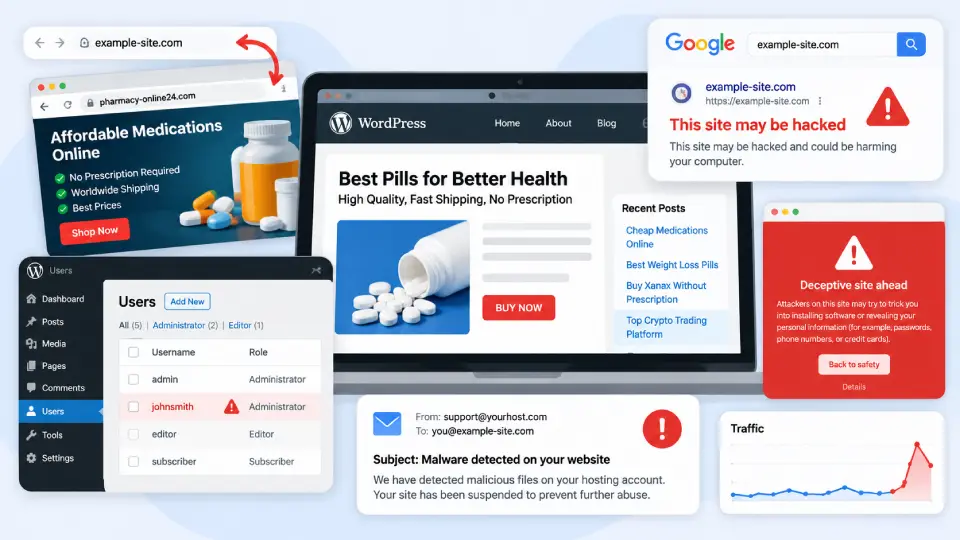
Watch for:
- Redirects to spam. Your site, or just some pages, sends visitors to a site selling pills, counterfeits, or worse. Often it only redirects visitors from search results, so it looks fine when you type the URL directly.
- Pages or posts you didn’t create, often spammy keywords and links, sometimes hidden from the dashboard but visible to Google.
- An administrator you don’t recognize, or a user count that’s higher than it should be.
- A Google “this site may be hacked” label in search results, or a browser warning page. Google’s Search Console Security Issues report flags hacked content, malware, and social-engineering content when it detects them (Google).
- Your host suspends the site or emails about malware.
- Spam sent from your domain, or your domain landing on a blocklist.
- Unexpected slowness or traffic spikes, as the compromised site is used to attack others.
If you see any of these, don’t panic, but don’t delay either. The longer malicious code runs, the more it spreads and the more Google and blocklists notice.
Confirm it: three checks that find most hacks
To confirm a hack, run three checks: find PHP files in places they shouldn’t be, compare your core files to a known-good copy, and review your admin accounts. These catch the great majority of compromises.
Check 1: PHP files where none should be
Look for .php files in the uploads folder, which should only ever hold media. A PHP file there is almost always a backdoor, since attackers drop them where uploads are writable.
On our test site, this found the planted file at once (test T1):
find wp-content/uploads -name '*.php'Any result from that command needs investigating. The uploads folder holds images and documents; it has no legitimate reason to contain PHP.
Check 2: Compare core files to a clean copy
Check whether your WordPress core files have been modified, because injected code in a core file is a common and well-hidden backdoor. WordPress core files should be byte-for-byte identical to the official release.
The built-in way is wp core verify-checksums, which compares every core file against WordPress.org’s published checksums, when your server can reach WordPress.org. Ours couldn’t during testing (the call failed with a connection error), so we used the fallback that needs no outside connection: download a fresh copy of your exact WordPress version and compare directly:
# Download the matching version, then compare wp-admin and wp-includes
diff -rq /path/to/clean/wp-includes ./wp-includes
diff -rq /path/to/clean/wp-admin ./wp-admin
On our test, this comparison flagged exactly the file we’d tampered with (version.php) and nothing else (test T5). It’s the method we’d rely on, since it works even when verify-checksums can’t reach WordPress.org. The same approach works for plugins and themes: compare against fresh copies from the directory.
A caution about dates: looking for recently-modified files (find . -mtime -2) also works, but it flags every legitimate change too. On our test the modified core file showed up in that list alongside normal files (test T2b), so use modification time as a lead, not proof.
Check 3: Review admin accounts
List your administrators and look for any you don’t recognize, because attackers often add one to keep access even after you patch the hole. On our test site the planted extra admin showed up immediately in the list (test T3): wp user list --role=administrator, or the Administrator filter under Users. An admin you can’t place is strong confirmation. Auditing accounts properly is covered in auditing user accounts.
Scan with a reputable tool
Alongside the manual checks, run a security scanner, because tools catch patterns and known-malware signatures a person would miss. Use a reputable one; “free malware scanner” searches turn up fake tools that are malware themselves.
Server-side scanners such as Wordfence, Sucuri, and MalCare read your actual files and compare them against malware signatures and your plugins’ known-good versions, which catches more than a scanner that only sees your public pages. Run one, read what it flags, and treat its findings as leads to verify, not gospel; scanners miss things and occasionally flag harmless code. The manual checks above and a scanner together are far stronger than either alone.
Clean up, in the right order
Clean a hacked site in a fixed order: get a backup, take it offline, find and remove the malicious code, then close the hole. Skipping the order is how sites get re-hacked days later.
- Back up the hacked site as-is. Yes, it has malware in it. You want it anyway, as evidence and in case cleanup breaks something you need to recover.
- Take the site offline or into maintenance mode so visitors aren’t harmed and Google doesn’t see more bad pages.
- Change every password: all admin accounts, the database, your hosting, and SFTP. Rotate the secret keys in
wp-config.phpto kill every active session, including the attacker’s; see wp-config.php security settings. - Remove the malicious code. Replace WordPress core and all plugins and themes with fresh copies from official sources, which overwrites injected code in those files. Then clean what’s left: unexpected files (like the uploads PHP from Check 1), injected lines in
wp-config.php, and malicious database entries. The core-comparison from Check 2 tells you what was touched. - Remove unknown admin accounts and reassign their content, then re-check the list.
- Scan again to confirm it’s clean before going back online.
On our test, the cleanup reversed every planted change: restoring the core file made the comparison match the clean copy again, deleting the uploads PHP cleared that check, and removing the extra admin left only the real accounts (test T6). A clean re-scan is how you know you’re done.
Close the hole so it doesn’t happen again
A cleaned site that’s re-hacked within a week means the hole is still open, so finish by fixing how they got in. Cleanup removes the symptom; this removes the cause.
The usual entry point is a vulnerable or abandoned plugin, so audit those and remove anything outdated or no longer maintained (checking for vulnerable plugins). Then stop code from running where it shouldn’t: block PHP execution in the uploads folder, so a dropped backdoor can’t be run even if it lands. We tested this on the lab:
# nginx: refuse to run PHP from the uploads folder
location ~* ^/wp-content/uploads/.*\.php$ { deny all; }
# Apache: .htaccess inside wp-content/uploads/
<FilesMatch "\.php$">
Require all denied
</FilesMatch>With the nginx rule, a PHP file requested from uploads returned 403 instead of running; the Apache rule did the same while images still loaded (tests T7, T8). After that, work through the full hardening checklist so the next vulnerability has fewer ways to turn into a hack.
Frequently Asked Questions
How do I know for sure my WordPress site is hacked?
Run three checks. Look for PHP files in the uploads folder, which should hold only media; compare your core files against a fresh copy of the same WordPress version; and list your administrators for any account you don’t recognise. On our test site, each of these found its planted problem. A security scanner alongside them raises confidence further.
Can I clean a hacked WordPress site myself?
Often yes, for a blog or small site. Back up the hacked site as-is, take it offline, change every password, then replace core, plugins and themes with fresh copies and remove unknown files and admin accounts. If the site handles payments or keeps reinfecting after a careful cleanup, a professional service is the safer choice, because a hidden backdoor is easy to miss.
Why does my WordPress site keep getting hacked after I clean it?
A reinfection within days means the entry point is still open. Cleanup removes the symptom; it doesn’t close the hole. The usual cause is a vulnerable or abandoned plugin, or a backdoor you missed, often a PHP file dropped in the uploads folder. Audit your plugins, block PHP execution in uploads, and work through a full hardening pass so the next flaw has fewer ways in.
Will Google remove the “this site may be hacked” warning after I fix it?
Yes, but you must request a review. Google’s Search Console Security Issues report lists the hacked content; once you’ve fixed every affected page, not just some, you submit a reconsideration request explaining what you cleaned. Reviews take from a few days to a couple of weeks. Don’t resubmit while one is pending, as that can lengthen the wait.
When to get help
Get help if the site handles payments or personal data, if you can’t find the malicious code, or if it keeps coming back: a professional cleanup service is worth it then. Some hacks bury themselves deep, and a site that re-infects after a careful cleanup has a backdoor you haven’t found.
Professional services (Sucuri, Wordfence, and others) do this daily and can often guarantee the result. For a hobby blog, the steps above are usually enough. For a store or a business site where downtime and data loss are expensive, paying for a thorough cleanup and a post-clean monitoring plan is worth it. Either way, once it’s clean, the hardening checklist is what keeps it that way: the full WordPress security checklist.