
To add AI bot rules to robots.txt on WordPress, first check whether your site serves WordPress’s virtual robots.txt or a physical file, then paste one of the AI bot user-agent groups below into the one tool that manages that file. We ran all four, including a Crawl-delay variant, through a robots.txt parser for 17 bot names before publishing them.
If you haven’t decided which bots to keep yet, start with which AI crawlers to allow on WordPress and come back with your answer.
Virtual robots.txt or a physical file: which one your site serves
WordPress generates robots.txt on request unless a real robots.txt file sits in your site’s root folder, and on a standard nginx or Apache setup that physical file wins. The virtual robots.txt is the response WordPress builds each time a bot asks; a physical robots.txt is a real file on disk.
Yoast’s help page puts it the same way: WordPress generates a virtual file “if the site root does not contain a physical file”.
The response headers usually tell the two apart. When we tested both on our WordPress 7.1.3 site under nginx 1.24.0, the physical file came back with Last-Modified and ETag headers. The WordPress-generated one had neither, and it carried a Link header pointing to /wp-json/. A page cache or CDN can change headers, so if the result is unclear, look for a robots.txt file in your host’s file manager.
$ curl -sI https://example.com/robots.txt
# physical file:   Last-Modified: ...   ETag: "..."   Accept-Ranges: bytes
# virtual file:    Content-Type: text/plain; charset=utf-8   Link: <https://example.com/wp-json/>; rel="https://api.w.org/"
No terminal? Open robots.txt in Chrome or Firefox, press F12, choose the Network tab, and reload: the response headers are listed there.
This matters because a plugin setting or SEO editor that “edits robots.txt” without writing a file only changes the virtual one. If a physical file exists, bots never see those changes.
Four robots.txt templates for AI bots on WordPress, tested
Template A keeps AI search and user fetches but asks training bots to stay out. Template B asks every major AI bot to leave, C protects only a members area, and D slows two crawlers without blocking anything.
An AI bot user-agent group is one or more User-agent: lines naming AI bots, followed by the rules for those bots. We ran each template through Protego 0.7.0, a Python robots.txt parser, for 17 bot names and three paths. Each result below is that parser’s verdict, not a promise about how a given bot behaves.
| Template | Training names (GPTBot, ClaudeBot, CCBot and others) | AI search and user bots (OAI-SearchBot, ChatGPT-User, PerplexityBot, Claude bots) | Googlebot, Bingbot, Applebot |
|---|---|---|---|
| A | Disallowed everywhere | Allowed (not /wp-admin/) | Allowed (not /wp-admin/) |
| B | Disallowed everywhere | Disallowed everywhere | Allowed (not /wp-admin/) |
| C | Allowed on /, not on /members/ | Allowed on /, not on /members/ | Allowed, including /members/ |
| D | Allowed, ClaudeBot and CCBot with a 10-second delay | Allowed | Allowed |
Template A: keep AI search, opt out of training
User-agent: *
Disallow: /wp-admin/
Allow: /wp-admin/admin-ajax.php

User-agent: GPTBot
User-agent: ClaudeBot
User-agent: Google-Extended
User-agent: Applebot-Extended
User-agent: Meta-ExternalAgent
User-agent: CCBot
User-agent: Bytespider
User-agent: Amazonbot
Disallow: /

Sitemap: https://example.com/YOUR-SITEMAP.xml
In our parser test, all eight names were disallowed everywhere. Two of them, Google-Extended and Applebot-Extended, are control tokens rather than crawlers: Google and Apple crawl with their normal bots and read these names to decide on training use. Search engines and the AI search and user-triggered bots (PerplexityBot, Perplexity-User, OAI-SearchBot, Claude-SearchBot, ChatGPT-User, Claude-User) stayed allowed, apart from /wp-admin/. Applebot powers Siri, Spotlight and Safari search, so it stays; Applebot-Extended is the training token.
Replace the Sitemap line with the one your live robots.txt already shows. On our test sites that was sitemap_index.xml with Rank Math, sitemap.xml with AIOSEO and wp-sitemap.xml with WordPress alone.
Template B: ask every major AI bot to stay out
This is template A plus the AI search and user-triggered bots:
User-agent: *
Disallow: /wp-admin/
Allow: /wp-admin/admin-ajax.php

User-agent: GPTBot
User-agent: OAI-SearchBot
User-agent: ChatGPT-User
User-agent: ClaudeBot
User-agent: Claude-SearchBot
User-agent: Claude-User
User-agent: PerplexityBot
User-agent: Perplexity-User
User-agent: Google-Extended
User-agent: Applebot-Extended
User-agent: Meta-ExternalAgent
User-agent: Meta-ExternalFetcher
User-agent: CCBot
User-agent: Bytespider
User-agent: Amazonbot
Disallow: /

Sitemap: https://example.com/YOUR-SITEMAP.xml
In our test, every AI bot name we checked (14 of them) was disallowed, while Googlebot, Bingbot, and Applebot were still allowed. Keep in mind that OpenAI, Perplexity, Meta, and Amazon each say their user-triggered fetchers may not follow robots.txt: ChatGPT-User, Perplexity-User, Meta-ExternalFetcher and Amzn-User.
Template C: keep AI bots out of a members area
User-agent: *
Disallow: /wp-admin/
Allow: /wp-admin/admin-ajax.php

User-agent: GPTBot
User-agent: OAI-SearchBot
User-agent: ChatGPT-User
User-agent: ClaudeBot
User-agent: Claude-SearchBot
User-agent: Claude-User
User-agent: PerplexityBot
User-agent: Perplexity-User
User-agent: Google-Extended
User-agent: Applebot-Extended
User-agent: Meta-ExternalAgent
User-agent: Meta-ExternalFetcher
User-agent: CCBot
User-agent: Bytespider
User-agent: Amazonbot
Disallow: /members/
Disallow: /wp-admin/
Allow: /wp-admin/admin-ajax.php

Sitemap: https://example.com/YOUR-SITEMAP.xml
In our test, every AI bot name we checked (14 of them) could read / but not /members/lesson-1/, and Googlebot could still read both. Change /members/ to your own folder. Note the trailing slash: /members/ doesn’t cover a page at /members itself, so add Disallow: /members too if that page exists.
Template D: slow down with Crawl-delay, block nothing
User-agent: *
Disallow: /wp-admin/
Allow: /wp-admin/admin-ajax.php

User-agent: ClaudeBot
User-agent: CCBot
Crawl-delay: 10
Disallow: /wp-admin/
Allow: /wp-admin/admin-ajax.php

Sitemap: https://example.com/YOUR-SITEMAP.xml
Crawl-delay is a non-standard robots.txt line that asks a bot to wait a number of seconds between requests. The parser read a 10-second delay for ClaudeBot and CCBot only. Both are bots whose owners say they honour Crawl-delay.
The rule that trips people up: a named group drops your * rules
A bot that has its own group in robots.txt follows only that group, so any rule you want it to keep, such as Disallow: /wp-admin/, must be repeated inside it. Google’s robots.txt specification says specific groups and the * group are not combined. The named group is used instead of the * group, not added to it.
We tested the common mistake: a ClaudeBot group that holds only a crawl delay.
User-agent: *
Disallow: /wp-admin/

User-agent: ClaudeBot
Crawl-delay: 10

# Parser result for /wp-admin/:
# Googlebot   disallowed
# ClaudeBot   allowed
ClaudeBot was allowed into /wp-admin/ because its own group says nothing about it. That’s why templates C and D repeat the admin lines.
Add the rules in Yoast, Rank Math, AIOSEO, or a file
Use the editor of the one SEO plugin you run, or upload a physical file by SFTP. If a physical file already exists, the plugin editors can’t change what bots see.
Rank Math
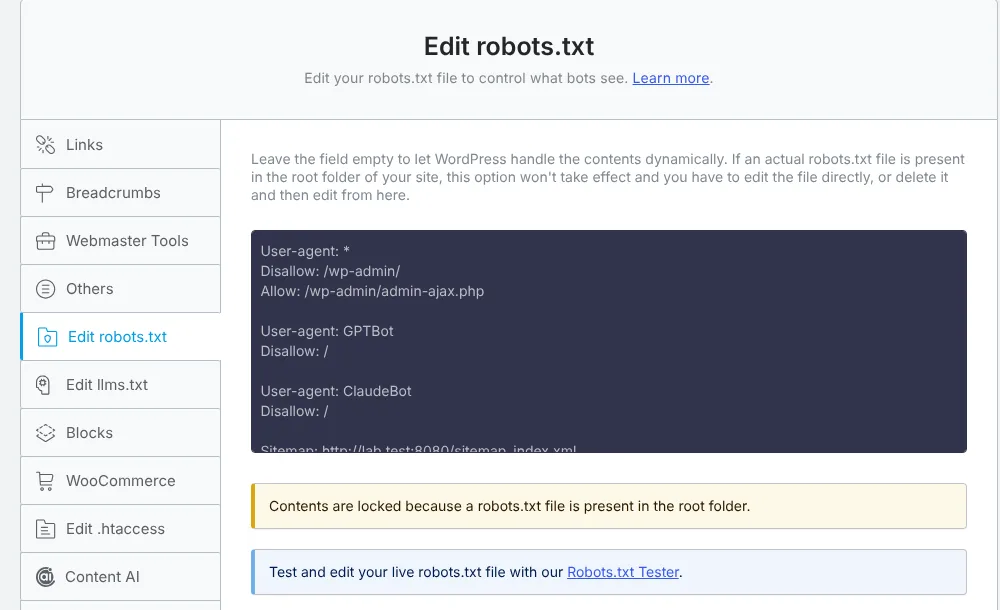
Go to Rank Math SEO → General Settings → Edit robots.txt. Whatever you type there becomes the whole file. On our test site (Rank Math 1.0.280), filling the box removed every line other plugins had added: WooCommerce’s Disallow rules and three AI groups from a test plugin. So copy your live robots.txt first, as your undo, then paste the complete file with the new group added.
When we put a physical robots.txt in the root, Rank Math locked the box with the message “Contents are locked because a robots.txt file is present in the root folder”, and the server sent only the file.
All in One SEO (AIOSEO)
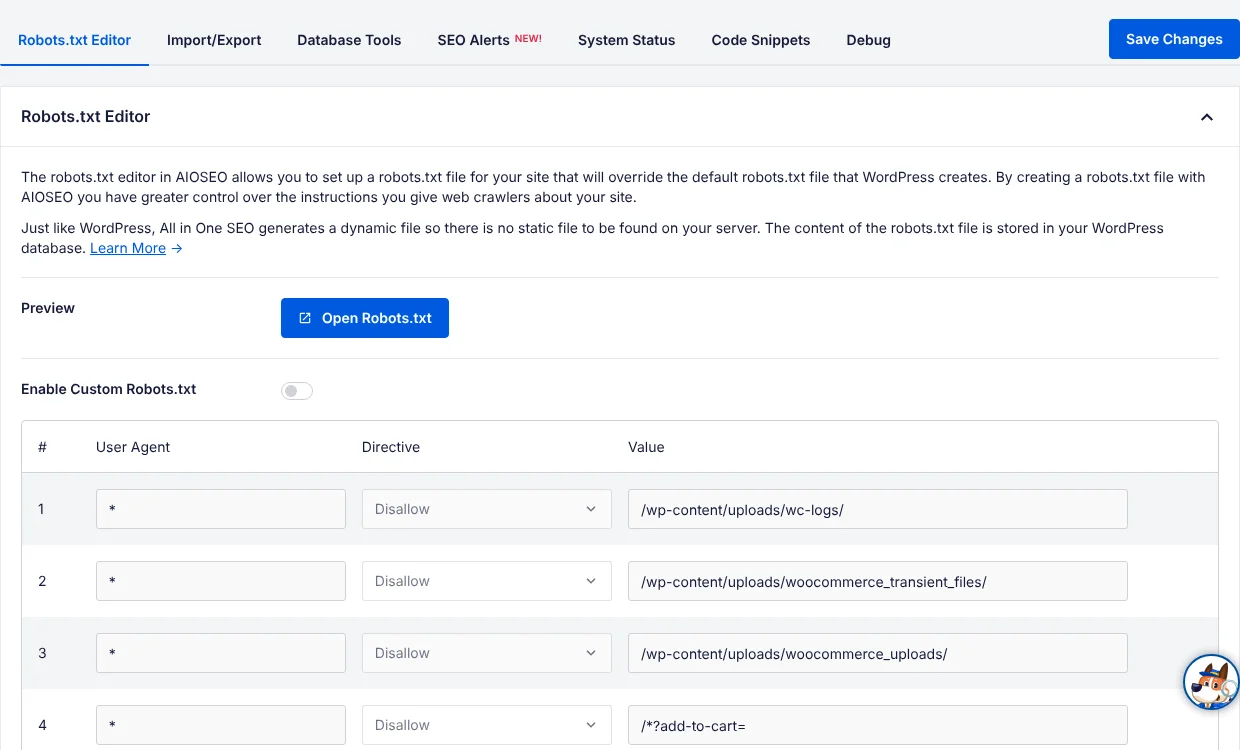
Go to All in One SEO → Tools → Robots.txt Editor, switch on Enable Custom Robots.txt, and add one row per rule: user agent, directive, value. A grouped template becomes one row per bot name, each with Disallow and /. AIOSEO 5.0.3’s code also accepts Crawl-delay as a directive, so template D works here too. AIOSEO 5.0.3 says its file is dynamic and stored in the database, not on disk.
Unlike Rank Math, it adds its rows to what’s already there: our Bytespider row appeared next to WooCommerce’s lines and the test plugin’s groups.
Yoast SEO
Go to Yoast SEO → Tools → File Editor and click Create robots.txt file. According to Yoast’s help page, editing may fail if the file isn’t writable, and the fallback is FTP or your host’s file manager. Yoast’s advice about writable files suggests its editor works with a file on disk, so check the headers afterwards to see which file your site serves.
A plugin setting for training bots only
If you mainly want training bots out, our Skyboot AI Markdown plugin can write a similar group for you. According to our documentation, its training-crawler setting adds Disallow lines for nine training bots, among them GPTBot, ClaudeBot, Google-Extended and CCBot. Its list differs a little from template A: it adds cohere-ai and Diffbot and leaves out Amazonbot.
The setting needs the robots.txt that WordPress generates. On tlinky.com, our link-tools site, which has a physical file, the setting warned on 28 October 2026 that it can’t add its rules and told us to edit the file instead (plugin version 3.0.0 on that screen).
A file on the server
Upload a robots.txt to the folder that holds wp-config.php, usually public_html, over SFTP or through the file manager in your hosting panel. Keep the WordPress lines from the * group, add your template, and keep your sitemap line. After that, plugin editors that change only the virtual file no longer affect what bots see.
Whichever route you take, let one tool own the file.
Check the live file and test each rule
Open your live robots.txt, run each bot name through a robots.txt parser, and allow about a day for crawlers to notice.
- Read it live. Load
https://example.com/robots.txtwhile logged out and check that every new group is in the response. - Parse it. Save it as
robots.txtand run it through a parser. This is the script we used. Install the parser withpip install protego==0.7.0, save the script asrobots_matrix.py, then runpython3 robots_matrix.py robots.txt / /members/ /wp-admin/:
#!/usr/bin/env python3
"""Read a robots.txt file and print, for each bot token, whether it may fetch a few paths.
Uses Protego (the parser Scrapy uses, follows Google's matching rules). Usage: robots_matrix.py <robots.txt> [path ...]"""
import sys
from protego import Protego
BOTS = ["Googlebot", "Bingbot", "Applebot", "GPTBot", "OAI-SearchBot", "ChatGPT-User", "ClaudeBot",
        "Claude-SearchBot", "Claude-User", "PerplexityBot", "Perplexity-User", "Google-Extended",
        "Applebot-Extended", "Meta-ExternalAgent", "CCBot", "Bytespider", "Amazonbot"]
src = open(sys.argv[1], encoding="utf-8").read()
paths = sys.argv[2:] or ["/", "/members/lesson-1/", "/wp-admin/"]
rp = Protego.parse(src)
print(f"{'bot':<20}" + "".join(f"{p:<22}" for p in paths) + "crawl-delay")
for b in BOTS:
    row = "".join(f"{('allowed' if rp.can_fetch('https://example.com' + p, b) else 'disallowed'):<22}" for p in paths)
    d = rp.crawl_delay(b)
print(f"{b:<20}{row}{d if d is not None else '-'}")- Wait, then recheck. Owners who document it say about a day; the FAQ below has the details.
If you run our plugin, its AI crawler access test also reads your live robots.txt. It reports whether eight search and user bots are allowed (Googlebot, Bingbot, and the search and user bots of OpenAI, Anthropic and Perplexity), as the same documentation page describes. It doesn’t list training bots, so use the parser for template A’s names.
Crawl-delay only helps with some bots:
| Bot owner | Crawl-delay |
|---|---|
| Anthropic (ClaudeBot) | Supported, per Anthropic |
| Common Crawl (CCBot) | Obeyed, per Common Crawl |
| Bing | Read as a relative slowdown (Bing, 2009) |
| Not supported | |
| Apple (Applebot) | Ignored |
| Amazon | Not supported |
Remember the limits: RFC 9309, the robots.txt standard, says its rules don’t authorize or deny access. Bots that ignore them need a server or firewall rule for scrapers like Bytespider. A CDN can also block a bot before it ever reads your file, which our Cloudflare AI bot settings walkthrough covers.
Pick a template and set it this week
Start from template A unless you’ve already decided otherwise, because it keeps the bots that can send visitors. Add it in the one tool that manages your file.
The next day, reread the live file and run the parser again. A week later, check your logs or analytics to see whether the bots you asked to leave have stopped, using the steps to track AI crawlers. If you’re still weighing it up, read whether you should block AI bots at all first.
Frequently Asked Questions
Does WordPress create a robots.txt file by default?
WordPress serves a virtual robots.txt that it builds on each request. There is no file on disk unless you, your host or a plugin adds one. The default output has a * group that disallows /wp-admin/ and allows admin-ajax.php, and plugins can add lines through the robots_txt filter. Once a real robots.txt file sits in the site root, the web server serves that file instead.
How long until AI bots see a robots.txt change?
About a day for the owners who document it. OpenAI estimates about 24 hours for search-related robots.txt changes. Perplexity says changes may take up to 24 hours, and Google caches the file for up to 24 hours. Amazon’s agents may use a copy cached within the last 30 days, so their changes can take longer.
Is Applebot an AI bot I should block?
Usually not. Apple says Applebot’s data powers Siri, Spotlight and Safari search, while Applebot-Extended is the token that controls use for training Apple’s models, and it doesn’t crawl at all. Blocking Applebot-Extended opts out of training without touching Apple search. Apple also says Applebot follows your Googlebot rules when robots.txt doesn’t name Applebot.
How we tested
We parsed each template with Protego 0.7.0, a Python robots.txt parser, for 17 user agents and three paths (/, /members/lesson-1/, /wp-admin/) on 28 October 2026. Parser results show how the rules read under Google-style matching, not how each company’s crawler behaves.
- Header check: one test install on nginx 1.24.0 and PHP 8.3.6, running WordPress 7.1.3, first with a physical robots.txt in the root and then without one.
- Editors: a second test install with the free versions of Rank Math (1.0.280) and AIOSEO (5.0.3), where we also checked how each plugin treats robots.txt lines added by other plugins (29 October 2026).
- Yoast’s steps come from Yoast’s help page, because we didn’t install Yoast for this test.
- The tlinky.com warning comes from Skyboot AI Markdown’s settings screen on that live site.