
When a WordPress update failed, the message on the update screen names the cause. “Could not copy” or “could not create directory” means WordPress can’t write its files, an FTP form means the same, and “Download failed” is followed by the reason the package couldn’t be fetched. Fix that cause, then run the update again, upload the new plugin or theme zip yourself, or update WordPress core by hand.
Each failure here was produced on purpose in our lab (WordPress 7.1.3, PHP-FPM 8.3.6 behind nginx 1.24.0), not on anyone’s live site. After the copy failure, the PHP refusal and the failed WP-CLI update, the old version stayed in place.
Match the update failed message to its cause
A failed update is an update WordPress started but couldn’t complete, so it stopped and reported why. The wording tells you which fix applies, so matching it first saves trying fixes that can’t work for your case. Here’s what each message meant on our test site:
| Message | Cause in our lab | Section |
|---|---|---|
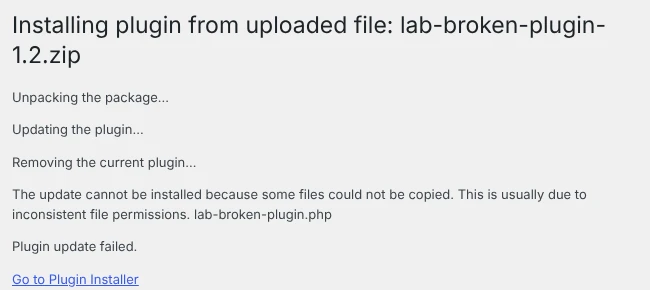
| “The update cannot be installed because some files could not be copied.” | Plugin folder not writable by WordPress | File permissions |
| “Could not create directory.” | wp-content not writable, with FS_METHOD set to direct | File permissions |
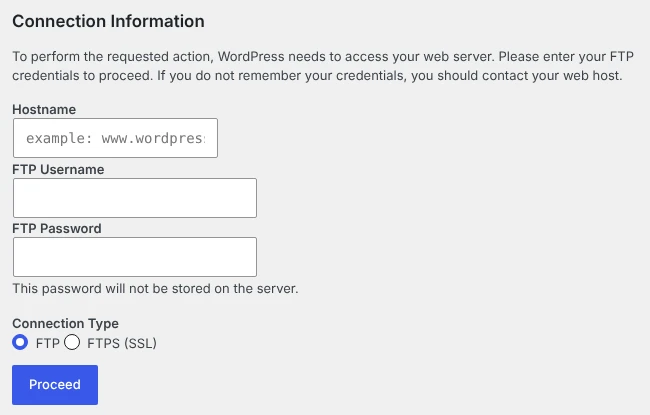
| “Connection Information” form asking for FTP details | wp-content not writable | FTP details |
| “Download failed.” plus a reason | The package address didn’t answer properly; the words after it said why | Download failed |
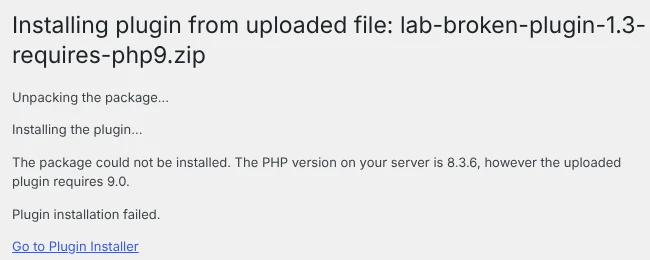
| “The PHP version on your server is 8.3.6, however the uploaded plugin requires 9.0.” | The new version needs newer PHP | PHP version |
| “An automated WordPress update has failed…” (dashboard notice) | A leftover .maintenance file, or a recorded core failure | Automated update |
| “Another update is currently in progress.” | A core update lock (from WordPress’s code; we tested the lock, not this screen) | Automated update |
This is the copy failure as it appeared on the update screen:
If the site shows “Briefly unavailable for scheduled maintenance” instead, the update was cut off; our maintenance mode guide covers that first.
Fix the file permissions behind ‘could not copy’ errors
Both messages mean the user WordPress runs as can’t write to wp-content because of its file permissions. File permissions are the rules for which system users may read and change each file and folder. On our server, the same update worked once wp-content belonged to the user PHP runs as.
- On shared hosting: your host has to correct who owns your WordPress files. The handbook’s permissions page says the web server process itself should never own files on a shared host, so don’t try to copy what we did on our own server. Our file permissions guide explains the safe settings.
- On your own server: from the WordPress folder, note the current owner with
ls -ld wp-contentso you can set it back, and find PHP’s user in your PHP-FPM pool file (ours saiduser = www-data). We then ransudo chown -R www-data:www-data wp-content. To undo, run the same command with the owner you noted.
wp-content/upgrade is the folder where WordPress unpacks new versions before copying them. A failed attempt left its package there in our test. You can delete leftovers there with your file manager once no update is running; our next attempt worked with it still there.
When WordPress asks for FTP details
A form titled “Connection Information” means WordPress can’t write files itself and wants FTP credentials to do it another way. FTP credentials are the hostname, username and password your host gives you for file access. On our test site the form appeared when the whole wp-content folder was unwritable:
FS_METHOD is an optional wp-config.php setting for how WordPress writes files. A common tip is to add define( 'FS_METHOD', 'direct' );, which the handbook warns can open security issues on poorly configured hosts. On our site that removed the form but not the problem, because the next attempt said “Could not create directory” and failed. The handbook’s wp-config page says to change FS_METHOD only for update problems and, if it doesn’t help, to “change it back/remove it”.
So fix the ownership as described above. Enter FTP details only if your host tells you that’s how your account is meant to update.
Fix ‘Download failed’ and PHP version errors
Read the words after “Download failed.”, because they name the reason. When we pointed a plugin update at a package address that didn’t answer properly, the update screen said “Download failed. Service Unavailable” and kept the old version.
Either way, you can update without the download. To update a plugin or theme by upload:
- Download the plugin’s or theme’s zip on your own computer from its official page.
- In wp-admin, open Plugins > Add Plugin > Upload Plugin (or Appearance > Themes > Add Theme > Upload Theme) and choose the zip.
- WordPress lists the installed and uploaded versions. Click Replace current with uploaded for a plugin, or Replace installed with uploaded for a theme; both updated our test copies.
That route updated our plugin once the files were writable. If downloads keep failing, send your host the exact message on shared hosting; on your own server, check that it can make outgoing HTTPS connections.
WordPress core by hand. Our lab couldn’t run core updates, so this is the handbook’s upgrade page in short. Back up the database and all files, check the backups work, and deactivate your plugins.
Then download WordPress from wordpress.org, delete the old WordPress files but keep wp-config.php, wp-content and a customised .htaccess, upload the new files, then follow the upgrade screen. The handbook also mentions one-click updates in WP Toolkit if your host’s cPanel or Plesk has it.
Requires PHP is the minimum PHP version a plugin declares. When a test package we built on purpose declared PHP 9.0, WordPress refused it on PHP 8.3.6 and kept the old version:
Stay on the current version until your host can move you to the PHP version the message names.
Clear the ‘automated WordPress update has failed’ notice
Two leftovers caused this dashboard notice on our test site, and deleting each one made it go away. The automated WordPress update has failed notice is a warning WordPress shows administrators when it thinks an update stopped partway. The core update lock, the other leftover in this area, blocks new updates instead:

- A leftover
.maintenancefile: a file whose time is over 10 minutes old no longer blocks the site, but it still triggers this notice. Delete it from WordPress’s main folder with your file manager, with hidden files shown. - A recorded core failure: WordPress stores the failed version in an option called
auto_core_update_failed, and its code warns the failed update may have copied some files and not others. So update core properly first, from Dashboard > Updates or by hand as above; the code says a successful update clears the flag. Our offline lab couldn’t run a core update to confirm.wp option delete auto_core_update_failedonly removed the notice on our site, so use it afterwards, not instead. - “Another update is currently in progress.”: the core update lock,
core_updater.lock, lasts 15 minutes in WordPress’s code, so waiting 15 minutes works without any access. With SSH, and if no update is running,wp option delete core_updater.lockremoved it on our site.
Roll back a plugin update that broke the site
Upload the older version’s zip the same way as an update. On our site WordPress listed both versions, warned “You are uploading an older version of a current plugin”, then said “Plugin downgraded successfully.” Back up your database and files first, as that warning says, and check that the backups open. Get the older zip from the plugin’s developer or from your own backups.
If an update was cut off, the site shows the maintenance message first; delete .maintenance as our maintenance guide describes. If the plugin’s folder is then missing and the Plugins screen says “Plugin file does not exist”, look in wp-content/upgrade-temp-backup/plugins/. After we killed an update midway, the old copy was there, and the plugin worked again once we copied that folder back into wp-content/plugins and activated it. WordPress’s code schedules a weekly clean-up of that folder, so do it soon.
If the updated plugin shows the critical error message, switch it off first with our critical error guide. For WordPress core, the handbook’s upgrade page says rolling back is usually not recommended, and without a backup made before the update “a successful rollback is near impossible”. Our WordPress errors guide has the backup checklist to use before any update.
Frequently Asked Questions
Is my site broken if a plugin update fails?
Not in our tests, as long as the update stopped with a message. After the copy failure, the PHP refusal and the WP-CLI failure, the old version stayed installed and active. Only an update we killed midway left the plugin missing, which the rollback section covers. If your site shows a blank page after an update, our white screen guide is the place to start.
Does WordPress email me when an automatic update fails?
WordPress’s code has emails for this, with subjects such as “Some plugins have failed to update” and, for core, “URGENT: Your site may be down due to a failed update”. We didn’t trigger them, because our lab can’t send mail or run automatic updates. If you get one, start with the message table above.
Can a full disk make an update fail?
We didn’t reproduce it. An update needs room to unpack the new version in wp-content/upgrade and keep the old one in wp-content/upgrade-temp-backup at the same time, so check your hosting panel’s disk usage if the message doesn’t match any row above. If WP-CLI is your route, add --skip-plugins when a broken plugin stops it with a fatal error.
How we tested
We broke plugin and theme updates on purpose on a test site running WordPress 7.1.3 on Ubuntu 24.04, with nginx 1.24.0 in front of PHP-FPM 8.3.6 running as www-data, and WP-CLI 2.12.0.
On 2 November 2026 we uploaded plugin updates with the plugin folder, then all of wp-content, owned by another user. We tried again with FS_METHOD set to direct, and after fixing ownership. Running as the web server user, WP-CLI updated an active test plugin three times: with the folder unwritable, normally, and stopped midway.
We also tried a theme update by upload, a package URL that didn’t answer, a package requiring PHP 9.0, a downgrade by upload, the core update lock and the failed-update notice. Our test server had no connection to WordPress.org, so we didn’t run core updates. Every change was reversed.