
“Allowed memory size of N bytes exhausted” means a PHP script asked for more memory than its limit allows, so PHP stopped it. Read the number and the file path in the error first. Then switch off the code it names, or raise the limit with WP_MEMORY_LIMIT, WordPress’s memory setting in wp-config.php, and ask your host if the limit won’t move.
Each way of raising the limit below was tested on a test site, never a live site: WordPress 7.1.3 on PHP-FPM 8.3.6 with nginx 1.24.0, plus Apache 2.4.58 for the .htaccess case. That includes the cases where raising the limit did nothing, and the second, higher limit WordPress uses on admin screens, WP_MAX_MEMORY_LIMIT.
What “allowed memory size exhausted” means in WordPress
An allowed memory size exhausted error means one request needed more memory than the PHP memory_limit setting says it may use. PHP’s manual says memory_limit “sets the maximum amount of memory in bytes that a script is allowed to allocate” (default 128M). Going past it is a fatal error.
WordPress then shows its critical error screen with HTTP 500. Our test plugin tried to hold 150 MB under a 128M limit, and the debug log recorded this:
PHP Fatal error: Allowed memory size of 134217728 bytes exhausted (tried to allocate 157286432 bytes) in /srv/err/wp-content/mu-plugins/lab-memory.php on line 9Each part of that line answers a different question:
| Part of the line | What it means | In our test |
|---|---|---|
| Allowed memory size of 134217728 bytes | The limit in force, in bytes. Divide by 1,048,576 for megabytes. | 128M |
| tried to allocate 157286432 bytes | The size of the request that went over. In our slow-filling loop test it was only 20,480 bytes. | About 150 MB |
| in /path/to/file.php on line 9 | The code that was running when memory ran out | Our test plugin |
If you only see the critical error message and no log line, our critical error guide shows how to find this line. Seeing a blank page instead? Start with our white screen guide.
Check your real limit and WP_MAX_MEMORY_LIMIT in Site Health
In wp-admin, open Tools > Site Health, click the Info tab and expand Server. Site Health is WordPress’s built-in report on your setup, and it shows the value your host set, which may differ from PHP’s default. It shows two limits, because WordPress raises memory for admin screens:
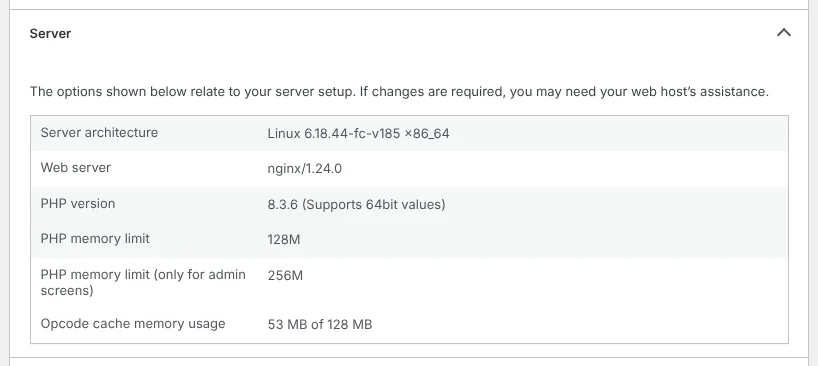
WP_MAX_MEMORY_LIMIT is the WordPress setting for that admin limit, 256M by default. On our site, the front end and background admin requests (admin-ajax.php) ran at 128M, while dashboard screens ran at 256M. So the same task could work on a dashboard screen and still fail on the front end; we measured the limits, not such a task.
Further down, the WordPress Constants panel shows the two WordPress settings:
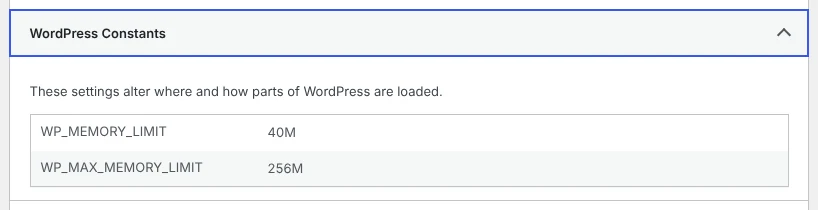
Don’t let the 40M worry you. WordPress only uses its own setting when it’s higher than PHP’s limit, so our site still ran at 128M.
Find what used up the memory
To find what used up the memory, read the path at the end of the error line: it names the code that was running. Fix that first, because a bigger limit only helps when the job is big but normal.
- A folder in
wp-content/pluginsorwp-content/themes: that plugin or theme was running. Update it, or switch it off by renaming its folder, and check whether the error stops. Copy the folder first so you can restore it. - A file in
wp-content/mu-plugins: a must-use plugin, which loads on its own and can’t be deactivated in wp-admin. Download a copy, then move or rename the single file. Our test plugins lived here. - A file in
wp-includesorwp-admin: WordPress core code was running at that moment, and the line doesn’t say which plugin or theme started the job. Switch plugins off one at a time to find it. - During an import: the handbook’s importer page suggests raising the limit or splitting the file into “several smaller files”.
No line in your log? Turn on the debug log; our WordPress errors guide shows how to keep it private. The path shows where memory ran out. In our loop test the failing request was tiny, so the code named may not be what filled memory; if switching it off changes nothing, test the others.
Increase the WordPress memory limit with WP_MEMORY_LIMIT
WP_MEMORY_LIMIT is a wp-config.php line that asks PHP for more memory for WordPress. On our site, setting it to 256M fixed the 150 MB task:
- Open your site’s files with your host’s control-panel file manager or an FTP/SFTP client, the two routes the handbook’s FTP page lists. (We used shell access on our lab server.)
- In the folder that holds
wp-adminandwp-content, download a copy of wp-config.php so you can undo the change. - Search the file for
WP_MEMORY_LIMIT. If a line exists, change its value; a second define is ignored by PHP, as our test with another constant showed. - If there’s no line, add this above the comment that starts
/* That's all, stop editing!, or, if your file has no such comment, above the linerequire_once ABSPATH . 'wp-settings.php';:
define( 'WP_MEMORY_LIMIT', '256M' );- Save, wait a few seconds, then check Site Health again. PHP’s file cache on our lab rechecks edited files every 2 seconds.
To undo it, delete the line or upload your copy. wp-config.php also holds your database password, so keep that copy private; our guide to wp-config.php security covers the file in more depth.
The WordPress handbook says this “increases PHP Memory only for WordPress”, and that such lines go before WordPress loads wp-settings.php. For admin screens, WP_MAX_MEMORY_LIMIT works the same way.
Two things surprised us. A value lower than PHP’s limit was ignored: 64M left our site at 128M. And when the server locked the limit, 256M did nothing at all, which the next section covers.
When wp-config.php doesn’t change the limit
If Site Health still shows the old limit, first check the line’s value, its place and that there’s only one. If the WordPress Constants panel shows your new value but PHP memory limit hasn’t moved, the server has locked the limit. We locked ours at 128M the way a host can, in the server configuration. WP_MEMORY_LIMIT then had no effect, WP_MAX_MEMORY_LIMIT dropped to 128M too, and the 150 MB task failed again.
Here’s what we tried on our test site, which runs PHP through PHP-FPM, a separate PHP service many servers use:
| Where we set 256M | Result on our test site |
|---|---|
WP_MEMORY_LIMIT in wp-config.php | Worked, unless the server locked the limit |
.user.ini next to wp-config.php | Worked (we reloaded PHP-FPM so it applied at once) |
php_value memory_limit 256M in .htaccess | Every page returned HTTP 500 |
Server lock (PHP_ADMIN_VALUE) set to 128M | Neither WP_MEMORY_LIMIT nor .user.ini could raise it |
memory_limit in the server’s php.ini (VPS) | Worked after reloading PHP-FPM |
A .user.ini file is a small PHP settings file; ours sat in the WordPress folder, next to wp-config.php. PHP’s manual says these files “are processed only by the CGI/FastCGI SAPI” (PHP-FPM is one) and are reread every 300 seconds by default; we didn’t test that wait. Create it in your file manager with this one line, and delete it to undo:
memory_limit = 256MOn our Apache server running PHP-FPM, a php_value line in .htaccess made every page return 500, with “Invalid command ‘php_value’” in the error log. PHP’s manual points Apache-module users to .htaccess instead, which we didn’t test. If you get that 500, remove the line through your file manager; our 500 error guide explains that case. On nginx, .htaccess isn’t read at all.
On shared hosting, ask your host to raise the limit if none of these move it. The handbook also suggests that if you’re unfamiliar with php.ini. If you run your own server, change memory_limit in the php.ini your PHP-FPM uses (ours was /etc/php/8.3/fpm/php.ini) and reload PHP-FPM. Also check the server and pool settings for a lock like the one we used.
When raising the limit is the wrong fix
If the same error comes back at a higher limit, more memory won’t solve it: the code has a problem. We tested a plugin with a loop that never stops adding data. It failed at 128M, and after we raised the limit to 512M it failed again in under a second:
PHP Fatal error: Allowed memory size of 536870912 bytes exhausted (tried to allocate 536870920 bytes) in /srv/err/wp-content/mu-plugins/lab-runaway.php on line 6The handbook warns that a higher limit can end up “hiding the root of the issue”. Remove the line you added (or set it back to its old value), then switch off or replace the plugin the path names. If it’s your own code, the handbook suggests debugging it properly or moving heavy work to a scheduled task.
Frequently Asked Questions
What is the default WordPress memory limit?
WordPress asks for 40M on a single site and 64M on multisite, but it never lowers PHP’s own limit, which defaults to 128M. Admin screens get 256M by default through WP_MAX_MEMORY_LIMIT, unless the server locks the limit; then both match PHP’s limit. On our test site that meant 128M for visitors and 256M in the dashboard.
Why does the error still say 128M after I set 256M?
Check Site Health first. In our tests, the limit stayed at 128M when the server locked it, and an edited file took a moment to apply. Also make sure the line sits above “That’s all, stop editing” and that there’s only one WP_MEMORY_LIMIT line. A value below PHP’s limit is ignored too.
Should I set memory_limit to -1?
We don’t recommend it, and we didn’t test it. PHP’s manual says -1 means no limit, and that the limit “helps prevent poorly written scripts for eating up all available memory on a server”. With no limit, PHP’s memory limit would not have stopped our runaway loop.
How we tested
Each fix in this guide was tried on its own and then reversed, on a WordPress 7.1.3 test site with nginx 1.24.0, PHP-FPM 8.3.6 and a php.ini memory_limit of 128M. The date was 2 November 2026.
To use up memory on demand we wrote a small test plugin that held 100 MB or 150 MB, and a second one that never stopped adding data. Both were removed afterwards. We raised the limit with WP_MEMORY_LIMIT (64M, 256M, 512M), a .user.ini file and php.ini at 256M.
Then we locked the limit at 128M in the server configuration and tried WP_MEMORY_LIMIT and .user.ini again. php_value in .htaccess was tried on an Apache 2.4.58 copy. We read the limit in force on the front end, on admin screens, for admin-ajax.php requests and in Tools > Site Health.