
Vulnerable and abandoned plugins are the single biggest way WordPress sites get hacked: 91% of new WordPress vulnerabilities in 2025 were in plugins, and nearly half never got a fix in time. To check your own site, match your installed plugins against a vulnerability database and flag any that haven’t been updated in over a year or have been pulled from the plugin directory. This guide shows how to do both, and what to do when a plugin you rely on is the problem.
Why plugins are the weak point
Plugins, not WordPress itself, are where almost all the risk lives. Patchstack’s State of WordPress Security in 2026 counted 11,334 new vulnerabilities across the ecosystem in 2025, up 42% on the year, and found “91% of new vulnerabilities were found in plugins, and 9% were found in themes.” WordPress core had six, all low priority (Patchstack, Feb 2026).
Two numbers from that report explain the urgency. First, “46% of vulnerabilities did not receive a fix from the developer in time for public disclosure,” so for nearly half, the hole is public before any patch exists. Second, attacks come fast: for heavily exploited vulnerabilities, “the weighted median time to first exploit is 5 hours.” Waiting a weekend to update is waiting too long.
And you can’t assume your host’s firewall catches it. In Patchstack’s tests, traditional defenses “only blocked 12% of WordPress-specific vulnerability attacks” in one run and 26% in another. The reliable fix is not having the vulnerable code installed.
How a hacker reaches a deactivated plugin
Deactivating a plugin does not take its files off the server, and many plugin files run on their own if requested directly. So an “off” plugin with a vulnerability can still be exploited.
We checked this on our test site with a stand-in plugin: a do-nothing PHP file written without the usual ABSPATH guard that stops direct access, which is how plenty of older plugins are built. Deactivated, the plugin’s file still ran when requested straight from the browser and returned 200 (test T1). Only deleting the plugin removed it: after wp plugin delete, the same URL returned 404.
The lesson is simple. Deactivating is not removing. A plugin you’re not using should be deleted, not just switched off.
Check your plugins against a vulnerability database
To find known-vulnerable plugins, compare your installed versions against a vulnerability database. The three maintained ones are WPScan, Wordfence Intelligence, and Patchstack; each publishes a feed of WordPress vulnerabilities by plugin and version.
You have three practical routes:
- A security plugin that checks for you. Wordfence, Patchstack, and similar plugins compare your installed versions against their database and warn you in the dashboard. The least effort, and it rechecks automatically.
- A vulnerability-scanner plugin. Lightweight plugins exist whose only job is to match your plugins against a feed and list any with known issues. Good if you don’t want a full security suite.
- Check by hand. List your plugins and versions, then look each up. With WP-CLI:
wp plugin list --fields=name,status,version,update,auto_update. Then search each name on a vulnerability database. Slower, but it needs nothing installed.
Whichever you use, the point is to know which of your plugins have a known hole and whether the version you run is the fixed one.
Spot abandoned plugins before they become vulnerable
A plugin with no recent updates is a vulnerability waiting to happen, because when a hole is found, nobody will patch it. Abandonment is the leading indicator; the vulnerability often comes later.
Signs a plugin is abandoned or on its way:
- No update in over a year. The clearest signal. The plugin directory shows “last updated” on every plugin page.
- “Untested with the current version of WordPress” on the plugin page, especially if it’s several versions behind.
- A closed plugin page. The directory removes plugins for unfixed security issues or guideline breaches, and shows a dated notice such as “This plugin has been closed as of July 24, 2023 and is not available for download. Reason: Guideline Violation” (seen on a closed directory listing). A closed plugin gets no more updates and should be replaced.
- A developer who has gone quiet in the support forum, with unanswered threads piling up.
To find these on your own site, list your plugins and check each one’s directory page for its last-updated date and whether the page is still open. A plugin that’s been pulled from the directory is the most urgent: you won’t get update notifications for it, so it can sit installed and forgotten.
Turn on automatic updates
To shrink the window between a fix and your site getting it, turn on automatic updates for plugins. Given that attacks can land five hours after disclosure, manual updating on your schedule is often too slow.
On our test site, enabling auto-updates for all plugins stored the choice in the auto_update_plugins option, and the plugin list then showed each active plugin as auto_update: on (test T2). You can do the same from Plugins in the admin, where each plugin has an “Enable auto-updates” link, or with WP-CLI: wp plugin auto-updates enable --all.
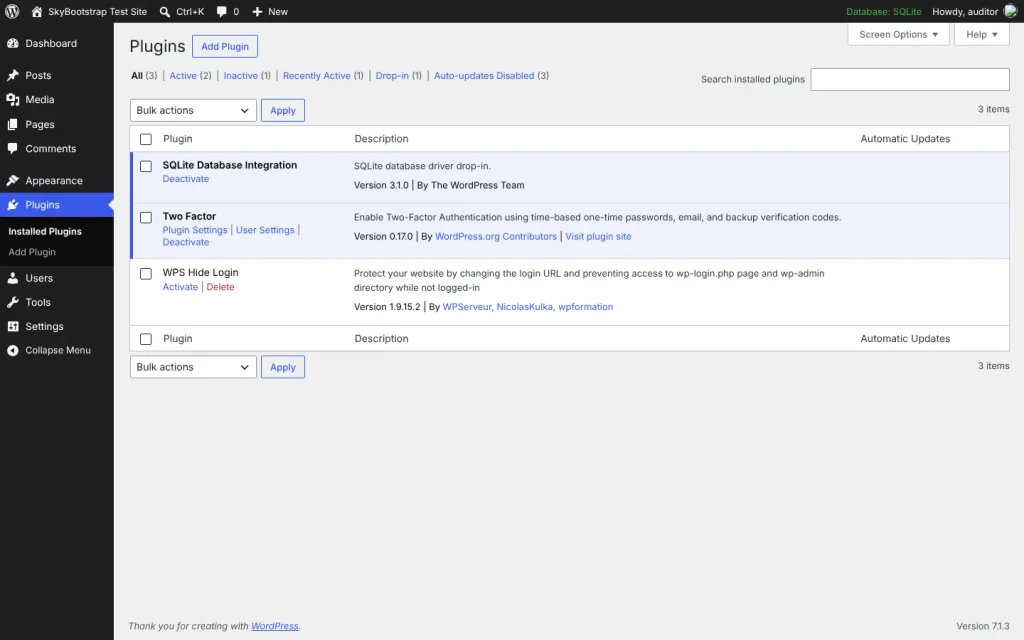
Auto-updates aren’t risk-free: an update can occasionally break a site. The safe version is auto-updates plus a recent backup and, ideally, a staging site where a major update runs first. But for most small sites, the risk of a bad update is far smaller than the risk of running a known-vulnerable plugin for days. Note that if you’ve set the DISALLOW_FILE_MODS constant to lock down the file editor, it also turns off automatic updates; that trade-off is covered in wp-config.php security settings.
Frequently Asked Questions
How do I check if my WordPress plugins are vulnerable?
Match your installed plugins and versions against a vulnerability database, WPScan, Wordfence Intelligence or Patchstack. The easiest way is a security plugin that checks automatically and warns you in the dashboard; a lightweight vulnerability-scanner plugin or a manual lookup of each plugin works too. The point is to know which plugins have a known hole and whether the version you run is the fixed one.
Is it safe to just deactivate a plugin instead of deleting it?
No. Deactivating leaves the files on your server, and many plugin files run on their own when requested directly. On our test site a deactivated plugin’s PHP file still executed from the browser; only deleting it removed the risk. A plugin you’re not using should be deleted, not just switched off, so a known vulnerability in it can’t be reached.
How can I tell if a WordPress plugin is abandoned?
Check its plugin-directory page. The clearest sign is no update in over a year; also watch for an “untested with the current version of WordPress” notice, a support forum full of unanswered threads, or a closed plugin page. A plugin pulled from the directory is the most urgent, because you’ll get no update notifications for it and it can sit installed and forgotten.
Should I turn on automatic updates for WordPress plugins?
For most sites, yes. Attacks can land within hours of a vulnerability being disclosed, so manual updating on your own schedule is often too slow. Pair auto-updates with a recent backup, and ideally a staging site for major updates, so a rare bad update is easy to recover from. The risk of a bad update is far smaller than running a known-vulnerable plugin for days.
When the vulnerable plugin is one you need
Sometimes the plugin with a hole is one you can’t just delete. Work through it in order:
- Update it. If a fixed version exists, update immediately. This is most cases.
- No fix available? Check whether the vulnerability needs a logged-in user or a specific setting; you may be able to reduce exposure by changing a setting or restricting access while you wait.
- Plugin abandoned or closed? Find a maintained replacement that does the same job and migrate. This is the real fix for an abandoned plugin.
- No replacement and you truly need it? A web application firewall rule can virtually patch a specific vulnerability as a stopgap, but treat it as temporary, not a solution.
- Delete what you don’t need. Every plugin you remove is one you’ll never have to patch. Audit the list and delete anything unused, deactivated-but-installed included.
Run this check on a schedule, not once. New vulnerabilities are disclosed daily, so a plugin that’s clean today can be the problem next week. A quarterly audit of installed plugins, their versions, and their update status keeps the list honest. Where this fits in the wider hardening work is in the full WordPress security checklist, and if you suspect a plugin was already exploited, start with cleaning up a hacked site.