---
title: "Error Establishing a Database Connection in WordPress: Find Which Detail Is Wrong"
description: "Fix error establishing a database connection in WordPress: find the wrong detail in wp-admin, test it with a script, repair tables, check the server."
url: "https://skybootstrap.com/error-establishing-a-database-connection/"
canonical_url: "https://skybootstrap.com/error-establishing-a-database-connection/"
date: "2026-11-14T18:16:00+06:00"
modified: "2026-11-07T12:17:52+06:00"
author: Skybootstrap Team
type: article
site: SkyBootstrap
language: en-US
---

# Error Establishing a Database Connection in WordPress: Find Which Detail Is Wrong

“Error establishing a database connection” means WordPress couldn’t log in to its database, usually because a detail in wp-config.php is wrong or the database server is down. Open `/wp-admin/` to see a longer message, test the four database details with a small script, then correct the wrong one, run a database repair if wp-admin says tables are unavailable, or ask your host to restart the server.

We triggered this error five different ways on our WordPress 7.1.3 test site, which uses a MariaDB 10.11 database. The front end looked identical every time, so the steps below focus on finding out which one you have.

## What “error establishing a database connection” means

A database connection error is WordPress failing to log in to the database that holds your posts, pages and settings. Without that connection it can’t build any page. MySQL, and the compatible MariaDB, are the database servers WordPress uses; your host runs one for you.

On our test site, a wrong password, a wrong database name, a wrong host and a stopped database server all produced the same page, with HTTP status 500:
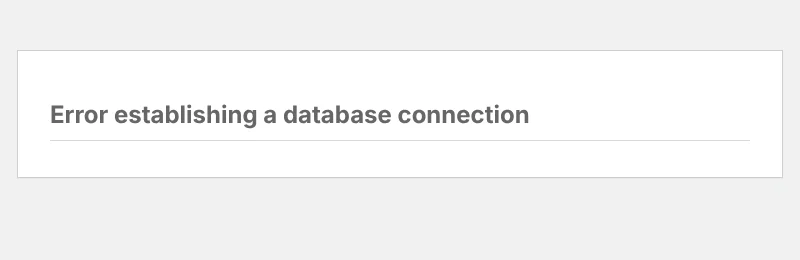
![Error establishing a database connection message on the WordPress front end](https://skybootstrap.com/wp-content/uploads/2026/11/database-error-front-end.webp "Test site, 2 Nov 2026: WordPress 7.1.3, MariaDB 10.11. The same short page appeared for all four causes we tried.")

The [WordPress handbook](https://developer.wordpress.org/advanced-administration/wordpress/common-errors/) says the error “is usually caused by an error in your wp-config.php file”, so check the details before anything else. The handbook adds that database errors can also show up as a blank page, which our white screen guide covers. For other error screens, start with our guide to WordPress errors.

## Read the longer message in wp-admin

Open `https://yoursite.com/wp-admin/` while the error is showing. WordPress gives visitors the short message but prints its detailed explanation in the admin area, as its own code shows. For a wrong database name, our wp-admin page said exactly that:
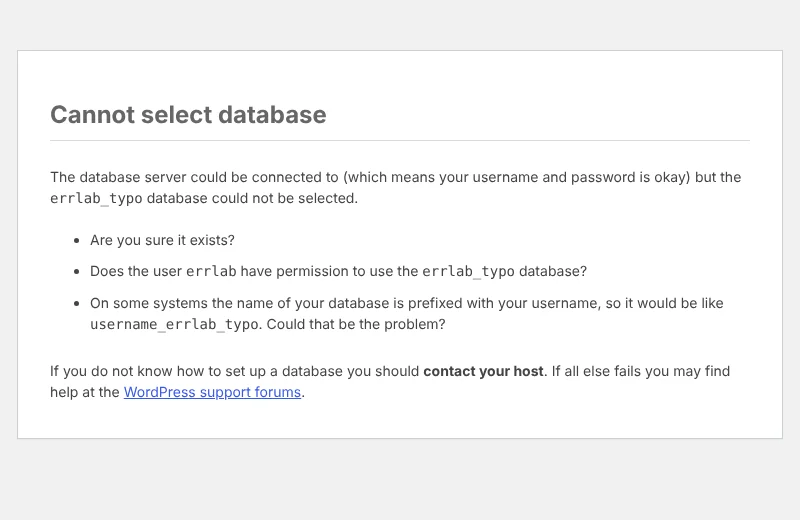
![Cannot select database message in wp-admin, saying the user and password worked but the database could not be selected](https://skybootstrap.com/wp-content/uploads/2026/11/database-error-wp-admin-cannot-select.webp "Test site, 2 Nov 2026: WordPress 7.1.3. A wrong DB_NAME in wp-config.php.")

For a wrong password, a wrong username and a stopped server, wp-admin showed the same paragraph: the details are “incorrect or that contact with the database server at localhost could not be established”. With a wrong host, the paragraph named that host instead of localhost. So the admin page tells you when the database name is the problem, but it doesn’t separate a bad password from a stopped server. The test script below does.

## Test the wp-config.php details with a small script

A small script can test the wp-config.php details itself: it reads the database lines and tries them without loading WordPress. Ours named each failure differently in our tests. Using your host’s file manager, create `db-test.php` in the folder that holds `wp-admin` and `wp-content`, paste the code, open `https://yoursite.com/db-test.php` once, then delete the file.

```
<?php
// db-test.php: checks the database details in wp-config.php without loading WordPress.
// Upload it to the folder that holds wp-admin and wp-content, open https://yoursite.com/db-test.php once, then DELETE this file.
// Limitation: it reads plain define( 'NAME', 'value' ) lines; values built with getenv() or containing a quote can't be read.
error_reporting( 0 );
$file = __DIR__ . '/wp-config.php';
if ( ! is_file( $file ) && is_file( dirname( __DIR__ ) . '/wp-config.php' ) ) {
$file = dirname( __DIR__ ) . '/wp-config.php'; // WordPress also allows wp-config.php one folder up.
}
$config = is_file( $file ) ? file_get_contents( $file ) : false;
if ( false === $config ) {
exit( 'wp-config.php was not found next to this file or one folder up. Move db-test.php to your WordPress folder.' );
}
foreach ( array( 'DB_NAME', 'DB_USER', 'DB_PASSWORD', 'DB_HOST' ) as $key ) {
// Only lines that start with define(, so commented-out old lines are skipped.
preg_match( "/^\s*define\(\s*['\"]" . $key . "['\"]\s*,\s*['\"](.*?)['\"]\s*\)/m", $config, $m );
$db[ $key ] = isset( $m[1] ) ? $m[1] : null;
if ( null === $db[ $key ] && 'DB_PASSWORD' !== $key ) {
exit( 'Could not read ' . $key . ' from wp-config.php. It may be set in another way; check the file by hand.' );
}
}
// DB_HOST may hold a port (127.0.0.1:3307) or a socket (localhost:/path/mysqld.sock), as WordPress allows.
$host = $db['DB_HOST']; $port = null; $socket = null;
if ( preg_match( '/^(.*?):(\d+)$/', $host, $p ) ) { $host = $p[1]; $port = (int) $p[2]; }
elseif ( preg_match( '/^(.*?):(\/.+)$/', $host, $p ) ) { $host = $p[1]; $socket = $p[2]; }
mysqli_report( MYSQLI_REPORT_OFF );
$link = @mysqli_connect( $host, $db['DB_USER'], (string) $db['DB_PASSWORD'], '', $port, $socket );
if ( ! $link ) {
echo 'Cannot connect to the database server at ' . htmlspecialchars( $db['DB_HOST'] ) . ': ' . htmlspecialchars( mysqli_connect_error() );
} elseif ( ! mysqli_select_db( $link, $db['DB_NAME'] ) ) {
echo 'Connected, but cannot open the database ' . htmlspecialchars( $db['DB_NAME'] ) . ': ' . htmlspecialchars( mysqli_error( $link ) );
} else {
echo 'Connection OK: user ' . htmlspecialchars( $db['DB_USER'] ) . ' opened ' . htmlspecialchars( $db['DB_NAME'] ) . '.';
}
```

Here’s what it printed on our test site for each case:

| Case | What db-test.php printed | What to fix |
| --- | --- | --- |
| Correct details | Connection OK: user errlab opened errlab. | Nothing in wp-config.php |
| Wrong password | Cannot connect … Access denied for user ‘errlab’@’localhost’ (using password: YES) | `DB_PASSWORD` |
| Wrong username | Cannot connect … Access denied for user ‘nosuchuser’@’localhost’ | `DB_USER` |
| Wrong database name | Connected, but cannot open the database errlab_typo: Access denied … to database ‘errlab_typo’ | `DB_NAME`, or the user’s rights to it |
| Wrong host | Cannot connect … getaddrinfo for db.example.invalid failed | `DB_HOST` |
| Server stopped, host `localhost` | Cannot connect … No such file or directory | The database server |
| Server stopped, host `127.0.0.1` | Cannot connect … Connection refused | The database server |

DB_HOST is the address of the database server, which the handbook’s install guide calls “usually localhost, but not always”. Ours also worked with a port (`127.0.0.1:3306`) and with a socket path.

If the script says it couldn’t read a value, that line is built another way (for example, with `getenv()`), so compare it by hand. If your host blocks the file with a 403 or 404 page, skip to the next section; we haven’t checked which hosts do that. Note the wrong-name line: the server said “Access denied” rather than “doesn’t exist”, so a typo and a missing permission look the same there.

## Correct the wrong database detail

Fix the one detail the message or script pointed to, using the values from your host’s database page. wp-config.php is WordPress’s settings file, “located in the root of your WordPress file directory”, next to the `wp-content` folder.

1. Download a copy of wp-config.php before you change anything.
2. In your hosting control panel, open the databases page and note the database name, its user, and the host your host lists.
3. Compare them with the `DB_NAME`, `DB_USER` and `DB_HOST` lines in wp-config.php. Some hosts add your account name in front, like `account_wpdb`.
4. If the password is the problem and you don’t know it, set a new password for that database user in the panel, then put the same one in `DB_PASSWORD`.
5. Edit wp-config.php in the file manager’s editor, save, wait a few seconds and reload. PHP’s file cache on our server took up to 2 seconds to notice an edited file, so the fix wasn’t instant.

If the details were right and changed without you touching them, someone else may have edited the file. The handbook suggests checking for a hack once wp-config.php and your host have been ruled out; our [hacked site guide](https://skybootstrap.com/wordpress-site-hacked/) covers that. Once you’re back in, it’s worth [locking down wp-config.php](https://skybootstrap.com/wp-config-php-security/) too.

## Repair damaged database tables

When wp-admin says “One or more database tables are unavailable”, a table is damaged or unreadable (in our test, damaged), and the front end shows the usual connection error. WordPress has a repair page for this. Database repair here means asking the database server to check each table and fix what it can.

1. Back up the database from your host’s panel first, if it still exports.
2. Add `define( 'WP_ALLOW_REPAIR', true );` to wp-config.php, anywhere before the comment that ends the editable part (“That’s all, stop editing”).
3. Open `https://yoursite.com/wp-admin/maint/repair.php` and click **Repair Database**.
4. Remove the line again afterwards. The page itself asks you to, “to prevent this page from being used by unauthorized users”.

![WordPress database repair page with Repair Database and Repair and Optimize Database buttons](https://skybootstrap.com/wp-content/uploads/2026/11/database-error-repair-page.webp "Test site, 2 Nov 2026: WordPress 7.1.3. The page only appears while WP_ALLOW_REPAIR is set.")

On our test site the repair page didn’t fix it. We had damaged the options table’s index file on purpose, and WordPress reported “Failed to repair the wp_options table”. A command run in the database itself did. phpMyAdmin is the database tool that the [handbook](https://developer.wordpress.org/advanced-administration/upgrade/phpmyadmin/) says host panels such as cPanel and Plesk often include; its SQL tab runs commands like these.

1. Open phpMyAdmin and click your site’s database (the `DB_NAME` value) in the left column.
2. Export the damaged table from the Export tab if it still exports.
3. Check the table’s storage engine, the part of the database server that stores it. Replace `wp_` with the `$table_prefix` value from wp-config.php:

```
SELECT TABLE_NAME, ENGINE FROM information_schema.TABLES
WHERE TABLE_SCHEMA = DATABASE() AND TABLE_NAME = 'wp_options';
```

1. Only if it says MyISAM, run the repair our test needed:

```
REPAIR TABLE wp_options USE_FRM;
```

We ran these in the MariaDB command-line client, not phpMyAdmin. [MariaDB’s documentation](https://mariadb.com/docs/server/reference/sql-statements/table-statements/repair-table) says REPAIR TABLE “works for Archive, Aria, CSV, and MyISAM tables”, and USE_FRM is “for use only when the index file is missing or its header corrupted”, which matched our damage. Our WordPress 7.1.3 install created InnoDB tables, and those answered “doesn’t support repair”. So for InnoDB damage, restore your backup or ask your host.

## When the database server is down

If the script says it can’t reach the server, and the details match your host’s page, the database server is stopped. An overloaded server is another possibility we didn’t reproduce. On our test site, a stopped MariaDB gave the usual error until we started it again, then the site came straight back.

- **On shared hosting:** the handbook’s step is to contact your host, and it mentions a database that “has met its quota”. Send them the script’s output line and the time the error started.
- **If you have SSH access to your own server:** on our Ubuntu 24.04 lab, `sudo service mariadb start` brought the database back; on a MySQL server the service may be called `mysql` instead (not tested here). If it stops again, its error log says why.

While you wait, you can show visitors a friendlier page. WordPress loads a file called `wp-content/db-error.php`, if it exists, instead of its own message. db-error.php is a page you write yourself, so keep it simple and don’t make it rely on the database. In our test it also replaced wp-admin’s longer message, so add it only after you’ve found the cause. Ours returned status 200 unless its first line set an error code:

```
<?php http_response_code( 503 ); ?>
<!doctype html><title>Back soon</title><h1>We are fixing a database problem. Back soon.</h1>
```

If you see “There has been a critical error on this website” instead, a damaged core file gave us that message; our 500 error guide covers replacing core files.

## Frequently Asked Questions

### Why does wp-admin show a different database error?

WordPress keeps the short message for visitors and shows the detailed one in wp-admin and during installs. On our test site that detail said “Cannot select database” for a wrong database name, which the front end never mentioned.

### Can a hacked site cause this error?

Yes, it can. The WordPress handbook lists a compromised website as a possible cause once the wp-config.php details and the host have been checked. If the database details changed without you editing them, treat it as a security problem and start with the hacked-site steps linked above.

### Is it safe to leave WP_ALLOW_REPAIR on?

No. The [handbook](https://developer.wordpress.org/advanced-administration/wordpress/wp-config/) says that while it’s on, “a user does not need to be logged in” to use the repair page. WordPress itself asks you to remove it after repairing “to prevent this page from being used by unauthorized users”. Delete the line as soon as you’re done.

## How we tested

We caused this error one way at a time on a WordPress 7.1.3 test site with its own MariaDB 10.11.14 database and user, running PHP 8.3 behind nginx 1.24.0. In wp-config.php we set a wrong password, database name and host, then stopped MariaDB itself, reversing each change before the next.

The db-test.php script from this guide ran against every case. We also tried it with a wrong username, a host with a port or socket path, a commented-out old line, a `getenv()` value and a missing wp-config.php. Then we deleted it.

db-error.php was checked with the database stopped, on the front end and in wp-admin. For the repair test we converted the options table to MyISAM and damaged its index file on purpose, then repaired it and converted it back to InnoDB. All tests ran on 2 November 2026.